Published October 8, 2025 in Screen Recording · Updated September 9, 2026
10 Best Screen Recording Software Tested & Ranked (2026)

Founder & Content Creator · 10 min read
The Screen Recording Revolution: Why Generic Tools Aren't Enough
The screen recording landscape has exploded beyond simple capture tools. Today's professionals need software that doesn't just record - they need solutions that transform raw recordings into engaging, professional presentations that drive results.
Whether you're creating product demos, training materials, or marketing content, the right screen recording software can mean the difference between amateur-looking videos and professional presentations that captivate your audience and convert viewers into customers.
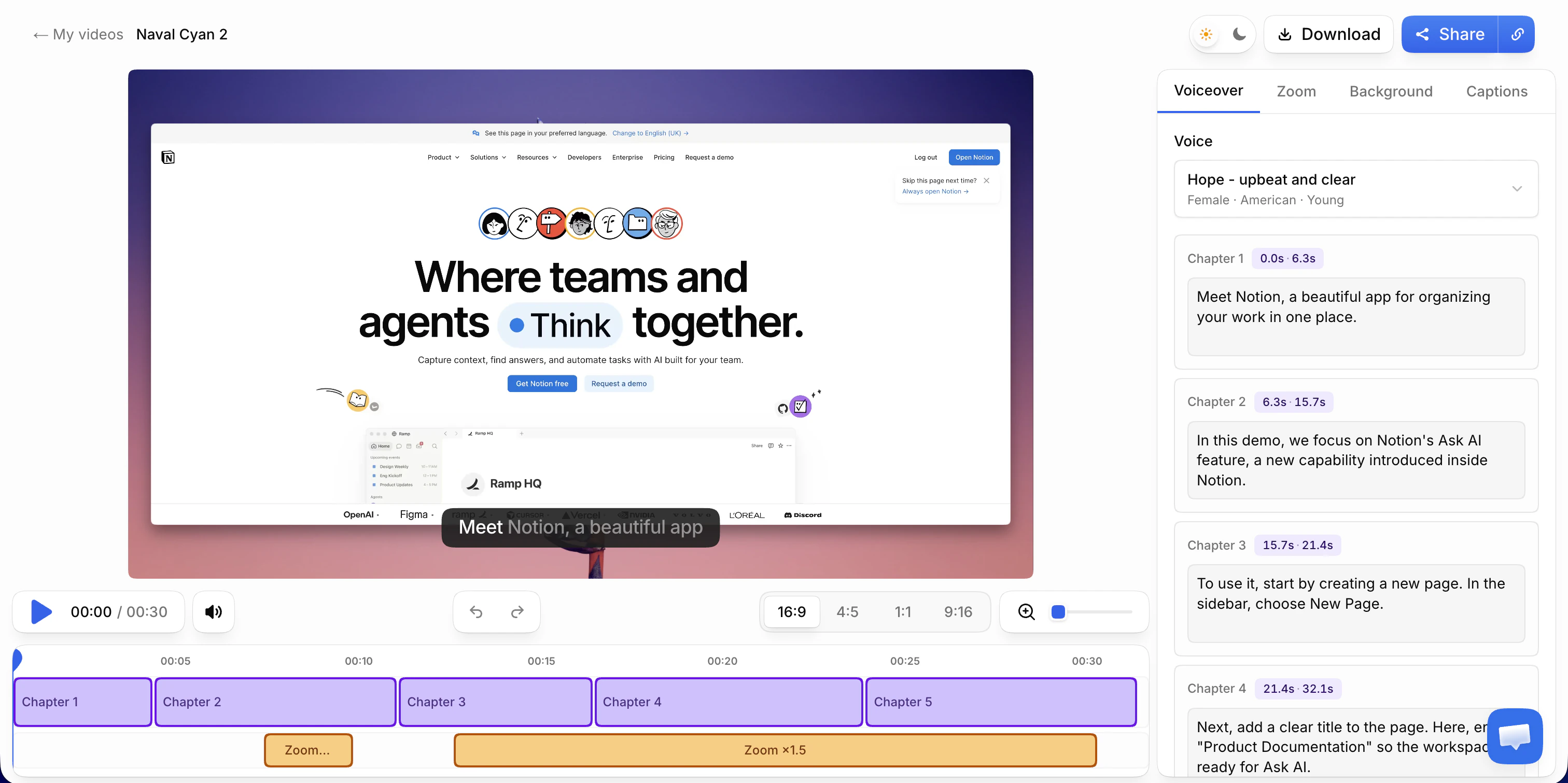
Quick Comparison: Top Screen Recording Software 2025
| Software | Best For | Starting Price | Key Strength | Unique Feature |
|---|---|---|---|---|
| Vibrantsnap | Professional presentations | Free trial | Cinematic quality | AI enhancement |
| Tella | Content creators | $12/month | AI editing | Clip-based recording |
| Loom | Team communication | Free (limited) | Quick sharing | Instant links |
| Screen Studio | Mac users | $89 one-time | Motion effects | Automatic zoom |
| OBS Studio | Live streaming | Free | Customization | Open source |
The Professional's Choice: Vibrantsnap
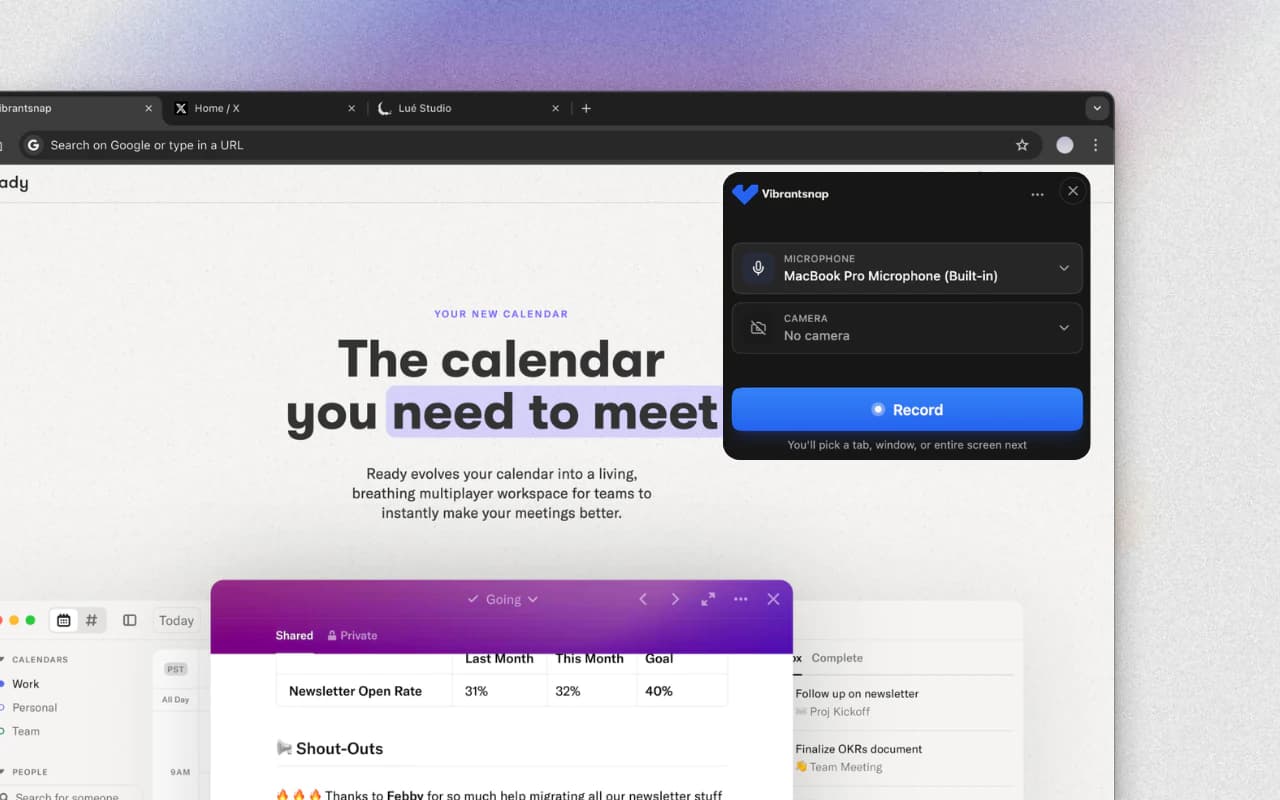
What Makes Vibrantsnap Different
Cinematic Presentation Creation Vibrantsnap doesn't just record your screen - it transforms your recordings into polished, cinematic presentations that look professionally produced. While other tools focus on basic recording, Vibrantsnap emphasizes creating content that engages and converts.
AI-Powered Rewrite The AI transcribes your narration, rewrites it into a script built to be spoken, and reads it back in a studio voice. The video is then retimed to the new read, scene by scene, and zooms are placed around your clicks.
Multi-Format Optimization Create content perfectly optimized for any platform - whether you need landscape for webinars, portrait for social media, or square for professional profiles.
Vibrantsnap Features Deep Dive
Professional Recording Capabilities
- 4K recording with crystal-clear audio
- Simultaneous browser tab and webcam capture
- Records any browser tab, no setup or sharing dialogs
- Advanced audio processing for professional quality
Intelligent Post-Production
- Automatic click and typing detection for smart zooms
- Smart pacing analysis and adjustment
- A rewritten script that leaves the fillers behind
- Brand integration and customization options
Versatile Export Options
- Multiple format support (MP4, MOV, WebM)
- Platform-specific optimization
- Direct sharing to popular platforms
- Cloud storage integration
Competitor Analysis: How Others Stack Up
Tella: The Content Creator's Tool

Strengths:
- Clip-based recording system for easier editing
- AI-powered filler word removal
- Professional layouts without complex editing
- Affordable pricing at $12-16/month
Weaknesses:
- Limited to 3-day free trial
- Performance issues with longer recordings
- Missing advanced professional features
- Browser-based limitations
Best For: Solo content creators and educators who need polished videos without extensive editing skills.
Loom: The Communication Standard
Strengths:
- Industry-standard for team communication
- Instant sharing with generated links
- Free tier available
- Wide platform compatibility
Weaknesses:
- Limited editing capabilities
- Basic presentation quality
- Subscription required for advanced features
- Not optimized for marketing content
Best For: Internal team communications and quick feedback sessions. For a feature-by-feature read on where Loom stops and an auto-editing recorder starts, see Vibrantsnap vs Loom.
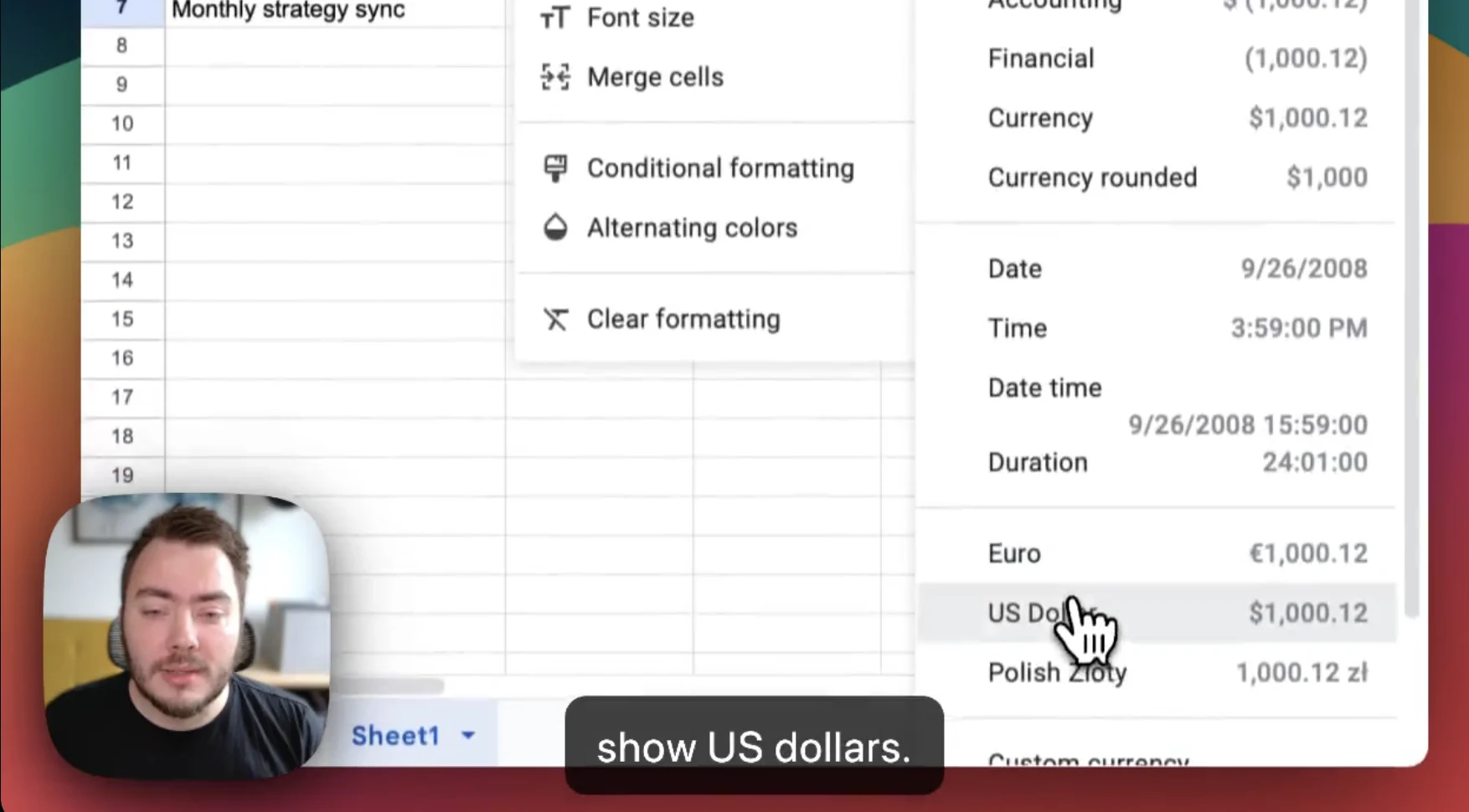
Screen Studio: The Mac Specialist
Strengths:
- Automatic zoom and motion effects
- Native Mac optimization
- One-time purchase option
- Smooth cursor tracking
Weaknesses:
- Mac-only limitation
- Steep learning curve
- Limited sharing options
- No team collaboration features
Best For: Mac-based content creators focused on tutorial creation.
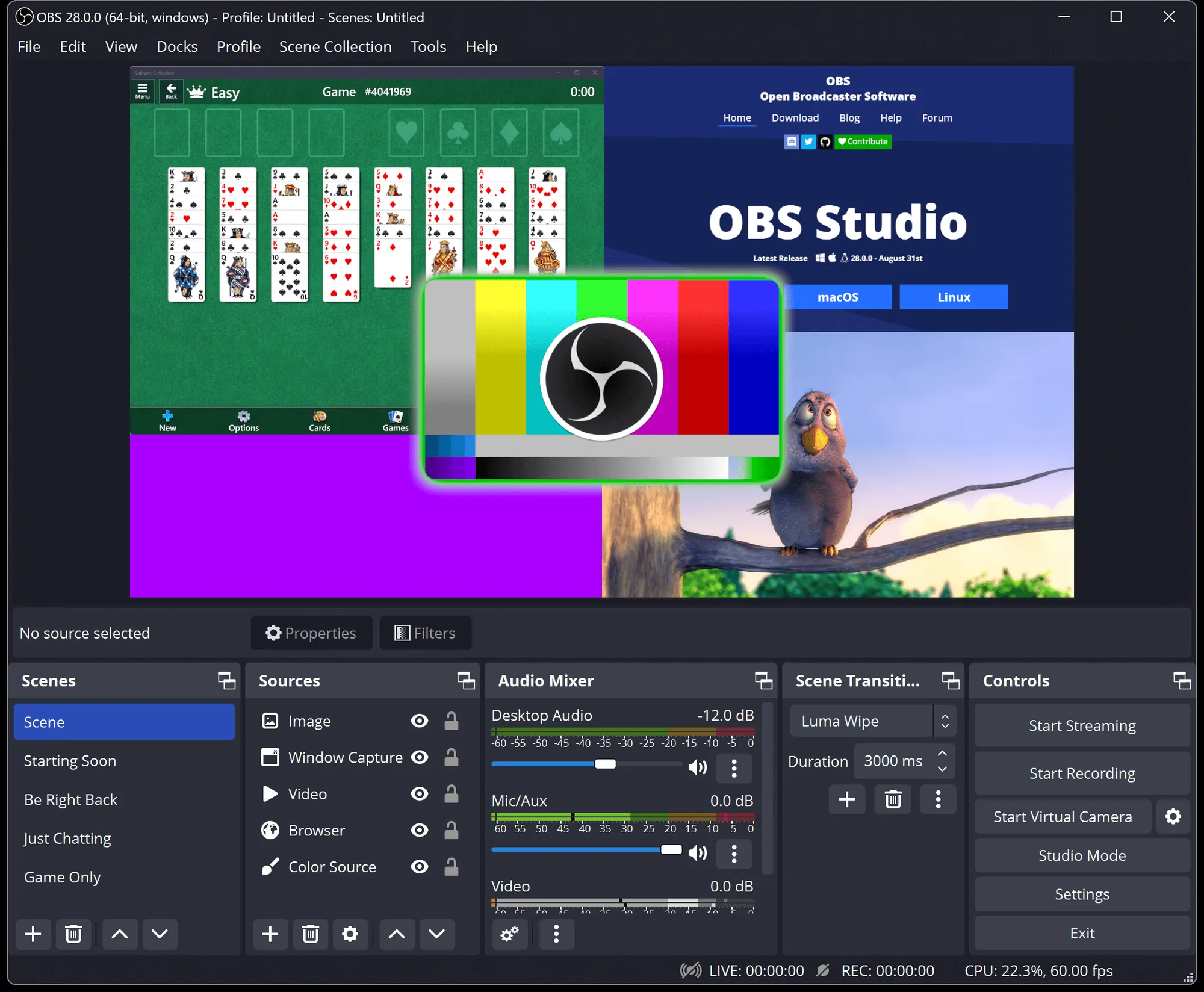
OBS Studio: The Power User's Choice
Strengths:
- Completely free and open-source
- Highly customizable
- Live streaming capabilities
- Plugin ecosystem
Weaknesses:
- Complex setup and learning curve
- No built-in editing features
- Requires technical expertise
- Time-intensive configuration
Best For: Advanced users and live streamers who need maximum control.
Feature-by-Feature Comparison
Recording Quality
| Software | Max Resolution | Audio Quality | Webcam Integration | Multi-Monitor |
|---|---|---|---|---|
| Vibrantsnap | 4K | Professional | Advanced overlay | Tab-based |
| Tella | 4K | Good | Basic layouts | Yes |
| Loom | 4K | Standard | Simple bubble | Limited |
| Screen Studio | 4K | Good | Basic | Mac only |
| OBS Studio | Unlimited | Configurable | Advanced | Full control |
Editing Capabilities
| Software | Built-in Editor | AI Features | Transitions | Branding |
|---|---|---|---|---|
| Vibrantsnap | Professional | Advanced AI | Cinematic | Full custom |
| Tella | Basic | Filler removal | Simple | Limited |
| Loom | Trim only | AI transcription | None | Basic |
| Screen Studio | Minimal | None | Motion effects | None |
| OBS Studio | None | None | None | Manual |
Sharing & Export
| Software | Export Formats | Cloud Integration | Direct Sharing | Analytics |
|---|---|---|---|---|
| Vibrantsnap | Multiple | Full | Advanced | Detailed |
| Tella | Standard | Basic | Link sharing | Basic |
| Loom | Limited | Loom cloud | Instant links | Views only |
| Screen Studio | Standard | None | Manual | None |
| OBS Studio | Configurable | Manual | None | None |
Pricing Analysis: Value for Investment
Vibrantsnap Pricing Strategy
- Free: Record, edit, and preview with no time limit
- Pro — $49/month: Watermark-free 4K exports, AI voiceover, auto-editing, 90 min of export a month
- Scale — $149/month: 400 min of export a month, video analytics, brand kit, custom support
- No annual lock-in — the full breakdown is on the pricing page
How Competitors Price Their Solutions
- Tella: $12-39/month - Good value for basic content creation
- Loom: $0-24/month per seat - Freemium model with limitations; the AI features sit on the top tier
- Camtasia: $179.88-599/year per author since TechSmith retired perpetual licences (comparison)
- VEED: Freemium, but free exports are watermarked and capped at 10 minutes (comparison)
- Screen Studio: $89 one-time - Affordable for Mac users
- OBS Studio: Free - Best budget option for technical users
Use Case Recommendations
Marketing Teams and Agencies
Recommended: Vibrantsnap Marketing content requires professional quality that reflects brand standards. Vibrantsnap's cinematic enhancement and brand integration capabilities make it ideal for client-facing content.
Content Creators and Educators
Recommended: Vibrantsnap or Tella Both offer professional results, but Vibrantsnap provides superior presentation quality for audience engagement and monetization.
Internal Team Communication
Recommended: Loom For quick team updates and feedback, Loom's simplicity and instant sharing make it the practical choice.
Technical Tutorials and Gaming
Recommended: OBS Studio or Screen Studio Technical users benefit from OBS's customization, while Mac users prefer Screen Studio's automatic effects.
Sales Demonstrations
Recommended: Vibrantsnap Sales presentations require the highest quality to build trust and credibility with prospects. Vibrantsnap's professional polish can significantly impact conversion rates.
Lightweight Screen Capture Alternatives Worth Knowing
Beyond the dedicated screen recording suites above, four lightweight tools deserve a mention — they cover the "screen capture + light annotation" use case at a fraction of the cost.
| Tool | Price | Platform | Best For |
|---|---|---|---|
| Snagit | $63 (one-time) | Mac/Windows | Documentation screenshots + short recordings |
| CleanShot X | $29 (or $8/mo) | Mac only | Annotated screenshots, quick clips |
| ShareX | Free | Windows only | Open-source power users, automation workflows |
| Greenshot | Free | Windows/Mac | Lightweight screenshots with basic annotations |
These work well as companions to a full recorder when you mostly need static screenshots and only occasional video. They lack the AI editing, analytics, and 4K capabilities of the top picks above, but they're worth knowing for documentation-heavy workflows.
Technical Setup: Resolution, Codec & Audio Settings That Matter
Choosing the right software is half the battle. The other half is configuring it correctly. After three years of recording weekly tutorials, here are the settings that actually matter.
Resolution and Frame Rate
Match your output to your use case rather than maxing out every setting:
| Use Case | Recommended Resolution | Why |
|---|---|---|
| General tutorials | 1080p (1920×1080) | Best balance of quality and file size |
| Software demos | 1080p or 1440p | Keeps UI elements readable |
| YouTube content | 1080p minimum | YouTube's quality sweet spot |
| Recorded on 4K display | 1440p or 4K | Maintains sharpness when scaled down |
| Internal training | 720p | Smaller files, easier to share |
For frame rate: 30 fps is the right default for almost every screen recording. Use 60 fps only for gaming, motion graphics, or fast cursor movement. 24 fps gives a slight cinematic feel but isn't worth the smoothness loss.
File size you can expect (1 hour of recording):
- 720p @ 30fps: ~1–1.5 GB
- 1080p @ 30fps: ~2–3 GB
- 1080p @ 60fps: ~4–6 GB
- 4K @ 30fps: ~8–10 GB
- 4K @ 60fps: ~16–20 GB
If file size matters, use our free video file size calculator before recording.
Codec Choice: H.264 vs H.265 (HEVC)
For 95% of users, H.264 is the right pick. It works everywhere, encodes fast with hardware acceleration, and produces files YouTube and most editors love.
Switch to H.265 (HEVC) only if (a) storage is critical (HEVC is ~30–50% smaller at the same quality), (b) you're recording at 4K and don't mind slower encoding, and (c) your editor/playback target supports it. H.265 still has compatibility quirks with older Windows and some web browsers — test your distribution chain before committing.
For lossless archival of important master files, ProRes 422 (Mac) or DNxHD (cross-platform) preserve quality without compression artifacts. Files are massive but your edits stay clean.
Audio: The Setting Most People Get Wrong
Viewers tolerate mediocre video. They will not tolerate bad audio. After testing dozens of mics across price tiers, here's what actually works.
Microphone recommendations by budget:
- Under $70 — Samson Q2U ($65): USB + XLR convenience, surprisingly clean sound, upgradeable later.
- Around $100 — Blue Yeti ($100) or Audio-Technica AT2020USB+ ($150): Both popular and well-supported. AT2020 has slightly warmer voice tone; Yeti has 4 polar patterns.
- Around $200 — Rode NT-USB ($170): Studio-grade, built-in headphone monitoring.
- Professional ($400+) — Shure SM7B ($400) + Scarlett Solo ($120): Broadcast standard, requires an audio interface.
What you do not want: built-in laptop mics (tinny, picks up keyboard), cheap gaming headsets (muffled), or recording in echoey rooms with any mic. A $100 mic in a treated room beats a $500 mic in an empty office.
Microphone positioning:
- Distance: 6–8 inches from mouth. Closer causes plosives ("P" and "B" pops); further picks up room echo.
- Angle: 45° off-axis (slightly to the side) reduces plosives and breathing noise without losing clarity.
- Height: At mouth level or slightly below, angled upward.
Audio level targets:
- Peak audio at -6 dB to -3 dB (never let it hit 0 dB / clipping).
- Average dialogue should sit around -12 dB.
- Use a sample rate of 48 kHz, AAC at 192 kbps for professional-sounding output.
For Mac users, a complete audio capture workflow — including system audio with BlackHole — is in our guide on how to screen record on Mac with audio.
Free vs Paid: A Real ROI Analysis
The "free is always better" mindset costs you more than you think. Here's how the math typically plays out.
Free tool workflow (e.g. OBS for recording, DaVinci Resolve for editing):
- Recording session: 15 min
- Manual editing (silence removal, captions, zoom): 30–45 min
- Export and upload: 10 min
- Total: ~55–70 min per video
Paid AI-powered workflow (e.g. Vibrantsnap):
- Recording session: 15 min
- AI auto-edits (silence, captions, smart zoom): 5 min review
- Export and upload: 10 min
- Total: ~30–35 min per video
If you produce 10 videos a month and value your time at $50/hr, the time savings work out to roughly $166/month — well above what any paid screen recorder costs. Below 2–3 videos per month, free tools are usually the better call.
5-question framework for picking free vs paid:
- How often do you record? (Daily → paid worth it; monthly → free fine)
- Who's the audience? (External clients/customers → paid; internal team → free works)
- How much editing do you do? (Heavy → paid AI saves hours; minimal → free is fine)
- What's your time worth? (Above $30/hr → paid pays back fast)
- Do you need support when things break? (Yes → paid; experimentation tolerated → free)
Use-case recommendations:
- Game streamers → OBS Studio (unlimited, free, full control)
- YouTube tutorial creators → Camtasia ($299) or ScreenFlow ($169) for one-time-payment workflows
- Corporate async communication → Loom (free tier covers most teams)
- SaaS product demos with analytics → Vibrantsnap (AI editing + viewer analytics)
- K-12 / higher-ed teachers → Camtasia (best educational templates) or Loom Education
- Freelance consultants → Depends on volume; Vibrantsnap or Loom for under 5 hours/week of recording, Camtasia for heavier use
Camtasia vs OBS: Which Should You Actually Pick?
These two come up constantly in screen-recording comparisons because they sit at opposite ends of the spectrum. Here's the 30-second decision framework based on what each tool is genuinely good at.
Pick Camtasia when:
- You're producing tutorials, training, or e-learning content
- You need recording AND editing in a single tool (no toolchain juggling)
- Time-to-finished-video matters more than the annual licence (from $179.88/year)
- You're producing software walkthroughs and product demos
- Your audience expects polished, branded output
Pick OBS Studio when:
- You're live streaming (Twitch, YouTube Live, Facebook Live)
- You need multi-camera, multi-source setups (gaming, podcasts, events)
- You already have a preferred editor (Premiere, DaVinci, Final Cut)
- Budget is a hard constraint
- You need Linux support (Camtasia is Mac/Windows only)
Use both: Some creators run both — OBS for the recording (stable, lightweight, free) and Camtasia for the editing. This works well if you stream content that you also repurpose into edited tutorials. The downside is the toolchain complexity and Camtasia's limited import options for some OBS-specific formats.
The honest middle ground for most readers: if you're producing 1–2 polished videos per week, Camtasia's all-in-one workflow beats stitching together free tools. If you're streaming weekly or need multi-source live production, OBS is irreplaceable. And if the videos in question are software walkthroughs rather than long-form courses, there is a third door: Vibrantsnap vs Camtasia covers browser recording with the editing applied automatically, which is where most product demos land.
Pre-Recording Checklist (Do This Before Hitting Record)
Most failed recordings come from skipping pre-flight checks, not from bad software. Run this checklist every time:
- Close non-essential apps (Slack, email, browser tabs unrelated to the demo)
- Disable notifications system-wide (Mac: Focus mode; Windows: Focus Assist)
- Clean your desktop (or use a clean dummy account for recordings)
- Plan the click path you'll demonstrate — don't improvise live
- Test audio: record 30 seconds, listen back. Background hum? Echo? Fix before main take.
- Set your recording resolution to match the final output (don't record 4K if delivering 1080p unless you need zoom-room)
- Drink water before, not during. Dry mouth ruins audio.
- Record in segments if the demo is over 5 minutes — easier to redo bad sections.
Conclusion: Invest in Professional Quality
The screen recording software you choose directly impacts your professional success. While free and basic tools have their place, professionals who want to stand out need solutions that deliver exceptional quality and results.
Vibrantsnap represents the next evolution in screen recording - transforming simple captures into engaging, professional presentations that drive business results. When your content represents your expertise and brand, settle for nothing less than cinematic quality.
Ready to elevate your screen recordings to professional presentation quality? Start using Vibrantsnap for free today and experience the difference professional-grade screen recording makes for your success.
Transform your recordings into presentations that captivate, engage, and convert - because your message deserves to be heard with clarity and impact.
Get started: Try Vibrantsnap as your Mac screen recorder, Windows screen recorder, or install the free Chrome extension. Looking for a specific alternative? See our detailed comparisons.
Comparison