Published February 5, 2026 in Customer Support · Updated September 28, 2026
Customer Support Videos: Build a Help Center Library

Founder & Content Creator at Vibrantsnap · 17 min read
Every support team has a question it answers every day. At a SaaS company with a few hundred customers, it might be "how do I add a user to a second site?" Whichever agent picks up the ticket writes the answer from scratch, and the help center article on the topic lists nine steps next to two screenshots of the old interface.
Customer support videos are short screen recordings that answer one of those questions by showing the clicks in your product. They're published where customers look for help: the help center article, the reply macro, the onboarding email, the screen where the task happens. Together they make up a video knowledge base, which in practice isn't a separate product. It's the help center you already have, with a video at the top of the articles that answer your most frequent questions.
This guide is for the customer success or support lead at a 20 to 500-person SaaS company who has to build that library and keep it accurate. The method works with any tool.
The short version
- Pull 90 days of tickets and count them by tag. Keep the questions whose answer is the same sequence of clicks for every customer. The ten biggest are your first ten videos.
- Cover one task per video, titled in the customer's words and one to three minutes long.
- Record in a demo account, starting on the screen the customer starts on.
- Name each video after its ticket tag and keep an inventory of where it's published.
- Publish it where the question comes up: at the top of the help center article, in the reply macro, in onboarding emails and next to the feature in your product. Write the steps under the video.
- Add a line to your release checklist: which videos show a screen this release changes? Re-record those.
- Publish your top videos in the languages your tickets arrive in, and caption every version.
- Measure tickets per tag before and after publishing, against the tags you didn't cover.
- Keep personal recordings for personal problems: a customer's own account, a bug, an upset customer.
What a support video can fix, and what it can't
Self-service fails more often than help center dashboards suggest. In a Gartner survey of 5,728 customers conducted in December 2023, 73% used self-service at some point in their service journey, but only 14% of issues were fully resolved there (Gartner, 2024). Even for issues customers described as "very simple", only 36% were resolved in self-service. The most common reason for failure, in 43% of cases, was that customers couldn't find content relevant to their issue.
A video doesn't help a customer who never finds it, or a question it doesn't answer. What video does better than text is show a sequence of clicks: where the menu is, which of three similar buttons to press, what the screen looks like when it worked. So the work splits in two: pick the questions where showing beats telling, then put the answer where those customers look. Gartner's advice in the same release fits this plan: let reps create knowledge while they resolve issues, and let customers and reps flag content that doesn't work.
Step 1: Use ticket tags to find your top 10
Start with data you already have. Export the last 90 days of tickets from your help desk and count them by tag or topic.
- Retag if your tags are too broad. "Billing" or "How-to" can't become a video. Read a sample of tickets in each broad tag and tag them again by task: "download an invoice", "add a user to a second site", "import customers from a CSV". The task is what the video will cover.
- Ask your longest-serving agent. They can usually name the top ten from memory, and they know which answers customers misread. Use their list to check your counts, not to replace them.
- Add failed help center searches. Searches that return nothing are questions customers already tried to answer themselves.
Then filter. A video earns its place when the answer is the same sequence of clicks for every customer. Many frequent tickets aren't like that:
| Ticket | Best answer | Why |
|---|---|---|
| How do I add a user to a second site? | Library video | Same clicks for every customer |
| How do I import customers from a CSV? | Library video, with the common file errors written below it | The steps are stable; error messages are easier to scan as text |
| When does my plan renew? | Text | A one-line answer |
| Why was I charged twice? | Text, from a person | It's about one account, and about money |
| The Export button does nothing | Personal reply, then engineering | Probably a bug, not a how-to |
| I followed the video and my report is still empty | Personal recording in the customer's account | Their data or settings differ from the demo |
Expect the survivors to cluster in getting started, feature how-tos and integration setup, and most billing and troubleshooting tickets to drop out. Rank the survivors by ticket volume. Move anything that blocks a new customer's first week to the top, and hold back anything whose screens will change next quarter: ask your product team what's shipping before you record. The first ten left are your first ten videos.
Step 2: One task per video
Scope each video to one thing a customer wants done, and title it the way customers write it in tickets: "Add a user to a second site", not "User management overview". The title is what matches the help center search and the macro name, so take the words straight from the tickets.
Keep each video to one to three minutes. In a study of 6.9 million viewing sessions on edX, shorter videos were much more engaging, and the authors recommended segments shorter than six minutes. For tutorials, they advised supporting re-watching and skimming (Guo, Kim and Rubin, 2014), which is how customers use a help center video with the product open in another tab. If a task needs more than about three minutes, it's two tasks: record two videos and link the first to the second.
A structure that works for support videos:
- The answer first. One sentence on the outcome and any prerequisite: "In two minutes you'll add a user to a second site. You need the Admin role."
- The clicks. Name each step as it's labeled on screen, and say it as you click it.
- The variation that causes follow-up tickets. If half the replies to your written answer said "I don't see that button", show where it is for the other plan or role.
- What to do if it didn't work. Point to the next video, or ask the customer to reply to the ticket.
Record in a demo account with realistic data, starting on the screen the customer starts on and with the role most customers have. Never record real customer data, credentials, internal admin tools or another customer's account. If something sensitive appears on screen, record again in a clean account. The free demo script template has a customer tutorial option: list your steps and it returns a timed plan of what to say and what to show.
If you're recording for your own staff rather than for customers, our guide on how to make training videos covers that case.
Step 3: Name, chapter and inventory every video
Three habits keep the library manageable once it passes twenty videos:
- Name each video after its ticket tag. If the tag is
users-add-to-site, the video, the help center article label and the macro all use that name. When you measure in Step 8, tickets, article views and video views then line up without detective work. The public title stays in the customer's words. - Make one chapter per step. Chapters make a video cheap to fix: when one step changes, you touch one chapter. In Vibrantsnap, a video splits into chapters, each with its own editable script.
- Keep an inventory. One row per video: tag, public title, screens shown, every place it's published (article, macro, email, in-app link), language versions, owner and the date someone last checked it against the product. This sheet is what makes Step 5 possible.
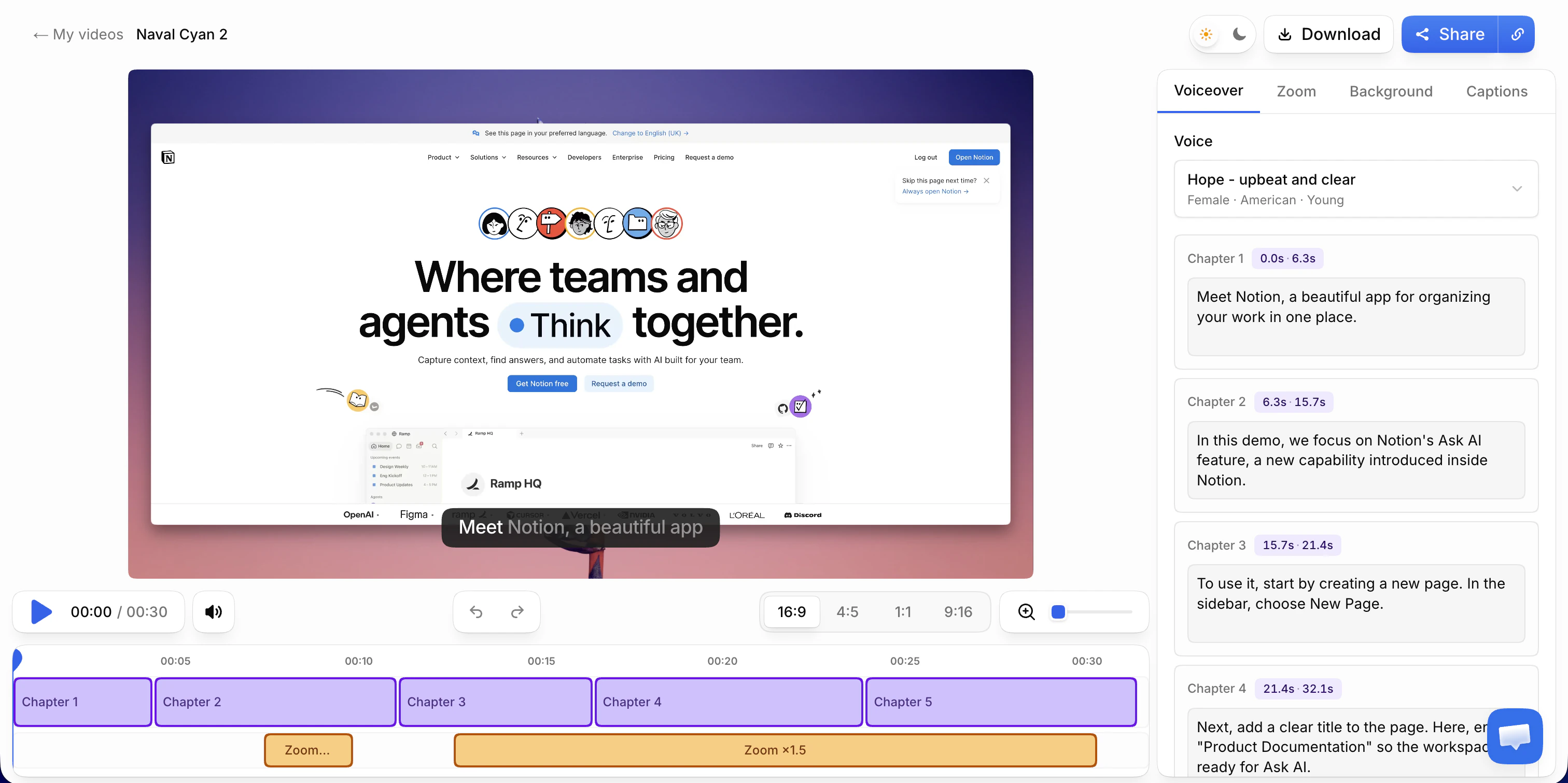
Under each video, write the steps as text, with the time each step starts. People who skim, people who can't play sound and your help center search all rely on that text, and search engines and AI assistants read text far more reliably than video.
Step 4: Put each video where the question comes up
A video in a "Resources" page nobody visits changes nothing. Put each one where the customer is when the question comes up:
| Placement | What to do | Watch for |
|---|---|---|
| Help center article | Embed the video at the top, with the steps written below | Your help center may only accept embeds from certain hosts |
| Macro or saved reply | Two lines and a link to the article; add a tag such as video-sent | Link the article, not only the video, so the written steps come along |
| Contact form | If the form suggests articles as customers type, make sure the one with the video comes up | Title the article in the customer's words so it matches what they type |
| Onboarding email | One first-task video per email | Send it on the day the task usually comes up |
| In your product | Link the article from the help widget, empty state or tooltip next to the feature | Show settings videos on the settings page, not on the dashboard |
| Release notes | A short video when a feature ships or changes | Update the library video in the same release |
Help desks name reply templates differently: macros in Zendesk and Intercom, saved replies in Help Scout, canned responses in Freshdesk. In Zendesk and Intercom, the same macro can also tag the conversation, which lets you count how often the video was sent and whether the customer wrote back.
Check your help center's embed rules before you choose a video host. Help centers limit what you can embed, as their documentation stood on September 28, 2026:
- Zendesk inserts videos from supported hosts, such as YouTube, Vimeo, Wistia, Loom and Vidyard, from the article toolbar. Embed code from any other host needs the Display unsafe content setting, which Zendesk warns can let malicious code run in articles. Talk to your security team first.
- Intercom articles embed video from YouTube, Vimeo, Wistia, Loom, JW Player, Microsoft Stream, Brightcove and Synthesia, plus demo content from a short list of tools including Clueso and Arcade. An MP4 file can only be attached at the bottom of the article.
- Help Scout Docs inserts YouTube, Vimeo, Loom and Wistia videos from a link, and accepts embed code from other providers in an HTML block.
If your help center doesn't accept a tool's embed, export the MP4 and upload it to a host it supports, or link to the tool's share page.
The support library is one part of a wider customer education program, next to onboarding series and feature deep dives. For the first-week videos in your onboarding emails, see our piece on SaaS onboarding videos.
Step 5: Keep videos current when the UI changes
A support video that shows last quarter's interface is worse than no video: it teaches the wrong clicks, and the customer writes in anyway, now annoyed. A library stays accurate only if updating is routine and cheap:
- Add one question to your release checklist: which videos show a screen this release changes? With the inventory from Step 3, the answer is a filter, not a hunt.
- Re-record when the screen changed. With one task per video, that means recording a two-minute task again, not reshooting a tour. In Vibrantsnap, processing a new recording takes about two minutes.
- Re-voice when only the words changed. A renamed plan, a step explained badly or a new language doesn't need new footage if the screen is still right. In Vibrantsnap, you edit the script of the chapter that's wrong and the voice reads the new text.
- Update every placement listed in the inventory: the article, the macro, the onboarding email and the in-app link.
- Review the whole library every quarter. Watch each video against the current product, fix what drifted and retire what no longer answers a real question.
- Let agents flag stale videos. Give them one way to report "this video is out of date": a tag, a chat channel or a column in the inventory. They see the confused replies first.
Old one-take support videos with rambling narration don't have to be thrown away. Imported into Vibrantsnap, the old narration is transcribed, rewritten and read in a studio voice, in the original language or another, with new captions. Imported files carry no cursor data, so you place the zooms yourself.
Step 6: Answer in your customers' languages
Check which languages your tickets arrive in. If a real share of them comes in German or Spanish, English-only videos leave those customers reading captions in a second language, or writing in.
- Re-voice instead of re-recording. Vibrantsnap lets you record in one language and publish in another: English, French, Spanish, Portuguese, German, Italian, Japanese, Chinese, Korean or Hindi. The AI writes the script in the target language and reads it in one of 30 studio voices. Interface labels and product names keep their spelling. You can keep your own voice instead, and switch at any time.
- Name labels as they appear on screen. If your product's interface isn't translated, the Spanish narration should still say "Export" when the button says Export. The viewer matches the words they hear to the screen they see.
- Have a native speaker watch the first video in each language. A colleague or a friendly customer can check product terms and tone.
- Give each language version its own row in the inventory, published in the matching language of your help center. When the English video changes, the other versions change with it. If you export MP4 files, remember that each language version is a separate export.
Other tools handle translation on higher tiers. As listed on September 28, 2026, Guidde includes translation on its Enterprise plan, and Trupeer includes it from its Scale plan, with more than 100 languages.
Step 7: Make every video accessible
- Caption every video. WCAG success criterion 1.2.2, Captions (Prerecorded), is Level A, and the W3C lists both open captions (always visible) and closed captions (switched on by the viewer) as sufficient techniques (W3C). Captions help far beyond customers who are deaf or hard of hearing: Morton Ann Gernsbacher's review of more than 100 studies found that they improve comprehension of, attention to and memory for video, particularly for people watching in a non-native language (Gernsbacher, 2015).
- Say what you click and what changes. For audio description (1.2.5, Level AA), the W3C notes that if all the important information in the video is already conveyed in the audio, no additional audio description is needed (W3C). "Click Export, then PDF, and the download starts" carries the information. "Click here, then here" doesn't.
- Write the steps below the video, as in Step 3, so customers who can't watch still get the full answer.
- Turn autoplay off. Under WCAG 1.4.2 (Level A), audio that plays automatically for more than three seconds needs a way to pause or stop it (W3C). A help center video that waits for a click avoids the problem.
- Check automatic captions for product names. Speech recognition often misspells them. Vibrantsnap generates captions word by word, and you can edit every one.
Step 8: Measure honestly
The question a support lead has to answer is whether the library reduced tickets on the topics it covers. Measure that directly:
- Tickets per tag, before and after. Compare the same number of weeks before and after publishing, for example eight and eight. Divide by active accounts if your customer base grew in between.
- Compare with the tags you didn't cover. If covered tags dropped and uncovered tags didn't, the videos probably helped. If everything dropped, something else happened: a quiet season, a bug fix, a redesign.
- Replies after the video was sent. With a tag added by the macro, count how often the customer wrote back about the same issue. A high rate usually means the video skips a step or shows a different screen from the customer's.
- Help center article views and failed searches. Views show which videos customers find. Searches with no result are the next videos to record.
- CSAT and handle time on tickets answered with a video link, compared with the rest.
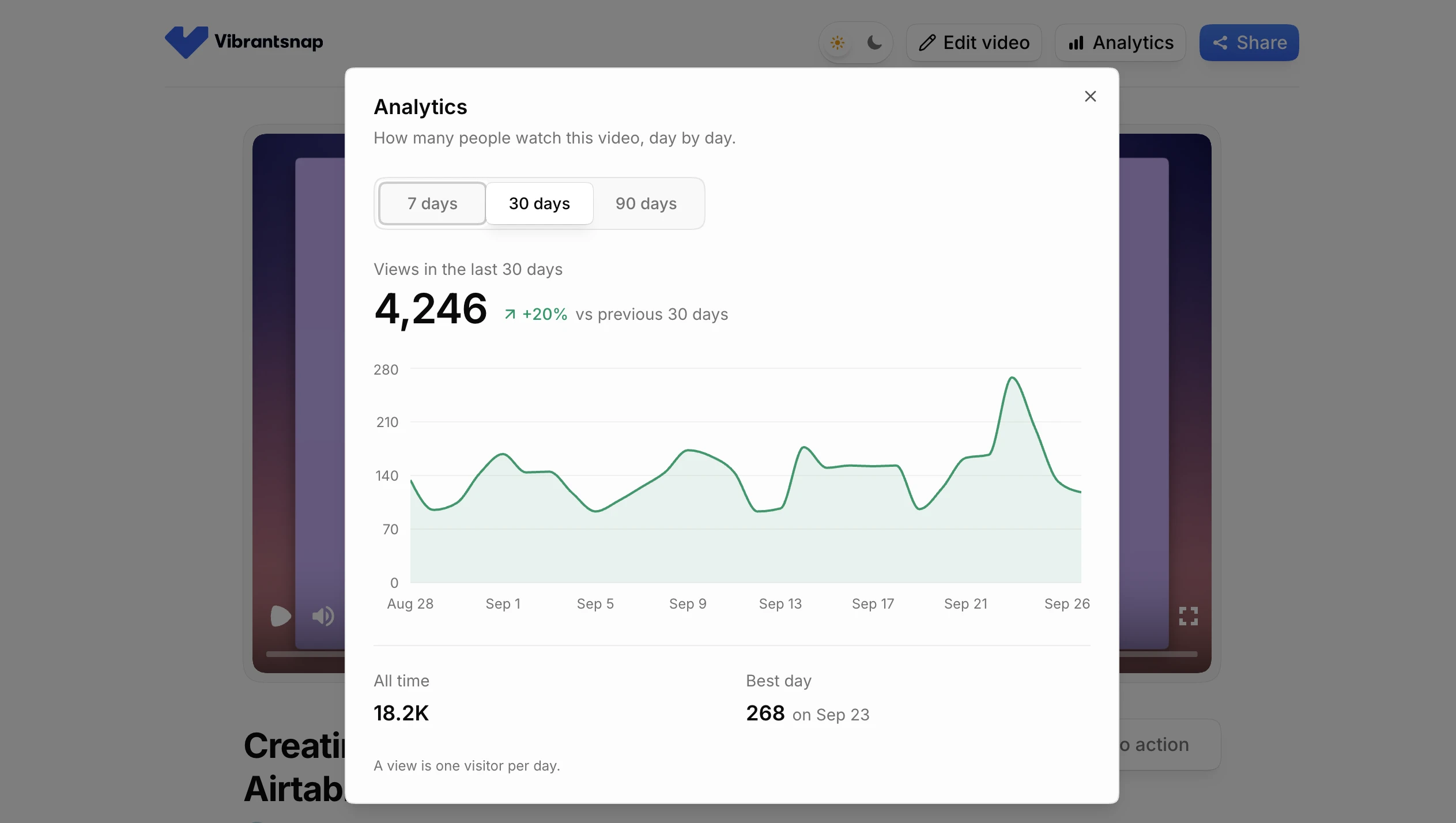
Video views help too, within limits. In Vibrantsnap, Pro and higher plans show the views on each share link, day by day over the last 7, 30 or 90 days, where a view is one visitor per day. It doesn't report completion, drop-off points or who watched, and a view isn't a solved problem. If you need second-by-second retention, use a video host that reports it.
To put a number on the result, multiply the tickets avoided by your own cost per ticket: your monthly support cost divided by your monthly ticket count. Borrowed benchmarks vary too much to be useful. For scale only, Gartner's 2019 poll of service leaders put live channels such as phone, chat and email at an average of $8.01 per contact, and self-service at about $0.10 (Gartner, 2019). Subtract the time the library costs you to make and update.
When a quick personal recording is the better answer
Not every ticket should get a library video. Some answers belong to one customer: their account, their data, their bug. Those are personal recordings: quick, unedited, sent once and never maintained. A personal recording is the right answer when:
- the problem is in the customer's own account or data, and the demo account can't show it;
- you're reproducing or explaining a bug;
- the customer is frustrated and needs to hear a person;
- a key account has a setup question specific to them;
- you're explaining the reasoning behind a feature request's answer.
Loom is built for this: record your screen, send a link, move on. As listed on September 28, 2026, Loom's free Starter plan allows 25 videos per person and recordings up to 5 minutes, in 720p. Business costs $18 per creator a month (about $15 billed yearly) with unlimited videos and length, and Business + AI, at $24, adds filler-word and silence removal. Loom keeps your recorded voice; it has no AI voiceover. Our Loom comparison sums up the split: Loom for team messages and one-off replies, Vibrantsnap for the videos many customers watch.
Three habits connect personal recordings to the library:
- Tier the answer. Standard tickets get the library video through the macro. If that doesn't resolve the issue, a personal recording follows. Key accounts get a personal recording from the start, with the library video linked for later.
- Add one personal line to library videos. "Hi Ana, this two-minute video shows exactly this. If step 3 looks different on your screen, reply and I'll record it in your account." The customer gets a person, and the library does the work.
- Promote repeats. If agents record the same personal answer three times in a month, it goes on the top-10 list. That's Gartner's advice in practice: agents creating knowledge while they resolve issues.
Tools for support videos
Each tool below fits a different support job. Prices and features are as listed on each vendor's pricing page on September 28, 2026.
| Tool | Best support job | Narration | Output | Entry price |
|---|---|---|---|---|
| Loom | One-off replies and team messages | Your own voice; the AI plan removes filler words and silences | Share link; embeds natively in Zendesk, Intercom and Help Scout | Free Starter (5-min recordings); Business $18/creator/mo |
| Vibrantsnap | A help center library in several languages | AI rewrites your narration; 30 studio voices in 10 languages, or your own voice | Share link with a call-to-action button, embed, MP4 in 1080p or 4K | Free to record and edit; Pro $39/mo billed yearly |
| Guidde | How-to videos with written step-by-step guides | Record your voiceover; unlimited text-to-voice on Business | Video, PPT and PDF export; in-app Broadcast on Enterprise | Free up to 25 videos; Pro $19/creator/mo billed yearly |
| Clueso | A video and a help article from one recording | Script rewrite and AI voices (500+ on Free) | Video and article; viewership analytics on Business | Free (10 min of export/mo, watermark); Solo $40/mo billed yearly |
| Trupeer | Videos plus docs, with an optional hosted knowledge base | AI voice, 100+ languages | Video; docs export in DOC, PDF or Markdown; knowledge base add-on from $120/mo billed yearly | Pro $49/mo, or $40/mo billed yearly |
Where Vibrantsnap fits
Vibrantsnap is a product demo and tutorial video maker for software teams who record their own videos. You record a browser tab, a window or your whole screen with the Chrome extension, narrating as you click, or import a video you already have; recording length is never capped. The AI transcribes your narration, rewrites it into a clean script, reads it in a studio voice and retimes the video to match, so hesitations and false starts don't survive. Every click gets a close-up, from the cursor data the extension captures in web pages; on desktop software or an imported video, you place the zooms yourself. Then you share a link with a call-to-action button, such as one that opens the right screen in your product, embed the video in your help center, or export an MP4 in 1080p or 4K.
Recording, editing and previewing with every AI feature is free. The free share link carries a watermark and a Vibrantsnap badge, and exporting needs a paid plan. Pro is $49/month, or $39/month billed yearly, with 90 min of export a month, link analytics, 4K and no watermark. A team building a library in several languages may need Scale: $149/month, or $129/month billed yearly, with 400 min of export a month, a brand kit and priority rendering. Business is priced on a quote, with volume pricing and dedicated onboarding. See pricing for the details.
A 30-day plan
- Week 1: Export 90 days of tickets, retag them by task and pick the top ten. Record the baseline: tickets per tag per week.
- Week 2: Record the first five videos. Have the agent who answers those questions most often watch each one against the product.
- Week 3: Publish them in the help center article, the macro (with its tag) and the onboarding email where it fits. Fill in the inventory.
- Week 4: Record the other five and the first language versions. Add the question to your release checklist.
- Every month after that: Review the top tags, record the new questions, re-record what changed and compare tickets per tag.
Frequently asked questions
What are customer support videos? Customer support videos are short screen recordings that answer one frequent customer question by showing the clicks in the product. They sit where customers look for help: at the top of help center articles, in reply macros, in onboarding emails and next to the feature in the product. Unlike a personal recording sent to one customer, a support video is made once and reused for every customer who asks the same question.
Which support questions should get a video first? Export 90 days of tickets, count them by tag, and keep the questions whose answer is the same sequence of clicks for every customer. Rank those by volume, move anything that blocks a new customer's first week to the top, and hold back screens that are about to change. The first ten are your first ten videos. Billing disputes, bugs and account-specific problems are better answered in text or by a person.
How long should a help center video be? One task per video, usually one to three minutes. In a study of 6.9 million viewing sessions on edX, shorter videos were much more engaging, and the researchers recommended segments shorter than six minutes. If a task takes longer, split it into two videos and link the first to the second.
What is a video knowledge base? In practice, it's the help center you already have, with a short video at the top of the articles that answer your most frequent questions and the steps written below each video. You don't need a separate platform to start. You need a list of which questions get a video, an inventory of where each video is published, and a routine for updating them when the product changes.
Should I embed support videos in help center articles or link to them? Embed them at the top of the article when your help center accepts the video host, and write the steps below. Help centers restrict embeds: Zendesk inserts videos from supported hosts such as YouTube, Vimeo, Wistia and Loom, and needs its Display unsafe content setting for other embed code; Intercom articles only embed video from a list of providers. If your video tool isn't accepted, upload the exported MP4 to a supported host or link to the tool's share page.
How do you keep support videos up to date when the product changes? Record one task per video, keep an inventory of the screens each video shows and where it's published, and add a question to your release checklist: which videos show a screen this release changes? Re-record those. If only the narration is wrong, edit the script and regenerate the voice instead of recording again. Review the whole library once a quarter.
Can we publish support videos in other languages without recording them again? Yes, if your tool re-voices the narration. Vibrantsnap lets you record in one language and publish in another of its 10 voiceover languages: English, French, Spanish, Portuguese, German, Italian, Japanese, Chinese, Korean and Hindi. Interface labels and product names keep their spelling. Have a native speaker check the first video in each language, and caption every version.
How do you measure whether support videos reduce tickets? Compare ticket volume on each covered tag for the same number of weeks before and after publishing, and check it against the tags you didn't cover over the same period. Add help center article views, failed searches, and how often customers write back after a macro sent them the video. Video views show what customers find, not what got solved.
When should support send a personal Loom-style recording instead? When the answer belongs to one customer: a problem in their own account or data, a bug you're reproducing, a frustrated customer who needs to hear a person, or a key account's specific setup. Loom is built for these one-off recordings. If agents record the same personal answer three times in a month, turn it into a library video.
Sources
- Gartner, "Gartner Survey Finds Only 14% of Customer Service Issues Are Fully Resolved in Self-Service", press release, August 19, 2024 (Gartner)
- Gartner, "Gartner Says Only 9% of Customers Report Solving Their Issues Completely via Self-Service", press release, September 25, 2019 (Gartner)
- Philip J. Guo, Juho Kim and Rob Rubin, "How video production affects student engagement: an empirical study of MOOC videos", Proceedings of the first ACM Conference on Learning @ Scale, 2014 (PDF)
- Morton Ann Gernsbacher, "Video captions benefit everyone", Policy Insights from the Behavioral and Brain Sciences, 2015 (PubMed Central)
- W3C, Understanding WCAG 2.2: Captions (Prerecorded), Audio Description (Prerecorded) and Audio Control
- Zendesk, Inserting videos and embedded files in articles and Editing the source code of help center articles
- Intercom, Format an article
- Help Scout, Use HTML in the Docs editor
Comparison