Published September 28, 2026 in Tutorials
Tutorial Video Software: 9 Tools for SaaS Teams (2026)

Founder & Content Creator at Vibrantsnap · 15 min read
The short answer
Tutorial video software records your product on screen and turns the take into a video that shows a customer how to do one task: connect an integration, run a report, invite a teammate. For a small SaaS team, those videos end up in three places: the help center, the onboarding sequence, and the release notes for each new feature.
Almost every tool records. They differ on what happens next: who fixes the narration, whether you also get a written guide, and how much work it takes to redo a video when the interface changes. As listed on September 28, 2026:
- You record tutorials yourself, maybe in a second language, and the video is the deliverable: Vibrantsnap. It rewrites your narration and reads it in a studio voice. No written guides yet.
- You want a video and a help-center article from the same recording: Clueso or Trupeer.
- You need many short how-tos, priced per creator: Guidde.
- You edit long tutorials by hand and need quizzes or SCORM export: Camtasia.
- You're on a Mac and happy with your own voice: Screen Studio.
- You're answering one customer's question: Loom.
- A written guide with screenshots is enough: Scribe or Tango. They build guides from screenshots, not from a screen recording.
Features and prices come from each vendor's own pricing page and help docs, checked on September 28, 2026.
Tutorial video software compared
| Tool | What you publish | AI voice | Price (September 28, 2026) | Best for |
|---|---|---|---|---|
| Vibrantsnap | Video, split into chapters | Rewrites your narration; 30 voices, 10 languages | Free to record, edit and preview (no export); Pro $49/mo or $39/mo billed yearly | Founders, PMs and CS leads who narrate their own tutorials |
| Clueso | Video and a step-by-step article | Yes; 500+ voices, 10,000+ on paid plans | Free (10 min of export a month, watermark); Solo $40/mo billed yearly | A video and a help article from one recording |
| Trupeer | Video and a written guide (DOC, PDF, Markdown) | Yes; 100+ languages | Free for 10 days; Pro $49/mo or $40/mo billed yearly | Docs plus video in many languages |
| Guidde | Short how-to video | Text-to-voice, unlimited on Business | Free up to 25 videos; Pro $19/creator/mo billed yearly | Many short how-tos |
| Camtasia | Video, edited on a timeline | AI voices from the Create plan | Essentials $179.88/year; Pro $599/year | Long tutorials edited by hand, quizzes and SCORM |
| Screen Studio | Video (macOS only) | No, your own voice | $29/mo, or $9/mo billed yearly | Mac users who narrate well |
| Loom | Video message | No, your own voice | Free (25 videos, 5-min recordings); Business $18/creator/mo | Quick replies to one customer |
| Scribe | Written guide with screenshots, playable as a "Movie" | Movie playback with voice | Basic free (web apps); Pro Personal $25/seat/mo billed yearly | Written help articles and SOPs |
| Tango | Written guide with screenshots; video embeds on Pro | None listed | Free (5 shared workflows); Pro from $15/user/mo billed yearly | Written guides, with in-app guidance on Enterprise |
What tutorial video software does
A software tutorial shows a user how to complete one task in a product. Tutorial video software turns your recording of that task into something a customer can follow: readable zooms, captions, clear narration, chapters, and a link or embed for your help center. The tools work in four different ways:
- AI rewrites and re-voices a screen recording: Vibrantsnap, Clueso and Trupeer. Clueso and Trupeer also write an article from the same take.
- AI builds a how-to from captured clicks: Guidde.
- You record and edit yourself: Camtasia (a full timeline), Screen Studio (automatic zooms, your voice) and Loom (record and send).
- Screenshot guides: Scribe and Tango. Both can play a guide back as a video-style walkthrough, but it is built from screenshots.
If your tutorials need quizzes, completion tracking or an LMS, you need course tools instead, covered in our training video software comparison.
How to choose tutorial video software
Six questions settle most of the decision.
1. Do you need a video, a written guide, or both? Written guides are easier to scan. Videos work better when the task crosses several screens or the result is hard to describe. Clueso and Trupeer give you both from one recording. Scribe and Tango start from the written guide. Vibrantsnap makes the video only; written step-by-step guides are not available yet.
2. Whose voice will your customers hear? On a small team, the person who knows the product best records the tutorial. Often that's a founder or PM narrating in a second language, with hesitations and restarts. Screen Studio, Loom and Camtasia's default workflow ship the voice you recorded. Vibrantsnap, Clueso and Trupeer rewrite what you said and read it in an AI voice, so you can talk naturally and fix the wording afterward.
3. What does an update cost? Your interface changes with every release, and a tutorial that shows an old button confuses the customer it was meant to help. The re-record is quick. The edit is what takes time. Tools that redo the narration, zooms and captions for you keep updates short. A timeline editor means redoing those steps by hand.
4. Web app or desktop software? Several tools capture only web apps on their lower plans: desktop capture needs Guidde Business, Scribe Pro or Tango Pro. Screen Studio is macOS only, and Camtasia runs on Windows 10 and 11 and macOS 14 or later. Vibrantsnap records a tab, a window or the whole screen, but its automatic zoom only works in web pages.
5. How is it priced? Five models, each with its own trap:
- Exported minutes: Vibrantsnap and Clueso. Check the monthly quota against your real volume.
- AI credits: Trupeer. AI video costs 100 credits a minute, so Pro's 2,000 credits buy about 20 minutes.
- Per creator: Guidde, Loom, Scribe and Tango. Cheap for one person, and the cost grows with every seat.
- Per user, per year: Camtasia, with no monthly plan.
- Flat price: Screen Studio.
A worked example: eight 3-minute tutorials a month is 24 minutes of video. That's more than Clueso Solo's 15 minutes of export (Business gives 30) and more than the roughly 20 minutes of AI video in Trupeer Pro's credits. Vibrantsnap Pro includes 90 min of export a month, and Guidde Pro has no video limit.
6. Where will the tutorial live? Every video tool here gives you a share link. What varies is analytics and delivery. Vibrantsnap shows views per share link from Pro. Guidde has analytics on Business, Clueso viewership analytics on Business, and Trupeer viewer analytics on Enterprise. If you want tutorials delivered inside your app, look at Guidde's Broadcast or Tango's Guide Me, both on Enterprise plans.
The 9 best tutorial video software tools in 2026
1. Vibrantsnap: your narration, rewritten and re-voiced
Best for: founders, PMs and CS leads who record tutorials for their own customers, especially in a second language.
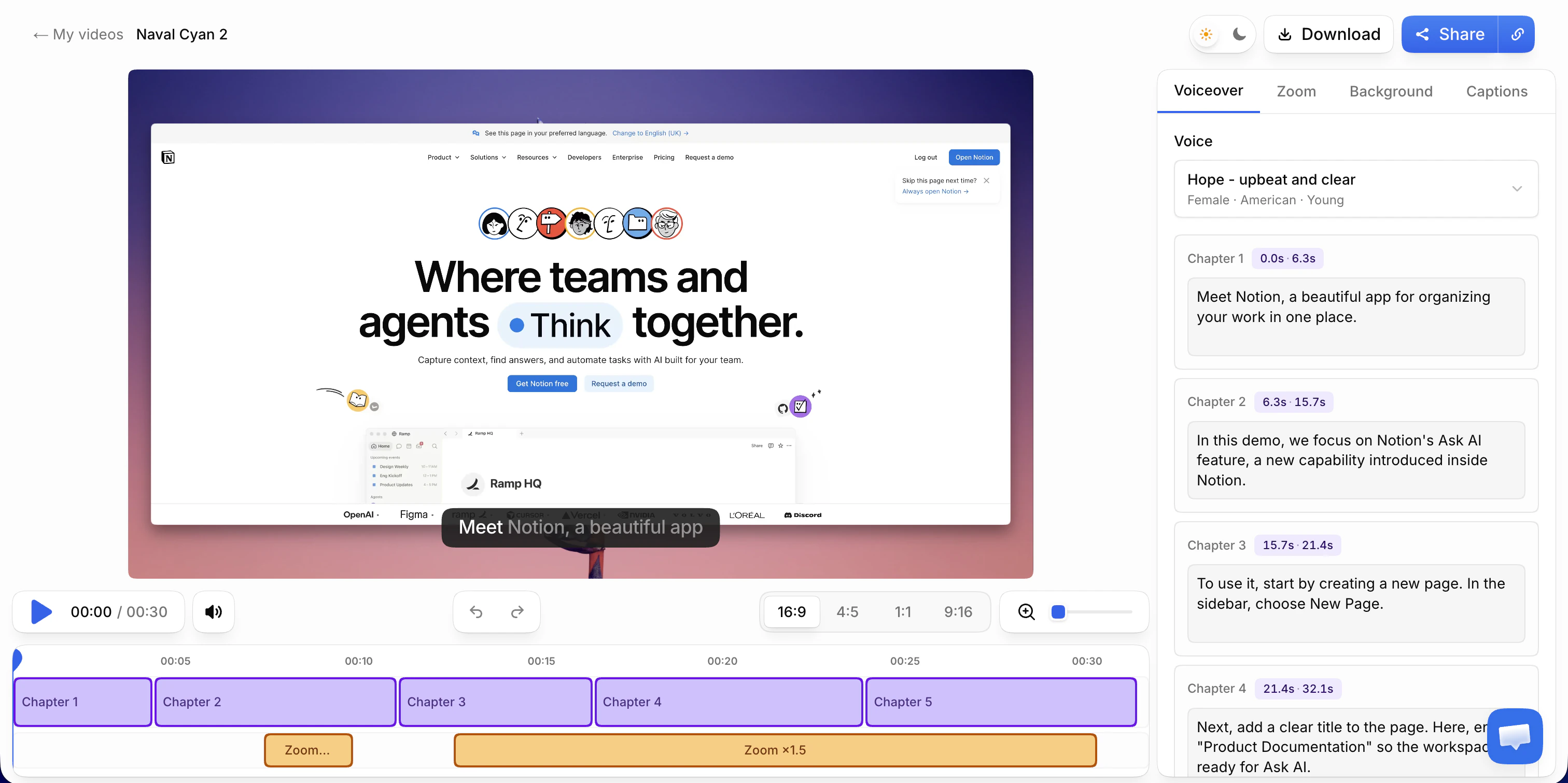
Vibrantsnap works on the part of a tutorial that takes longest to get right: the narration. The Chrome extension records a tab, a window or the whole screen with your microphone, or you import a video you already have. The AI transcribes what you said, rewrites it into a clean script, reads it in a studio voice and retimes the video to match. Hesitations, false starts and rambling don't survive the rewrite, so you can explain the task the way you would on a call.
That matters most if English isn't your first language. Record in French and publish in English, or in any of the 10 languages. Interface labels and product names keep their spelling, and you can keep your own voice at any time.
Key features:
- 30 studio voices in 10 languages: English, French, Spanish, Portuguese, German, Italian, Japanese, Chinese, Korean and Hindi
- Chapters, each with its own editable script, so you can reword one step without touching the rest
- Auto-zoom on every click, from the cursor data the extension captures in web pages
- Word-by-word captions you can edit; 16:9, 4:5, 1:1 or 9:16
- Share link and embed, with a call-to-action button on the share page
- MP4 export in 1080p or 4K (4K from Pro), ready in about two minutes
- No cap on recording length, on any plan
Pricing: Free lets you record, edit and preview with every AI feature; the share link carries a watermark and a Vibrantsnap badge, and there's no export. Pro is $49/month, or $39/month billed yearly, with 90 min of export a month, link analytics, 4K and no watermark. Scale is $149/month, or $129/month billed yearly, with 400 min a month, a brand kit, priority rendering and custom support. Business is on a quote. Details on the pricing page.
Weighing it against one tool? See Vibrantsnap vs Clueso, vs Trupeer and vs Guidde.
2. Clueso: a video and an article from one recording
Best for: teams that want the tutorial video and the help-center article from the same take.
Clueso records your screen, or takes a video you upload, and produces an AI-edited video and a step-by-step article. It rewrites the script and adds an AI voiceover, auto-zoom and captions, plus translation and AI avatars. It lists SOC 2 Type II and ISO 27001, which helps when a customer's security team reviews your vendors.
Pricing (September 28, 2026): Free includes 10 minutes of video export and 10 articles a month, with a watermark, videos up to 10 minutes and 1080p. Solo is $40/month billed yearly: 15 minutes of export and 15 articles a month, 1 user, videos up to 20 minutes, 2K. Business is $120/month billed yearly: 2 users, 30 minutes of export a month, no limit on input length, 4K and viewership analytics.
Limits: 15 minutes of export a month on Solo covers about five 3-minute tutorials. Analytics and 4K start on Business. More in our Clueso alternatives guide.
3. Trupeer: video plus docs, metered in credits
Best for: teams that need a video and a written guide in many languages.
Trupeer also turns one recording into an AI-edited video and a written guide, which you can export as DOC, PDF or Markdown. It lists 100+ languages and AI avatars.
Pricing (September 28, 2026): Free lasts 10 days, with 1,000 AI credits and recordings up to 5 minutes. Pro is $49/month, or $40/month billed yearly, with 2,000 credits a month (about 20 minutes of AI video), recordings up to 10 minutes and 1 creator. Scale is $249/month, or $199/month billed yearly, with 10,000 credits, recordings up to 15 minutes, 3 creators, translation and a brand kit. Enterprise allows recordings up to 3 hours and adds viewer analytics. Extra credits cost $4 per 100.
Limits: Every plan below Enterprise caps recording length, so a 12-minute onboarding walkthrough has to be split on Pro. Translation starts on Scale. The free plan is a 10-day trial. More in our Trupeer alternatives guide.
4. Guidde: short how-tos, priced per creator
Best for: CS and support teams that publish many short how-tos.
Guidde is a browser extension that captures a workflow as you click through it and turns it into a short how-to video, narrated with your recorded voice or AI text-to-voice.
Pricing (September 28, 2026): Free covers up to 25 how-to videos in web apps, with your recorded voiceover and a watermark. Pro is $19 per creator a month billed yearly ($29 monthly): unlimited videos, no watermark, brand kit, export to video, PPT or PDF, and blur. Business is $39 per creator a month billed yearly ($59 monthly): unlimited text-to-voice, web and desktop capture, PDF or PPT to video, analytics, up to 5 creators. Enterprise adds translation (50+ languages), SSO, PII redaction and in-app delivery. There's a 7-day Business trial.
Limits: The output is a step-by-step how-to, best for short tasks. Unlimited AI voice and desktop capture need Business, and translation is Enterprise only. More in our Guidde alternatives guide.
5. Camtasia: full control, edited by hand
Best for: teams with someone who enjoys editing and makes longer tutorials, including quizzes.
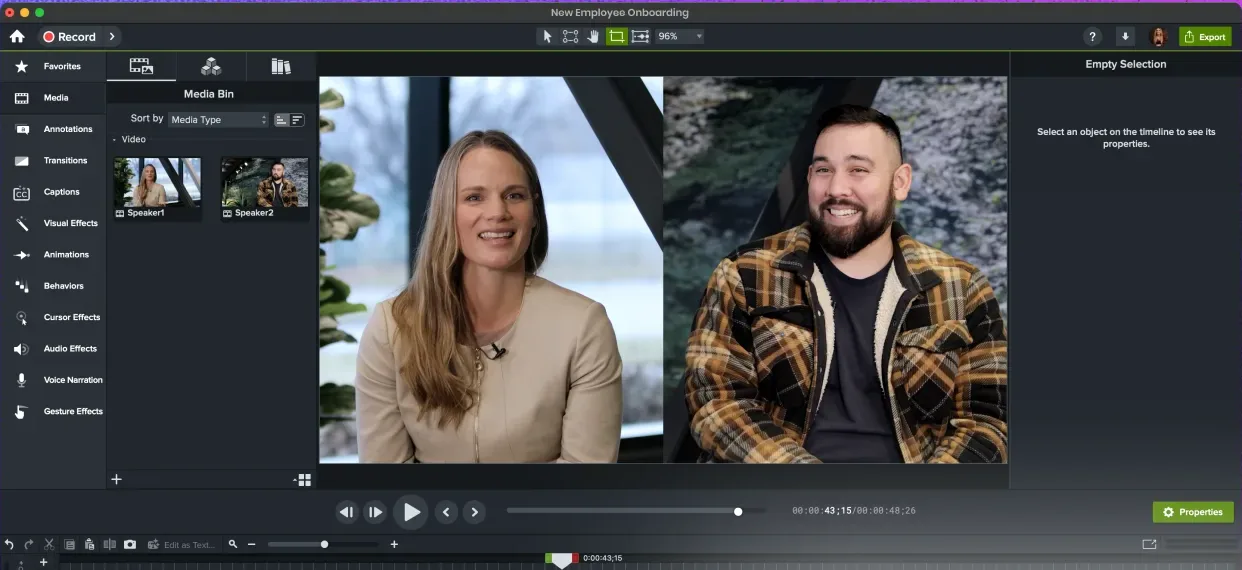
Camtasia is TechSmith's desktop recorder and timeline editor, for Windows 10 and 11 and macOS 14 or later. You get full control: cursor effects, callouts, zoom and pan, captions, and quizzes with SCORM export. The price is time, because you place those edits yourself.
Pricing (September 28, 2026, billed yearly only): Starter is $39/year and includes the editor with watermarked exports. Essentials is $179.88/year: text-based editing, filler-word removal, captions, quizzes and SCORM export. Create adds AI scripts from a prompt and AI voiceover with 200+ voices. Pro is $599/year and adds AI avatars, script translation and audio dubbing.
Limits: The steepest learning curve on this list, and every tutorial is edited by hand. Compare it in Vibrantsnap vs Camtasia or our Camtasia alternatives roundup.
6. Screen Studio: auto-zoom on a Mac, in your own voice
Best for: Mac users who narrate comfortably and want the recording to look good with little effort.
Screen Studio is a macOS screen recorder that makes recordings easy to follow automatically. It zooms in on your actions, smooths and enlarges the cursor, and adjusts the zooms when you export a vertical video. It can generate a transcript as subtitles on your machine, record iPhone and iPad screens, and create share links.
Pricing (September 28, 2026): $29 month to month, or $9/month billed yearly.
Limits: macOS only. No AI voiceover and no script rewrite, so the narration is what you recorded. See Vibrantsnap vs Screen Studio or our Screen Studio alternatives comparison.
7. Loom: for one customer, not the help center
Best for: answering one customer's question with a quick walkthrough.
Loom is built for video messages: record your screen and camera, send a link. It's a fast way to reply to a support ticket with a walkthrough, and a weaker fit for a help center, because what you record is roughly what people watch.
Pricing (September 28, 2026): Starter is free, with 25 videos per person, recordings up to 5 minutes and 720p. Business is $18 per creator a month (about $15 billed yearly), with unlimited videos and length and 4K. Business + AI is $24 per creator a month (about $20 billed yearly) and adds filler-word and silence removal, summaries and chapters.
Limits: No AI voiceover; Loom keeps your voice. The free plan's 5-minute cap cuts longer onboarding walkthroughs short. More in Vibrantsnap vs Loom.
8. Scribe: a written guide first
Best for: written help articles and internal SOPs.
Scribe captures a process as you click through it and writes a step-by-step guide with annotated screenshots. It's a fast route to a written help article. On every plan, it can also play a guide back as a "Movie", with motion, voice and captions in Scribe's own player. That Movie is the screenshot guide animated, not a recording of your screen.
Pricing (September 28, 2026): Basic is free for web apps. Pro Personal is $25 per seat a month billed yearly ($35 monthly), and Pro Team is $13 per seat a month billed yearly ($17 monthly). Pro adds desktop capture and PDF, HTML and Markdown export.
Limits: If customers need to watch the product in motion, Scribe isn't that tool. We compared video-first options in Scribe alternatives that make real videos.
9. Tango: written guides with video embeds
Best for: teams that want written guides first, with in-app guidance on Enterprise.
Tango works like Scribe: click through a process and it generates a guide with screenshots, annotations and descriptions. On Pro, a workflow can also be shared as an embedded video with play, pause and speed controls. Tango says the embed updates when you edit the workflow, without a new recording.
Pricing (September 28, 2026): Free includes 5 shared workflows, browser capture and up to 10 users per workspace. Pro is $15 per user a month billed yearly for teams of 3 or more, or $22 for 1 or 2 users ($20 and $26 monthly), and adds desktop capture, voice transcription, video embeds, and PDF, Markdown and HTML export. Enterprise adds translation into 10 languages, Guide Me on-screen guidance and SSO.
Limits: Like Scribe, Tango starts from screenshots of each step, not a recording of your screen. For where capture tools fit in a documentation setup, see our process documentation software guide.
How to make a software tutorial
The tool matters less than these seven steps.
- Pick one task and one outcome. Finish the sentence "After this video, the customer can ___." If you need an "and", make two videos. A help-center tutorial covers one task. An onboarding walkthrough can chain several, split into chapters.
- Outline the steps. List each step, plus the reason behind any click that isn't obvious. Our free demo script generator has a customer tutorial template: enter the steps you'll show and it turns them into a timed script of what to say and what to show.
- Prepare the product. Use a demo account with realistic data and no real customer data. Turn off notifications and close other tabs.
- Record in one take, starting where the task starts. Click deliberately and pause a beat after each click. If your tool rewrites the narration, don't restart for a stumble.
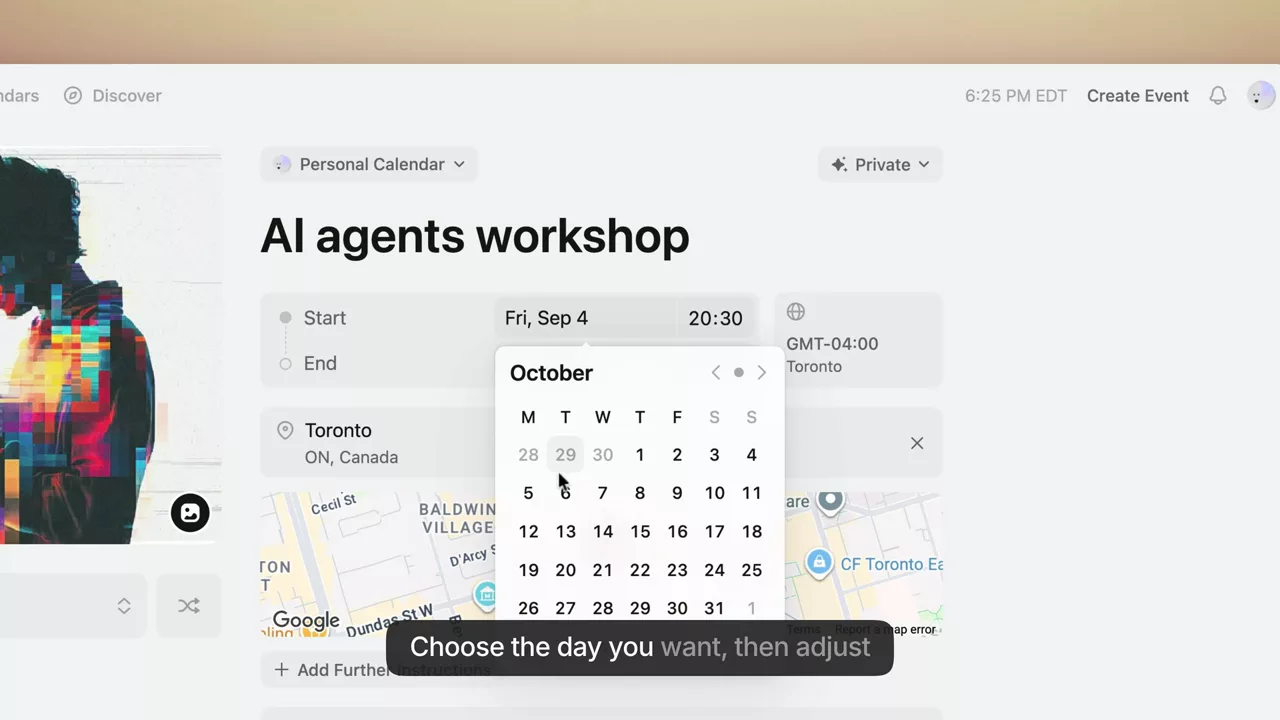
- Make it readable. Zoom in on anything smaller than a thumbnail, because a full-screen recording is hard to read on a laptop and harder on a phone. Add captions, then read them: automatic captions often misspell product names.
- Publish where customers get stuck. Put the video at the top of the matching help-center article, in the onboarding emails, and behind the help link in your app. Our guides to customer education videos and SaaS onboarding videos cover what to make first.
- Keep a map for updates. Note which screens each video shows. When a release changes a screen, you know exactly which tutorials to redo.
Which tutorial video software should you pick?
If you record your own tutorials, maybe in a second language, and the video is the deliverable, try Vibrantsnap free on your own product; Pro is $49/month when you're ready to export. If you want a video and a written article from each recording, compare Clueso and Trupeer, and watch the export minutes and credits.
Whichever you choose, start with one tutorial for the question your support inbox gets most often. Publish it in the help article that answers it, and see whether that question comes up less. That tells you more than any feature table, this one included.
Frequently asked questions
What is tutorial video software? Tutorial video software records your screen and turns the recording into a video that teaches one task, step by step. Beyond recording, it handles what a tutorial needs: zooms on the part of the screen that matters, captions, narration, chapters, and a link or embed for your help center. Some tools also rewrite and re-voice your narration with AI, and some write a step-by-step guide from the same recording.
What is a software tutorial? A software tutorial shows a user how to complete a specific task in a piece of software, such as connecting an integration or exporting a report. It can be a video, a written guide with screenshots, or an interactive walkthrough. For SaaS products, software tutorials usually live in the help center, the onboarding sequence and the release notes.
What is a tutorial video? A tutorial video teaches a task by showing it being done, with narration that explains each step. For software, that means a screen recording of the product, often a few minutes long and focused on one task, with zooms and captions so viewers can follow it on a laptop or a phone.
How do you make a software tutorial? Pick one task and write the outcome in one sentence. Outline the steps, prepare a demo account with realistic data, then record the task in one take, starting on the screen where it begins. Add zooms on small interface elements and captions, check product names in the captions, and publish the video where customers get stuck: the help center, onboarding emails or an in-app help link. Note which screens each video shows, so you know what to redo after a release.
Is there a free AI tutorial video generator? Yes, with limits, as listed on September 28, 2026. Vibrantsnap's free plan lets you record, edit and preview with every AI feature, including the rewritten narration and the AI voice; the share link carries a watermark and there is no export. Clueso's free plan exports 10 minutes of video a month with a watermark. Guidde's free plan covers up to 25 how-to videos with a watermark. Trupeer is free for 10 days.
What is the best tutorial video software for a SaaS team? It depends on what you publish. If you record tutorials yourself and the video is the deliverable, especially if you narrate in a second language, Vibrantsnap rewrites and re-voices your narration. If you want a video and a written article from one recording, Clueso or Trupeer. For many short how-tos priced per creator, Guidde. For long tutorials edited by hand, Camtasia. For Mac recordings in your own voice, Screen Studio.
Should a software tutorial be a video or a written guide? Often both. A written guide is easier to scan and quicker to fix when one screen changes. A video works better when the task crosses several screens, involves drag and drop, or ends in a result that is hard to describe in words. Many help centers put a short video at the top of the article and the written steps below it. Scribe and Tango start from written guides, Clueso and Trupeer produce both, and Vibrantsnap makes the video only; written guides are not available in Vibrantsnap yet.
Prices and features were checked on each vendor's own pricing page and help docs on September 28, 2026. Vendors change plans often, so confirm at checkout. If a number has changed, tell us and we'll update it.
Related reading: comparing tools for sales demos rather than tutorials? See the best product demo software, or see how Vibrantsnap compares with more tools.
Comparison


