Published August 20, 2026 in Tools Comparison · Updated October 13, 2026
Training Video Software: 9 Tools Compared (2026)

Founder & Content Creator · 16 min read
Search training video software and you get two completely different product categories wearing the same label. One is course authoring: iSpring, Articulate, SCORM packages, quiz branching, LMS integration, four-figure annual licences. The other is a screen recorder that a manager opens on a Tuesday to explain how the refund process works.
Both are legitimately "training video software." Buying the wrong one is how L&D budgets get spent on a suite that produces four videos a year while the actual training keeps happening in unrecorded meetings.
The most useful thing on the current search results page isn't a listicle at all. It's the r/instructionaldesign thread sitting near the top, where people keep giving the same answer: it depends what you're teaching. This comparison is organised around that, not around feature counts.
Every price below was checked in August 2026 against the vendor's published plans, and where a vendor has restructured its tiers recently I say so.
Quick comparison: training video software in 2026
| Tool | Type | Best for | Entry price |
|---|---|---|---|
| Vibrantsnap | Screen recorder + AI editing | Software and process training | Free to record; from $49/mo to export |
| Camtasia | Desktop recorder + editor | Long-form tutorials and courses | From $179.88/year per author |
| iSpring Suite | PowerPoint course authoring | SCORM courses with assessments | Several hundred $/author/year |
| Articulate 360 | Course authoring suite | Enterprise instructional design | From ~$1,199/user/year |
| Synthesia | AI avatar video | Policy and compliance at scale | From ~$29/mo (10 min/mo) |
| Loom | Async screen messaging | Quick internal updates | Free; from ~$18/seat/mo |
| ScreenPal | Recorder + light editor | Education and LMS-adjacent teams | Solo from ~$3-8/mo (annual) |
| Vyond | Animation | Soft skills and scenario training | Business from ~$58/mo (annual) |
| Guidde | AI how-to video capture | High-volume internal how-tos | Free to 25 videos; Pro $19/mo (annual) |
TL;DR: if the training is about using software or running a process, a screen recorder with automatic editing gets you there fastest and cheapest. If the training must be tracked, scored, and certified, you need authoring software with SCORM output and the budget that comes with it. If the training is policy or compliance narration at volume, AI avatars are cheaper than filming. Most organisations need two of these, not one.
What training video software actually has to do
Strip away the marketing and there are four jobs. Almost every disappointing purchase in this category comes from buying a tool that nails one and ignores the one you actually needed.
- Capture — get the content out of a subject-matter expert's head. Screen recording, camera, avatar, or animation.
- Edit — cut the dead air, focus attention on the right thing, add captions. This is the step that decides whether people finish the video.
- Structure — chapters, modules, assessments, prerequisites. Only matters for formal learning.
- Distribute and measure — get it to the right people and find out whether they watched. A share link with analytics for informal training; an LMS with completion records for compliance.
A screen recorder does 1, 2, and a light version of 4. A course authoring suite does 2, 3, and 4 properly but leaves capture to you. Nothing does all four brilliantly, which is why the honest answer for most teams is a cheap capture tool plus whatever system of record you already have.
The 9 best training video software tools
1. Vibrantsnap — software and process training, recorded once
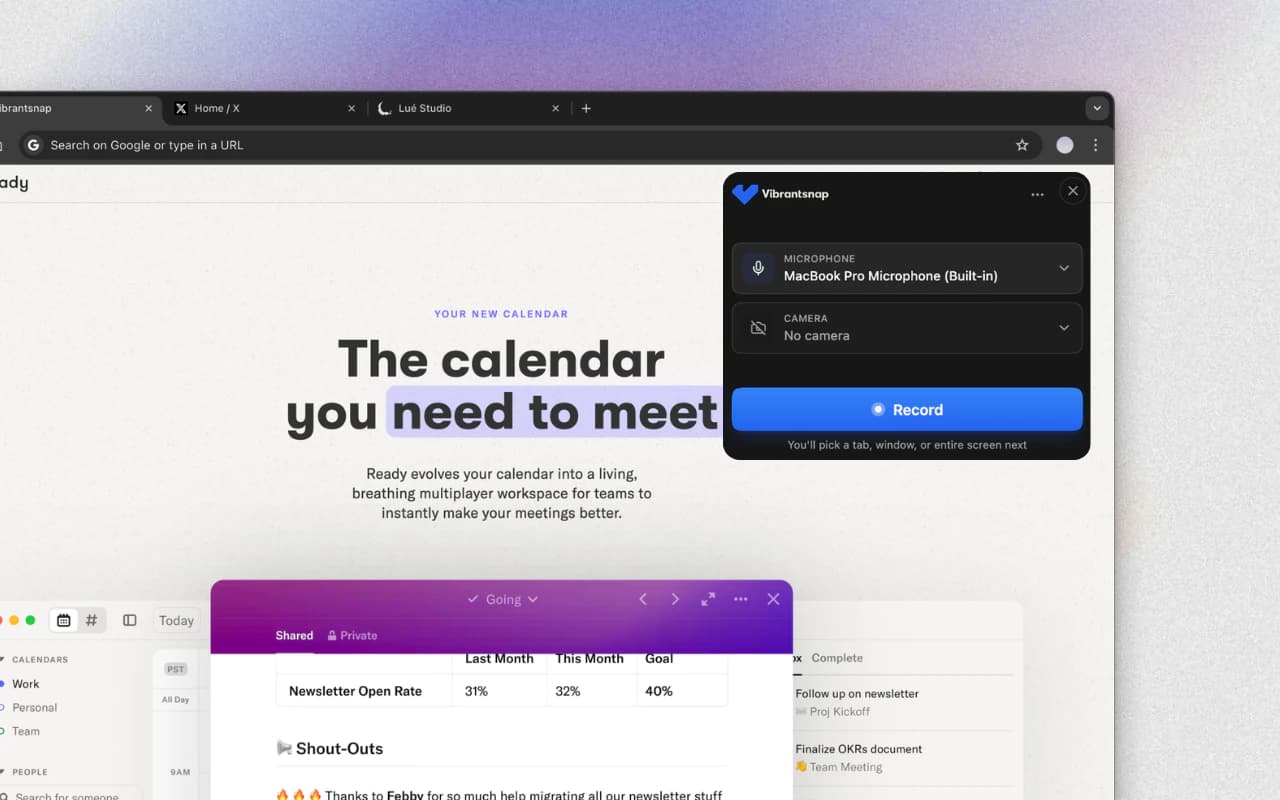
Best for: teaching people how to use a tool, run a workflow, or handle a screen-based task.
Most internal training is somebody sharing their screen and talking. The problem is that a raw recording of that is unwatchable: three minutes of dead air, a cursor wandering around a 4K display, and no captions. Vibrantsnap records the tab, then does the editing: the rewritten script leaves the silences and filler words behind, auto-zoom follows the clicks so the relevant control is actually legible, and captions generate automatically and stay editable.
What it does well:
- No cap on recording length, so a 25-minute walkthrough isn't a problem
- Auto-zoom on clicks and typing — the single biggest legibility win for software training
- Editable AI captions on every plan, including free
- AI voiceover if your narration was rushed, so you re-voice rather than re-record
- Share pages with the views on each link, day by day (from Pro)
- 4K export in 16:9, 9:16, 4:5, or 1:1 for mobile-first training
Pricing: free to record, edit, and preview. Pro is $49/month with watermark-free 4K exports, 25 min of export a month and link analytics; Scale starts at $149/month for 2 seats, with 65 min of export a month shared by the team plus a brand kit, priority rendering, and custom support. Full breakdown on the pricing page.
2. Camtasia — the L&D default for a reason
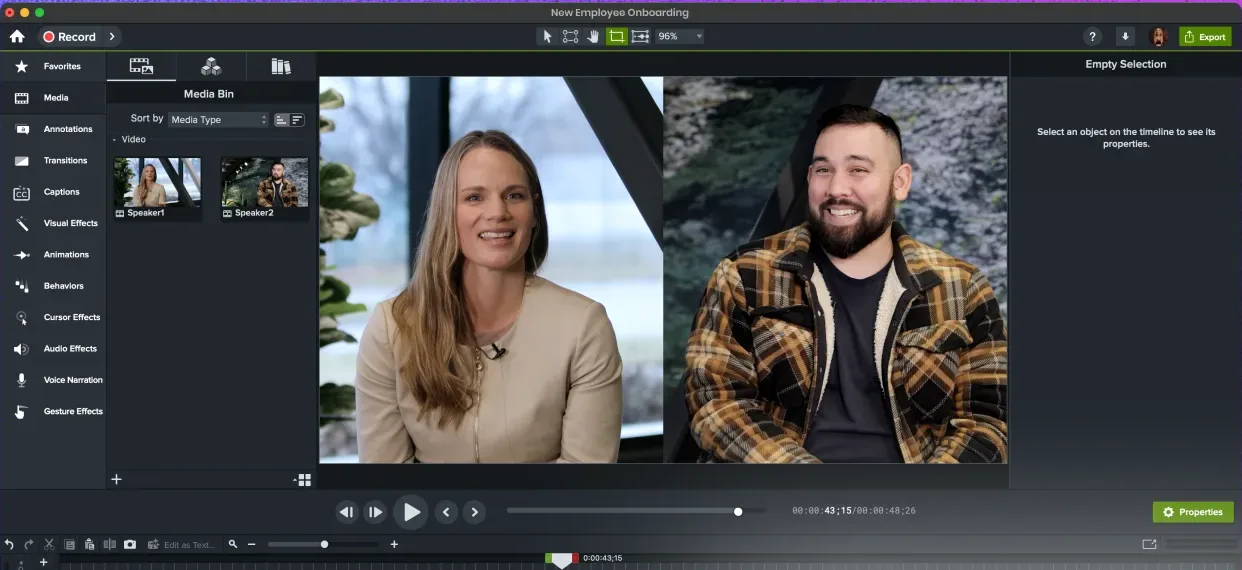
Best for: long-form tutorials, structured courses, and teams that want recording and editing in one desktop app.
Camtasia has been the safe answer in corporate training for fifteen years. The timeline is real, the annotation and callout library is deep, it does quizzing and interactive hotspots, and it exports cleanly for an LMS. The trade-off is that it is a full editor, with the time cost that implies.
Pricing: TechSmith retired perpetual licences in 2024 and moved to annual subscriptions. There's a $39/year Starter tier that watermarks exports, then Essentials at $179.88/year (no watermark, captions, transcription), Create at $249/year with the AI tooling, and Pro at $599/year for team production. Enterprise is quoted.
Trade-off: you are still editing on a timeline, per video, forever. For a team producing two polished courses a quarter that's fine; for a team producing twenty short walkthroughs a month it is the bottleneck. Vibrantsnap vs Camtasia covers exactly that split if you're deciding between them, and the full field of Camtasia alternatives sorts the replacements by exit reason.
3. iSpring Suite — courses built inside PowerPoint
Best for: instructional designers who already build in PowerPoint and need SCORM output.
iSpring's whole premise is that your subject-matter experts already know PowerPoint, so authoring should happen there. It adds quizzes, dialogue simulations, screencasts, and role-play scenarios, then publishes a SCORM or xAPI package your LMS can track.
Pricing: business plans are quoted per author per year and vary substantially by tier and region. Published figures range from the high hundreds to roughly $2,000 per author per year for the top suite. Get a quote for your seat count rather than budgeting from a comparison table (this one included).
Trade-off: Windows-first, PowerPoint-shaped, and priced per author. If two people build courses, that's fine. If forty managers each need to record one thing, it's the wrong model entirely.
4. Articulate 360 — the enterprise instructional design standard
Best for: dedicated learning teams building branching, interactive, standards-compliant courses.
Storyline and Rise are the tools most instructional designers list on their CV, and Articulate 360 bundles them with a content library and review workflow. If you employ instructional designers, you probably already own this.
Pricing: list pricing sits above $1,199 per user per year for the standard personal plan, with teams and AI-inclusive tiers running higher: reported figures reach roughly $1,749 per user per year for Teams with AI.
Trade-off: the price is the filter. Articulate is correct for organisations with a learning function and wrong for organisations where training is a side responsibility of whoever knows the process.
5. Synthesia — training narration without filming anyone
Best for: compliance, policy, and multilingual training where you need a consistent presenter and nobody wants to be on camera.
Type the script, pick an avatar, get a presenter-led video in dozens of languages, then update the script next quarter without reshooting. For onboarding modules that change annually and must exist in six languages, the maths is genuinely compelling. It ranks on this search term because its learning-and-development landing page is one of the strongest pages on the SERP.
Pricing: the Starter tier sits around $29/month for 10 minutes of video per month (lower on annual billing), and Creator around $89/month for 30 minutes. The per-minute quota, not the monthly fee, is the number that decides whether this works for you.
Trade-off: avatars can't demonstrate. The moment your training involves showing an interface, you're back to screen recording, and the minute quotas make long-form training expensive. Vibrantsnap vs Synthesia breaks down where each format actually belongs.
6. Loom — the fastest possible training video
Best for: ad-hoc explanation, not curriculum.
Loom's contribution to corporate training is that it made recording a video feel as cheap as writing an email, which is why so much informal training now lives there. Its limits are equally well known: minimal editing, per-seat pricing, and a free plan capped at 25 videos of five minutes each.
Pricing: free Starter; Business runs around $18-20 per seat per month depending on billing, and Business + AI around $24 per seat. Loom is owned by Atlassian following the 2023 acquisition.
Trade-off: what you record is what people watch, silences included. For a two-minute answer that's fine. For anything that will be watched by fifty people or referenced for a year, the lack of editing shows. See Vibrantsnap vs Loom for the recording-plus-editing comparison.
7. ScreenPal — the education-friendly middle ground
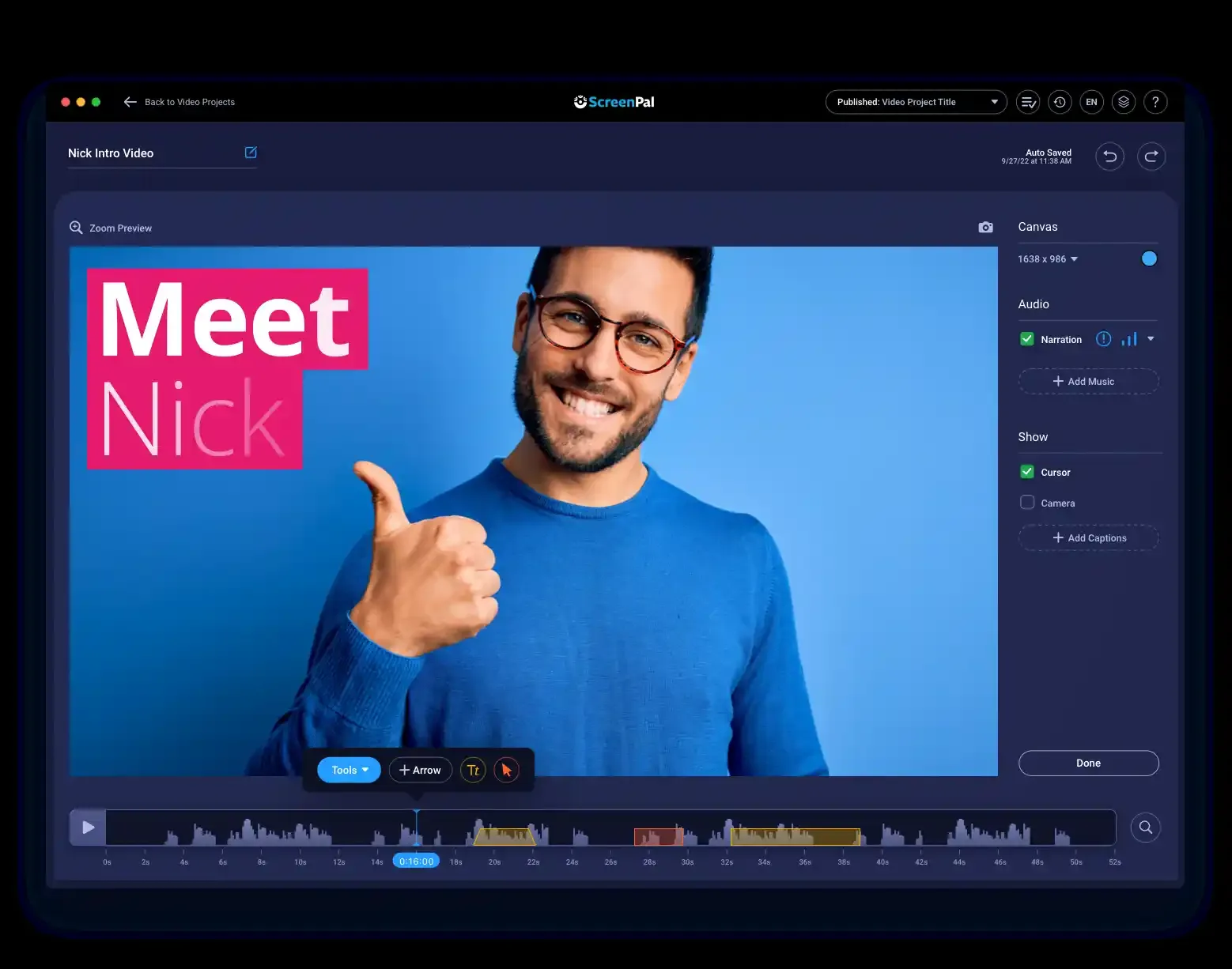
Best for: schools, small teams, and anyone who needs LMS integration without an enterprise contract.
Formerly Screencast-O-Matic, ScreenPal covers recording, light editing, hosting, captions, and quizzing, with integrations into Canvas, Moodle, and Google Classroom. It is deliberately cheap and deliberately unambitious, and it fits a lot of real training situations.
Pricing: Solo Deluxe around $3/month billed annually ($4 monthly) and Solo Max around $8/month annually ($10 monthly); Teams from about $8 per creator per month annually with a three-seat minimum.
Trade-off: the editor is basic and the output looks it. Fine for internal and academic use, thin for anything customer-facing.
8. Vyond — animation for the training that can't be filmed
Best for: soft skills, scenario-based learning, and situations you can't or shouldn't stage with real people.
Harassment training, difficult-conversation scenarios, safety incidents: animation handles these without hiring actors or making colleagues act out uncomfortable roles. Vyond is the category standard, with character libraries, templates, and an AI script-to-video path.
Pricing: Vyond restructured in 2025: the Essential plan closed to new customers in May 2025, and current entry is around $58/month billed annually (about $699/year) for Business, with Professional and above priced higher per user and an AI credit system layered on top.
Trade-off: animation takes longer than any other option here and costs more per finished minute. Use it where live action genuinely can't work, not as a default style.
9. Guidde — internal how-tos at volume
Best for: building a large library of short "how do I do X" videos fast.
Guidde captures from a browser extension and generates a narrated step-by-step video automatically. It's optimised for producing many short documents rather than a few polished ones, which fits internal enablement well.
Pricing: free for up to 25 videos; Pro $19/month billed annually ($29 monthly); Business $39/month annually ($59 monthly) adding text-to-voice, privacy controls, and video insights.
Trade-off: the voiceover on lower tiers is noticeably synthetic, and the output style is internal-wiki rather than polished. We compared it in detail in our Guidde alternatives roundup, and every plan and add-on is in our Guidde pricing breakdown.
Instructional video software: what changes when it's a course
"Instructional video software" gets used as a synonym for training video software, but in practice it signals something narrower: tools built for structured learning, where a video is one asset inside a designed course rather than the whole deliverable.
The features that mark the difference:
- Learning objectives and sequencing — modules with prerequisites, not a folder of videos
- Assessment — knowledge checks, scored quizzes, pass thresholds
- Branching scenarios — the learner's choice changes what comes next
- SCORM / xAPI export — a package your LMS can ingest and track
- Completion records — proof, with a timestamp, that a named person finished
If you need those, your shortlist is iSpring Suite and Articulate 360, with Camtasia as the middle option when you need quizzing but not full branching. If you don't need them, buying them is the most common way to overspend in this category: you end up paying four figures a year for a SCORM exporter you never open.
A useful test: can you name the auditor? If a specific person or regulation will one day ask for completion records, you need instructional software. If the honest answer is "nobody, we just want people to know how this works," you need a recorder.
Employee training videos vs customer training videos
The same tool rarely serves both well, because the failure modes are different.
| Employee training | Customer training | |
|---|---|---|
| Watched because | They have to | They chose to, and will leave |
| Tolerance for rough production | High | Low |
| Needs completion tracking | Often | Rarely |
| Needs to look on-brand | Sometimes | Always |
| Typical home | LMS or internal wiki | Help centre, onboarding email, in-app |
| Best-fit tools | Loom, Guidde, ScreenPal, iSpring | Vibrantsnap, Camtasia, Synthesia |
Customer-facing training is unforgiving: a viewer who hits thirty seconds of someone saying "um, let me just find that" closes the tab and files a support ticket instead, which is the expensive outcome you were trying to avoid. That's why the editing step matters far more on the customer side, and why screen recording for customer support is worth treating as its own workflow.
How to choose: match the tool to what you're teaching
| What you're teaching | Format that works | Tools |
|---|---|---|
| How to use our software | Screen recording with zoom + captions | Vibrantsnap, Camtasia, Guidde |
| How to run a process across tools | Screen recording, chaptered | Vibrantsnap, Camtasia |
| Policy, compliance, HR | Presenter video, script-driven | Synthesia, Vyond |
| Soft skills and scenarios | Animation or role-play | Vyond, iSpring |
| Certifiable course with a score | Authoring suite with SCORM | iSpring Suite, Articulate 360 |
| A one-off answer to one team | Quick async recording | Loom, Vibrantsnap free |
Two practical notes on cost. First, per-author pricing punishes distributed training: if training content comes from twenty different people who each know one process, per-seat and per-author licensing gets expensive fast, and pricing that is not charged per seat changes the calculation. Second, minute quotas are the real price on AI video tools: a $29/month plan with 10 minutes of monthly output is $2.90 per finished minute before you've factored in the retakes.
Making a training video people actually finish
Tool choice matters less than these five things, all of which are free. (The full production process, from scoping to publishing, is its own guide; these are the completion levers.)
- One video, one outcome. If you can't finish the sentence "after this video you will be able to ___," split it. This single rule fixes most of the completion problem.
- Cut the setup. Nobody needs to watch you find the right tab. Start on the screen where the task begins; the first ten seconds decide whether anyone watches the rest.
- Narrate the reasoning, not the clicks. The click is visible. "We always check the second field first because it's the one finance rejects" is the part that only exists in someone's head, and it's why the video is worth more than a screenshot.
- Caption everything. Captions serve people who can't use audio, people watching in an open office, and non-native speakers. They also make the video searchable.
- Chapter anything over five minutes. Training videos are re-watched in fragments: someone needs step 6 again, not the whole thing. Chapters turn a video into a reference.
If completion is your specific problem, the format worth studying is microlearning: a series of tightly scoped three-to-five-minute videos consistently outperforms the same content as one long session.
Producing training videos in-house: what surrounds the software
The software is usually the smallest line item. Outsourced training video production runs $5,000-$50,000 per finished video, which is why any organisation with recurring training needs ends up producing in-house: the first two or three videos pay for the entire setup, and an update becomes an afternoon instead of a new agency quote.
The equipment question is smaller than the old production guides make it sound:
- For screen-based training (software walkthroughs, process training), you need nothing beyond the recorder and a quiet room. The one upgrade worth making is a USB microphone ($50-150): viewers forgive average visuals and abandon bad audio.
- For presenter-led training (culture, leadership, soft skills), a webcam or smartphone, a ring light or softbox ($30-200), and a tidy background go further than a camera purchase. A mirrorless camera is a later refinement, not a prerequisite.
- The room beats the gear. Soft furnishings absorb echo, curtains stabilise light across takes, and recording away from traffic noise does more than any microphone setting.
Three process habits from teams that produce regularly, all tool-agnostic:
- Script at 150 words per minute. A conversational script, timed before recording, is how you discover that your "five-minute video" is a 2,000-word essay before you've recorded it, not after.
- Batch your subject-matter experts. The scarce resource isn't editing time, it's expert availability. Book recording sprints quarterly and capture several videos per session. Or record their screen when they're free and add AI narration afterwards, so their calendar stops being the bottleneck.
- Ship against a checklist, not a feeling. Consistent audio levels, legible UI at final resolution, accurate captions, correct branding. Four checks, and quality stops depending on who edited that week.
For most teams the honest split is: the screen recorder handles the bulk of the library, and the camera setup comes out only for the content that genuinely needs a human face.
What it actually costs per year
Rough annual cost for a single creator, at list price, so the categories are comparable:
| Tool | Approx. annual cost (1 creator) | What you get for it |
|---|---|---|
| Vibrantsnap Pro | $49/mo | Unlimited recording, AI editing, 25 min export/mo |
| Guidde Pro | $228 | Unlimited how-to videos, brand kit |
| ScreenPal Solo Max | ~$96 | Recording, light editing, hosting, captions |
| Camtasia Essentials | $179.88 | Full desktop editor, captions, no watermark |
| Camtasia Create | $249 | Adds the AI tooling |
| Loom Business | ~$216/seat | Recording and sharing; editing is minimal |
| Synthesia Starter | ~$348 | 10 minutes of avatar video per month |
| Vyond Business | ~$699 | Animation library and AI script-to-video |
| iSpring Suite | High hundreds to ~$2,000 | PowerPoint authoring, quizzing, SCORM |
| Articulate 360 | $1,199+ | Storyline, Rise, review workflow, SCORM |
The pattern is worth naming: capture tools cost hundreds, authoring suites cost thousands, and the gap buys you tracking and assessment rather than better video. If you don't need tracking and assessment, the gap is pure cost.
Where to start
Start from the training you keep repeating, not from the tool. If the same explanation happens more than twice a month, record it once this week with a free tier and see whether it holds up. Almost every successful internal video library started with one recording that saved somebody an hour, not with a procurement decision.
If that recording works and the requests keep coming, you'll know within a month which half of this list you belong in: more recordings and less friction (a capture tool), or structure, scores, and proof of completion (an authoring suite). Buying the second before you've proved you'll do the first is how the shelfware happens.
Related reading: documenting internal processes rather than training on them? See our process documentation software comparison. Building tutorials specifically? Start with video tutorial software. Comparing only the AI slice of this market? That's the AI training video generator comparison. If the audience is customers rather than employees, start from the customer education playbook.
Frequently asked questions
What is training video software? Training video software is any tool built to produce videos that teach a task or a policy: screen recorders with editing, course authoring suites, AI avatar generators, and animation tools all sit in the category. What separates it from general video editing is the extras training needs: captions, chapters, quizzing or SCORM output, and a way to distribute the finished video to a specific group of people and see who watched it.
What is the best software for making training videos? For software walkthroughs and process training, a screen recorder with automatic editing (Vibrantsnap, Camtasia) is the fastest route. For formal courses with assessments and SCORM export to an LMS, iSpring Suite or Articulate 360. For policy and compliance videos where nobody wants to be on camera, Synthesia's AI avatars. For quick internal updates, Loom. There is no single best tool. The right one depends on whether you are teaching a screen, a concept, or a policy.
What is instructional video software? Instructional video software is the subset of training tools aimed at structured learning rather than one-off explanations: it adds learning objectives, assessments, branching scenarios, and standards-compliant export (SCORM, xAPI) so a learning management system can track completion and scores. iSpring Suite and Articulate 360 are the archetypes. If you only need someone to understand how a workflow runs, a screen recorder does the job at a fraction of the cost.
How much does training video software cost? The range is enormous. Screen-recording tools run $0-40 per month: Vibrantsnap is free to record with exports from $49/month, Guidde Pro is $19/month annually, ScreenPal Solo plans start around $3-8/month annually. Camtasia is a per-author annual licence from $179.88 to $599 a year. AI avatar tools like Synthesia start near $29/month for 10 minutes of video. Course authoring suites are the expensive end: iSpring Suite runs several hundred to a couple of thousand dollars per author per year, and Articulate 360 lists above $1,000 per user per year.
How long should a training video be? Shorter than you think, and split. Completion drops sharply past the five-minute mark for internal training, so a 40-minute onboarding session works better as eight five-minute videos with clear titles than as one long recording. The exception is process walkthroughs someone follows along with, where the video should match the length of the task. Whatever the length, chapters and captions matter more than production polish for whether people finish.
Do I need an LMS to use training video software? Only if you need to prove completion. If your requirement is that people understand something, a shared link with a view count tells you whether each video gets opened, which is enough for most internal training. If you have compliance, certification, or regulatory obligations, you need an LMS and therefore a tool that exports SCORM or xAPI, which pushes you toward iSpring Suite or Articulate 360 rather than a screen recorder.
Prices were checked in August 2026 against each vendor's published plans. Several vendors in this category restructured their tiers during 2025-2026 and some quote per author rather than publishing rates, so confirm before you budget.
Comparison


