Published September 14, 2026 in Training & Documentation · Updated October 27, 2026
How to Make a Training Video: Process, Costs, Examples

Founder & Content Creator · 7 min read
Most training videos fail before recording starts. They're scoped as "everything about the expenses tool" instead of "how to submit an expense," and no amount of production polish saves a video that tries to teach six things.
Here's the whole method for how to make a training video that gets watched to the end: seven steps from scoping to measurement, honest numbers on what each path costs, and the specific points where AI tooling changed the economics. It's written for the most common case (teaching software or a process to employees or customers), with notes on where presenter-style and course-style training differ.
Step 1 — Scope one task, not one topic
The unit of a training library is the task: "create a purchase order," not "procurement module overview." One task per video gives you three compounding wins: learners find the answer by title, completion stays high because the video matches the question, and updates stay cheap because a UI change invalidates one three-minute video instead of a forty-minute course.
If your subject is genuinely big (onboarding a new hire onto a whole system, say), make a series with an order, not a long film. Number the titles.
Step 2 — Outline, don't script (usually)
For screen-based training, a word-for-word script read aloud sounds like a word-for-word script read aloud. What works better: list the 5–10 steps of the task, open the product, and explain it the way you would to a colleague sitting next to you. Natural narration with imperfections beats stiff perfection: the imperfections are fixable in the edit, the stiffness isn't.
Two cases where a real script earns its keep: compliance content where wording is reviewed, and AI-voiceover workflows where the text is the narration. If you want a structured starting point, our free demo script generator produces a serviceable skeleton you can adapt from product-demo to training framing.
Step 3 — Record the screen properly

Ten minutes of setup prevents the retakes that kill most recording sessions:
- Use clean demo data. Real customer names in a training video are a privacy incident with a play button. Set up a demo account once and reuse it.
- Record the browser tab, not the whole desktop. Notifications and bookmark bars don't belong in training. Tab-level capture also keeps the recording at the interface's natural resolution.
- Say the mistake and keep going. With modern editing (AI or manual), restarting a take because you stumbled is the single biggest time-waster in training production. Flag it verbally ("let me redo that") and continue; the flub gets cut.
- Don't perform. Talk at explaining speed. The zooms and captions will do the emphasis for you.
Presenter-style training (culture, leadership, policy) swaps this step for camera work or an AI avatar tool; everything before and after still applies.
Step 4 — Edit for watchability
This is where raw recordings become training videos, and where the manual-vs-AI fork actually matters. Four edits carry nearly all the value:
- Cut the dead air — pauses, tangents, the "um, so, yeah" connective tissue. This alone typically shrinks a recording by a quarter.
- Zoom on the action. A full-screen app at 1080p makes every button eight pixels tall. Zooming to the control being clicked is the single biggest legibility win for software training.
- Captions, always. Training gets watched in open offices, on factory floors, and by non-native speakers. Captions aren't accessibility garnish; they're how a large share of your audience consumes the video.
- A clean voiceover. Either re-record your narration once the cut is tight, or replace it with an AI voice reading the cleaned-up script.
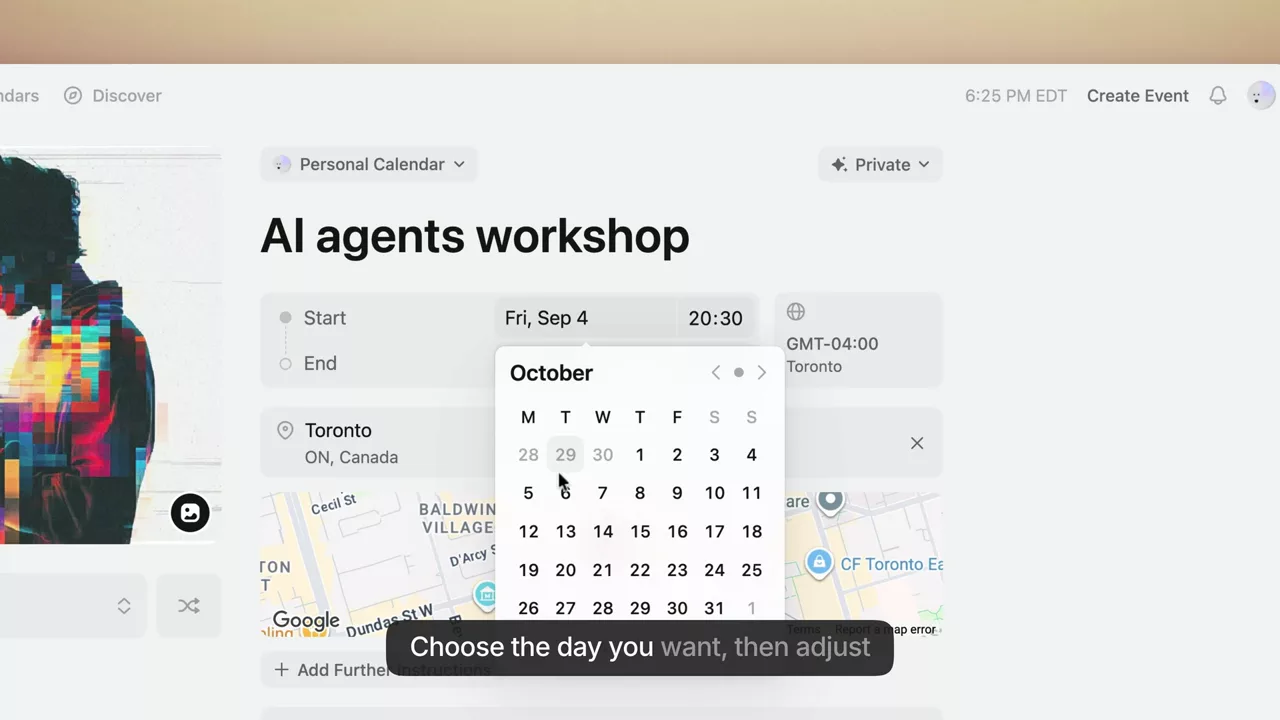
Doing these four by hand in a timeline editor is a craft: count 3–8 hours per finished video, and see the manual tools compared here. The AI path inverts the economics. Vibrantsnap performs all four automatically the moment you stop recording: the script rewrite drops the filler, auto-zoom follows your clicks, captions generate word-timed, and one of 30 studio voices (10 languages) reads the cleaned script, deterministically, so re-generating an unchanged section sounds identical. You review and adjust instead of editing from scratch.
Step 5 — Keep the voice consistent across the library
A training library recorded by five subject-matter experts over eight months sounds like five people over eight months, which learners read, fairly or not, as disorganization. Three ways to keep it coherent:
- Pick one narrator (human or AI voice) as the library's voice and stick with it
- Standardize an intro pattern: one sentence on what the video covers and who it's for
- Keep visual grammar constant — same zoom behavior, same caption style
This is an underrated argument for AI voiceover in training specifically: the voice is identical across authors, months, and updates.
Step 6 — Publish where the learner already is
A training video's distribution is decided by one question: do you need to prove completion?
- No (most internal and customer training): publish share links or embed in the help center and relevant workflows. The view count on each link tells you whether the video gets opened, which is enough when nobody has to prove completion. This is how customer education programs typically run.
- Yes (compliance, certification, regulated roles): you need an LMS, which means your production tool must export standard video files (every tool above does) or SCORM packages (course-authoring suites like iSpring and Articulate). The training video software comparison maps which tools do what.
Wherever it lands, put the video next to the moment of need: linked from the tool it explains, embedded in the SOP it accompanies, attached to the support macro that answers the question. The written procedure itself, if you need one, can come from the same recording: Vibrantsnap's free step-by-step guide turns the narration into numbered steps with a screenshot for each step.
Step 7 — Watch the numbers, then re-record without ceremony
Two signals matter. Views per video tell you which topics your people actually need. It's common to discover that the video you almost didn't make is the most-watched one. Staleness is the second: when the product changes, the affected videos teach the old interface with full confidence.
The teams whose libraries survive treat re-recording as routine maintenance, not a project. This is, bluntly, a tooling decision. If updating a video costs an afternoon of timeline work, the library rots; if it costs re-recording one three-minute task and letting the edit regenerate, it stays alive.
What making a training video actually costs
| Path | Software cost | Your time per finished video | When it makes sense |
|---|---|---|---|
| AI screen recorder (Vibrantsnap) | Free to record/edit; from $49/mo to export the video | 20–40 min | Screen-based software training |
| Manual editing (Camtasia, ScreenPal) | ~$0–600/yr | 3–8 hours | Frame-level control, cinematic tutorials |
| Course authoring (iSpring, Articulate) | Several hundred to $1,000+/author/yr | Days per course | SCORM, quizzes, certification |
| AI avatar (Synthesia) | From ~$29/mo (10 min/mo) | 1–2 hours | Policy content, no screen to show |
| Agency production | — | Briefing + review cycles | Commonly quoted $1,000–$10,000 per finished minute; flagship content only |
The honest summary: for screen-based training, the AI tier now produces output that would have required the agency tier's budget five years ago, which is why the whole tool category exists. Agencies still win for brand films and high-production flagship courses.
Training video examples worth copying
- The software walkthrough — one task, screen-recorded, zoomed, captioned, under 4 minutes. The workhorse; everything above optimizes for it.
- The onboarding series — 5–8 numbered videos from first login to first real output, linked from the welcome email.
- The SOP video — a process recorded end-to-end at real speed, paired with the written procedure it demonstrates; the same recording can write that procedure for you.
- The release update — 90 seconds on what changed and why it matters, shipped with every meaningful release.
- The compliance module — scripted, reviewed wording, presenter or avatar, delivered through the LMS with completion tracking.
For the craft of keeping viewers to the end (hooks, pacing, retention), our tutorial retention guide goes deeper on the psychology.
Frequently asked questions
How do I make a training video? Scope one task, outline the steps, record the screen while explaining naturally, then edit for watchability: cut dead air, zoom the actions, add captions and a clean voiceover. Publish where the learner already looks and check views to see what's used. With an AI screen recorder, the editing happens automatically; manually, budget several hours per video.
How long should a training video be? One task, usually under five minutes: completion falls off sharply beyond that for internal training. Long subjects become numbered series, not long films. Follow-along walkthroughs are the exception and should match the task's real length.
How much does it cost to make a training video? DIY manual: $0–600/year in software plus 3–8 hours per video. AI screen recorder: free to record with Vibrantsnap, with video export from $49/month, and 20–40 minutes per video. Agency: commonly quoted $1,000–$10,000 per finished minute. For screen-based training the middle path covers most needs.
What software do I need? Screen-based training: an AI screen recorder (Vibrantsnap) or manual editor (Camtasia, ScreenPal). Formal courses with quizzes and SCORM: iSpring Suite or Articulate 360. Presenter-style policy content: Synthesia. The full comparison is here.
Do I need to show my face? Not for software training. The interface is the star, and captions plus a clear voiceover carry the teaching. Faces matter for culture and leadership content where trust in the person is the message.
Can I make a training video with AI? Yes. For screen-based training it's now the default path: you record the real workflow, AI does the script cleanup, voiceover, zooms, and captions. The expert knowledge still has to come from you; the production no longer does.
Next steps: compare the tools by training type, see the full training video software market, or zoom out to the customer education program these videos feed.
Comparison

