Published October 3, 2026 in Tutorials
AI Voiceover for Screen Recordings: How to Replace Your Voice

Founder & Content Creator at Vibrantsnap · 9 min read
You recorded a product demo or a tutorial for your software. The clicks are right, the order is right, the result shows up at the end. The narration is the problem: you stumbled twice, said "um" every other sentence, or you were explaining in your second language and kept reaching for words. Recording again means risking new mistakes in the clicks to fix the words.
You don't have to. You can replace your voice on a screen recording and leave the screen exactly as it is. This guide walks through three ways to put an AI voiceover on a screen recording of your software, what each one costs in time, how to make the result sound natural, and when to keep your own voice instead.
Why replace your voice instead of recording again
- The screen is right and the words aren't. Recording again to fix the narration puts the part that worked at risk.
- A library should sound like one company. When a founder, a product manager and a support lead each record tutorials, one voice across all of them makes the help center feel consistent.
- Wording changes more often than screens. A plan gets renamed, a step gets a better explanation, a customer asks for a clearer word. With a replaceable voice, that is a script edit.
- The take's audio stops mattering. A replaced voice is generated from a script, so the echo of a meeting room or a laptop microphone doesn't follow it into the final video.
- Second-language narration. If you explain features in English as a second language, the hesitations go away with the original audio. We cover that case in depth in recording product demos when English isn't your first language.
Three ways to put an AI voiceover on a screen recording
| Method | How it works | Effort | Sounds like you? | Best for |
|---|---|---|---|---|
| 1. Text-to-speech and a video editor | You write a script, generate audio in a text-to-speech tool and align it with the video on a timeline | High: syncing is manual | No | A single video on a tight budget |
| 2. A voice-cloning editor | You edit the transcript, and a clone of your voice speaks the corrected words | Medium | Yes, a clone | Fixing a few words in an otherwise good take |
| 3. A rewrite-and-retime tool | The AI rewrites your narration into a script, a studio voice reads it and the video is retimed to match | Low | No | Demo and tutorial libraries that get updated |
Method 1: text-to-speech and a video editor
This is the do-it-yourself route. It costs little, and it teaches you why the other methods exist.
- Transcribe your take. Most video editors can generate a transcript, and so can many free tools.
- Turn the transcript into a script. Cut the restarts and filler, then rewrite for the ear: one action per sentence, labels exactly as they appear on screen.
- Split the script by step. Make one audio clip per step rather than one long file. Syncing ten short clips is far easier than sliding one long track around.
- Generate each clip. Use the same voice and the same settings for every clip, or the video will sound like it changes narrator halfway through.
- Replace the audio. Mute or delete the original track and place each clip under the step it describes.
- Fix the timing. Where a sentence runs longer than the action, freeze the frame until the sentence ends. Where it runs shorter, trim the idle footage: the cursor wandering, a page loading. Expect most of your time to go into this step.
- Add captions from the script, and check every product name in them.
- Watch it once at full speed, with the sound on and your eyes on the screen, not the script.
Where it breaks down is maintenance. Every wording change means regenerating a clip and then fixing the timing of everything after it. For one video, that's fine. For a help center, it becomes the job.
Method 2: clone your voice in a text-based editor
Some editors, Descript among them, let you edit a video by editing its transcript, and can clone your voice from a sample of your speech. Fix a word in the text and the clone speaks the new word in your voice.
This is the right tool when the take is mostly good and you want to keep sounding like yourself: a founder video, a sales follow-up, a podcast-style walkthrough. It has two limits. First, a clone is built to sound like you, so it is not a way to get a different voice. Second, it reads what you type. The hesitant sentence structure, the vague pointers and the second-language phrasing stay unless the transcript is rewritten first.
Method 3: rewrite the narration and retime the video
The third method removes the two manual jobs from method 1: writing the script and syncing it. This is how Vibrantsnap works. Clueso and Trupeer also rewrite and re-voice screen recordings.
- Record or import. Record a Chrome tab, a window or the whole screen with your microphone, and narrate the way you would explain it on a call. Or import a video you already have.
- Pick a studio voice. Choose from 30 studio voices across 10 languages. You can record in one language and publish in another.
- The AI writes the script. Your narration is transcribed and rewritten into a clean script in the voiceover language, split into chapters. Hesitation, rambling and false starts don't survive into the final video.
- The video is retimed to the voice. Scene by scene, the video adjusts to the new narration. This is step 6 of method 1, done for you. Processing takes about two minutes.
- Zooms and captions are added. On web apps recorded with the extension, every click gets a close-up. Captions are generated word by word from the voiceover and stay editable.
- Review and adjust. Read the script chapter by chapter, rewrite any line, swap the voice, move a zoom.
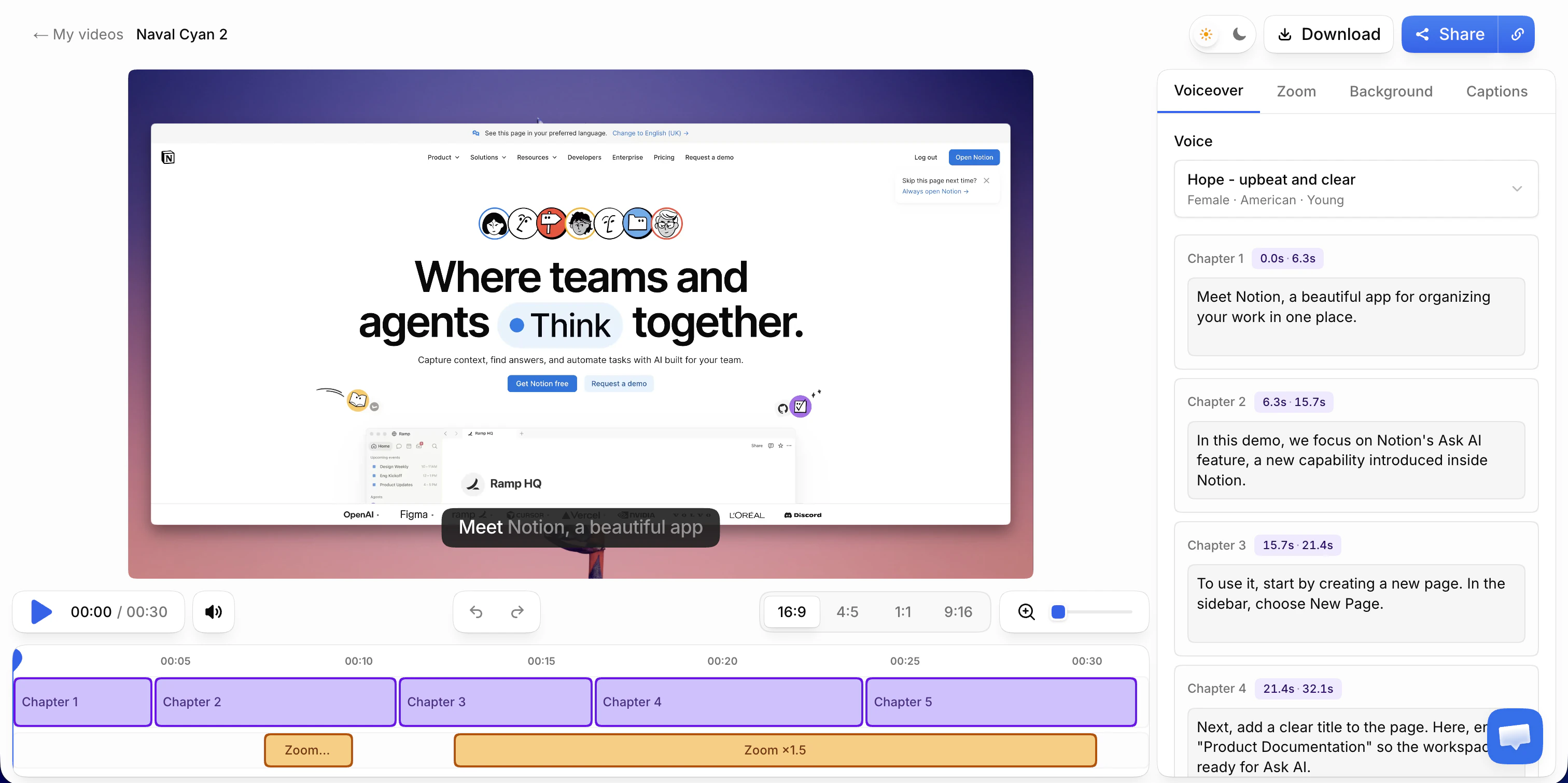
The limits are worth knowing before you start. The voice is a studio voice, not a clone of yours, and you can switch back to your original narration on any video. On desktop software or an imported video there is no cursor data, so you place the zooms yourself. And no rewrite can fix a recording where you never showed the thing you're talking about.
How to make an AI voiceover sound natural
Whichever method you use, the script decides whether the result sounds natural. A good voice reading a bad script still sounds bad.
- Write for the ear. Short sentences, one action each. "Open Settings. Click Team. Invite your first user." A listener can't scan back up the page.
- Name the goal before the clicks. "To approve a report, open Approvals" tells the viewer why they are watching the next ten seconds.
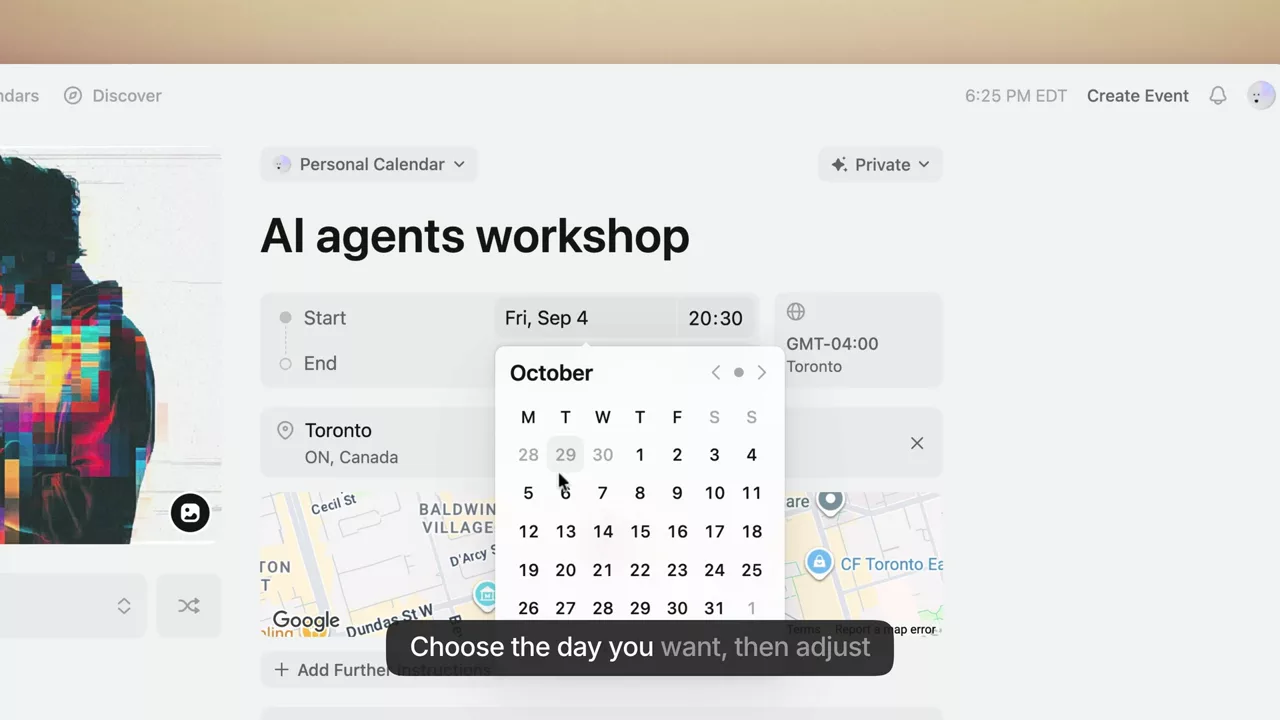
- Say each label exactly as it appears on screen, in the order the viewer will see it. If the button says "Add member", don't say "add a user".
- Check the tricky words first. Listen to product names, acronyms, version numbers and prices before anything else. If one is misread, adjust its spelling in the script, then check that the caption still shows the right form.
- Keep the voice ahead of the cursor, not behind it. The viewer should hear "click Review" just before or as the click happens, not three seconds after.
- Pick one voice per library and write it down. Note the voice name in a simple video inventory, one row per video, so whoever records next uses the same one.
- Match the voice to the viewer's language. A tutorial for French-speaking users should be read in French, even if you recorded it in English. See how to localize SaaS product videos without re-recording.
When to keep your own voice
An AI voiceover is not always the right call. Keep your own narration when:
- The viewer knows you. A follow-up to a prospect you just spoke with, or a message to a customer you work with closely.
- Your face is on screen. If the video shows a camera bubble, the voice has to be the person in it.
- The video is about you, not the product. A founder's welcome, an announcement presented as coming from you.
For everything that is about the product, such as tutorials, onboarding videos and feature walkthroughs, a studio voice is easier to keep consistent and easier to update.
Common mistakes
- Giving a raw transcript a nicer voice. "So, uh, here we can see the, the dashboard" sounds wrong in any voice. Rewrite first.
- Ignoring the timing. A voice that describes step three while the screen is still on step two loses the viewer faster than an accent ever would.
- Mixing voices within a series. Five tutorials, five voices, and the help center sounds like five different companies.
- Leaving the camera bubble on. A face with someone else's voice coming out of it undermines everything else in the video.
- Re-voicing a video that doesn't show the steps. No voiceover can describe a click you never made. If a step is missing on screen, record it.
Where Vibrantsnap fits
Vibrantsnap is an AI screen recorder for product walkthroughs, tutorials and demos, built around method 3. It's made for B2B software teams who teach customers their product one feature at a time and record the videos themselves.
- Record or import. The Chrome extension records a tab, a window or the whole screen, with your microphone. Recording length is never capped. Desktop software can be recorded too, and an imported video goes through the same pipeline.
- Rewrite and re-voice. Your narration becomes a clean script in chapters, read by one of 30 studio voices across 10 languages, with the video retimed to match. Regenerating an unchanged script gives exactly the same read.
- Edit the words, not the timeline. When a step needs a better explanation, edit that chapter's script and a new voiceover is generated. The footage stays.
- Share it. A share link with a call-to-action button, an embed in your help center, or an MP4 export in 1080p or 4K.
Recording, editing and previewing with every AI feature are free, with no credit card. On the free plan, the share link carries a watermark and a Vibrantsnap badge, and there is no export. Pro is $49/month, with 25 min of export a month, link analytics, 4K and no watermark. See pricing for Scale and Business.
For the full recording process, from planning to publishing, see how to make software tutorial videos customers finish. To compare tools that rewrite and re-voice recordings, see Vibrantsnap vs Clueso and Vibrantsnap vs Trupeer.
Frequently asked questions
Can I replace my voice in a screen recording without recording again? Yes. The clicks stay and only the narration changes. You can write a script, generate the audio with a text-to-speech tool and sync it to the video by hand, use an editor that clones your voice to patch words, or use a tool that rewrites your narration into a script, reads it in a studio voice and retimes the video to match, such as Vibrantsnap.
What is the best way to add an AI voiceover to a product demo? It depends on volume. For a single video on a tight budget, a text-to-speech tool and a video editor work if you're willing to sync the audio by hand. To keep your own voice while fixing a few words, use a voice-cloning editor. For a library of demos and tutorials that will need updates, a tool that rewrites the script and retimes the video saves the most time.
Can I add an AI voiceover to a video I already recorded? Yes. In Vibrantsnap you import the video and it goes through the same pipeline as a new recording: the narration is rewritten into a clean script and read in a studio voice, and the video is retimed to match. The one difference is zooms: an imported file carries no cursor data, so you place them yourself.
Will an AI voiceover sound robotic in a software tutorial? It mostly comes down to the script. A voice reading a raw transcript, with its restarts and half-sentences, sounds wrong however good the voice is. Rewrite the narration first into short sentences built to be spoken, one action per sentence, with the labels exactly as they appear on screen. Then check how the voice reads product names, acronyms and numbers.
Can the AI voiceover be in a different language from my recording? In Vibrantsnap, yes. You can record in one language and publish in another of its 10 voiceover languages: English, French, Spanish, Portuguese, German, Italian, Japanese, Chinese, Korean and Hindi. The script is written directly in the new language, and interface labels and product names keep their spelling.
Comparison