 Vibrantsnap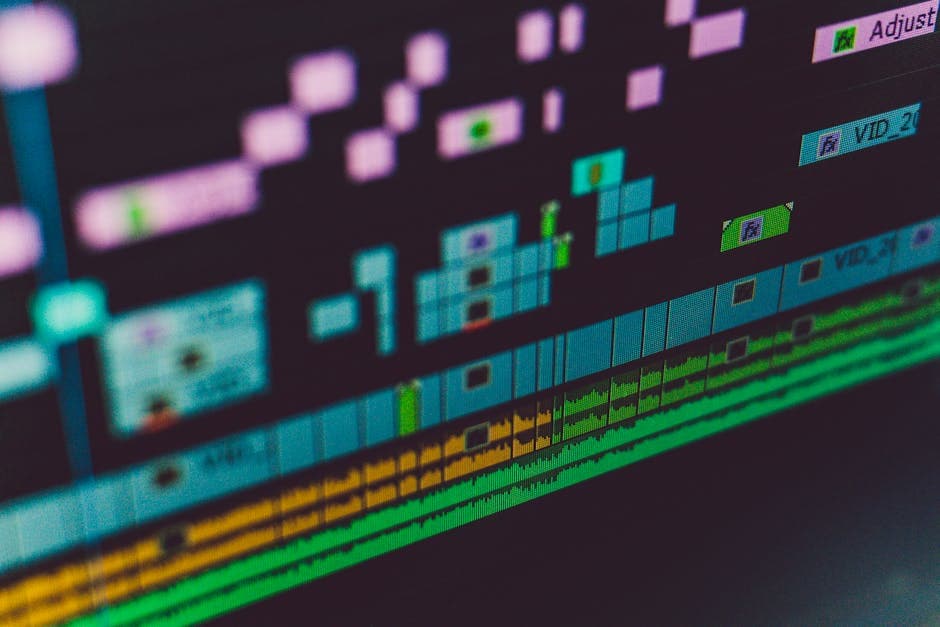
How to Edit Videos: Complete Beginner Guide 2025
Why Video Editing Matters More Than Ever
Video has become the dominant form of online communication. Whether you're creating YouTube tutorials, social media content, or professional presentations, knowing how to edit videos is no longer optional.
The good news? Video editing fundamentals are surprisingly learnable. With the right approach and tools, you can transform raw footage into polished content that captures attention and communicates your message effectively.
This guide covers everything beginners need to know, from basic concepts to practical techniques you can apply immediately.
Understanding the Video Editing Workflow
Before diving into software, understanding the editing workflow helps you approach projects systematically.
The Five Phases of Video Editing
1. Import and Organize
Start by importing all your footage and organizing it logically. Create folders for different types of content:
- Raw footage
- B-roll clips
- Audio files
- Graphics and images
2. Assembly Cut
Arrange your clips in rough chronological order. Don't worry about perfection, just get the basic structure in place.
3. Rough Cut
Trim clips, remove mistakes, and establish the pacing. This is where your video starts taking shape.
4. Fine Cut
Refine transitions, adjust timing, and polish the flow. Add music, sound effects, and basic color adjustments.
5. Final Polish
Add titles, graphics, and final touches. Export in the appropriate format for your platform.
Essential Video Editing Concepts
The Timeline
The timeline is where all editing happens. It displays your video and audio tracks horizontally, with time progressing from left to right.
Key timeline elements:
- Playhead: The vertical line showing your current position
- Tracks: Horizontal layers for video and audio
- Clips: Individual pieces of footage on the timeline
- In/Out points: Where clips begin and end
Cuts and Transitions
The most fundamental edit is the cut, a simple switch from one clip to another.
Types of cuts:
- Hard cut: Instant switch between clips
- J-cut: Audio from the next clip starts before the video
- L-cut: Audio from the previous clip continues into the next
- Jump cut: Cutting within the same shot for pacing
Common transitions:
- Cross dissolve: One clip fades into another
- Fade to black: Clip fades out, then the next fades in
- Wipe: One clip pushes or reveals another
Use transitions sparingly. Hard cuts are usually the cleanest choice.
Audio Fundamentals
Audio quality often matters more than video quality. Poor audio drives viewers away faster than anything else.
Audio editing basics:
- Normalize levels: Keep audio at consistent volume
- Remove background noise: Clean up hum, hiss, or room noise
- Add music: Set mood and maintain engagement
- Use sound effects: Enhance transitions and emphasize moments
Choosing Your First Video Editing Software
Free Options for Beginners
| Software | Platform | Best For | Learning Curve |
|---|---|---|---|
| DaVinci Resolve | Windows, Mac, Linux | Color grading, professional features | Moderate |
| CapCut | Windows, Mac, Mobile | Social media content | Easy |
| iMovie | Mac, iOS | Simple projects | Easy |
| Clipchamp | Windows, Web | Quick edits | Easy |
Professional Options
| Software | Starting Price | Best For | Industry Standard |
|---|---|---|---|
| Adobe Premiere Pro | $22.99/month | Professional video production | Yes |
| Final Cut Pro | $299 one-time | Mac-based workflows | Yes |
| DaVinci Resolve Studio | $295 one-time | Color grading, VFX | Yes |
Step-by-Step: Your First Video Edit
Step 1: Import Your Footage
Open your editing software and create a new project. Import your video files by dragging them into the media browser or using File > Import.
Pro tip: Keep your project files organized from the start. Create a dedicated folder structure before importing.
Step 2: Create Your Sequence
A sequence (or timeline) is where you arrange your clips. Most software auto-creates sequences when you drag footage to the timeline.
Important settings:
- Match resolution to your footage (usually 1920x1080 or 3840x2160)
- Set frame rate to match your footage (usually 24, 30, or 60 fps)
- Choose appropriate audio sample rate (48kHz is standard)
Step 3: Assemble Your Clips
Drag clips from your media browser to the timeline. Arrange them in order, leaving the trimming for later.
Workflow tip: Watch your footage first and mark the good sections. This saves time when assembling.
Step 4: Make Your Cuts
Use the razor or blade tool to split clips where you want cuts. Delete the sections you don't need.
Keyboard shortcuts save time:
- Most editors use "C" for the cut tool
- "V" returns to the selection tool
- "I" and "O" set in and out points
Step 5: Trim and Refine
Drag the edges of clips to adjust their length. Use ripple editing to close gaps automatically.
Pacing tips:
- Faster cuts create energy and tension
- Longer shots feel more relaxed or dramatic
- Vary your pacing to maintain interest
Step 6: Add Transitions
Apply transitions sparingly. Click the transition in your effects panel and drag it between clips.
Best practices:
- Use cross dissolves for time passage
- Hard cuts work for most situations
- Avoid flashy transitions unless they serve a purpose
Step 7: Work on Audio
Adjust audio levels so everything sounds balanced. Add background music at a lower volume than dialogue.
Audio mixing basics:
- Dialogue: -12 to -6 dB
- Music: -20 to -15 dB (under dialogue)
- Sound effects: Variable based on impact needed
Step 8: Color Correction
Basic color correction ensures consistent, natural-looking footage.
Simple color workflow:
- Correct white balance
- Adjust exposure (brightness)
- Set contrast levels
- Fine-tune saturation
Step 9: Add Titles and Graphics
Insert text for titles, lower thirds, and captions. Most editors include built-in title templates.
Title best practices:
- Keep text readable (large enough, sufficient contrast)
- Use consistent fonts throughout
- Don't overcrowd the screen
Step 10: Export Your Video
Choose your export settings based on where you'll share the video.
Common export settings:
- YouTube: H.264, 1080p or 4K, 8-15 Mbps
- Instagram: H.264, 1080x1080 or 1080x1920
- General purpose: H.264, your source resolution
Common Beginner Mistakes to Avoid
Over-Editing
New editors often add too many effects, transitions, and movements. Restraint produces more professional results.
Signs of over-editing:
- Every cut has a transition
- Constant zooming and panning
- Too many text overlays
- Excessive color grading
Ignoring Audio
Viewers tolerate imperfect video but abandon content with bad audio immediately.
Audio priorities:
- Clear, audible dialogue
- Consistent volume levels
- Appropriate music levels
- Clean background (no noise or echo)
Poor Pacing
Holding shots too long loses viewers. Cutting too fast confuses them.
Find the right pace:
- Watch your edit without sound to evaluate pacing
- Cut when the information in a shot has been communicated
- Vary shot lengths to maintain interest
Not Using Keyboard Shortcuts
Mouse-only editing is slow and frustrating. Learn essential shortcuts from day one.
Shortcuts worth memorizing:
- Play/pause (usually spacebar)
- Cut tool (usually C)
- Selection tool (usually V)
- Undo (Ctrl/Cmd + Z)
Building Your Editing Skills
Practice Projects for Beginners
Project 1: Simple montage Collect 10-15 clips and edit them to music. Focus on cutting to the beat.
Project 2: Interview edit Record yourself answering questions. Edit out the questions and mistakes.
Project 3: Tutorial video Screen record a simple process. Add voiceover and basic graphics.
Project 4: Before/after comparison Show a transformation with split-screen or sequential comparison.
Learning Resources
Free resources:
- YouTube tutorials (search for your specific software)
- Software documentation and help guides
- Reddit communities (r/VideoEditing, r/premiere)
Structured learning:
- LinkedIn Learning courses
- Skillshare classes
- Software-specific training (Adobe tutorials, Blackmagic Design training)
Tools That Accelerate Your Workflow
Modern editing benefits from AI-powered tools that automate tedious tasks.
VibrantSnap: Simplify Your Recording-to-Edit Workflow
VibrantSnap streamlines the creation of screen recordings and video presentations with professional results.
How VibrantSnap helps beginners:
- Automatic enhancement: AI improves your recordings without manual adjustment
- Professional output: Polished results without advanced editing skills
- Time savings: Less time editing means more time creating
- Easy sharing: Share videos directly or export for further editing
For beginners creating tutorials, product demos, or educational content, starting with a tool that produces high-quality recordings reduces the editing work needed later.
Other Helpful Tools
For audio:
- Descript for AI-powered audio cleanup
- Audacity for free audio editing
For graphics:
- Canva for simple thumbnails and graphics
- Figma for more advanced designs
For organization:
- Frame.io for collaboration and review
- Google Drive for file storage and sharing
Your First Week of Video Editing
Day 1-2: Software Setup
- Download and install your chosen editor
- Watch a "getting started" tutorial
- Import some test footage
- Explore the interface
Day 3-4: Basic Editing
- Create your first timeline
- Practice making cuts
- Trim clips and arrange them
- Add a simple transition
Day 5-6: Audio and Polish
- Adjust audio levels
- Add background music
- Try basic color correction
- Insert a title
Day 7: Complete Project
- Finish a short edit (30-60 seconds)
- Export and review
- Note what worked and what didn't
- Start your next project
Conclusion: Start Editing Today
Video editing skills develop through practice. Every project teaches you something new, and mistakes are how you learn.
Start with simple projects, focus on fundamentals, and gradually add complexity as you grow more comfortable. The technical skills become automatic over time, freeing you to focus on storytelling and creativity.
Ready to create professional video content faster? VibrantSnap helps you record polished screen recordings and presentations that require minimal editing. Start with great source material, and your editing becomes much simpler.
Your first edit won't be perfect, but your tenth will be much better, and your hundredth will surprise you. Start today.