Vibrantsnap

How to Screen Record on Windows 11 & 10 — 5 Ways (2026)
Whether you're building a product demo, recording a tutorial, or saving a video call, knowing how to screen record on Windows is a skill you'll use more often than you think. With 93% of businesses now using video as a marketing tool (Wyzowl, 2025) and Windows 11 holding 62% of the desktop market share as of January 2026 (StatCounter), the demand for quick, reliable screen capture has never been higher.
The good news? You don't need to install anything to get started. Windows 11 and Windows 10 both ship with built-in screen recording tools. But each method has tradeoffs. Some record system audio. Others don't. Some capture your full desktop. Others are locked to a single app window.
This guide walks you through every method available in 2026, from native Windows tools to third-party options, so you can pick the one that fits your workflow.
Quick answer: To screen record on Windows 11, open the Snipping Tool, click the video camera icon, select the area to capture, and press Start — recordings save as MP4 with optional mic and system audio. On Windows 10, press Win + Alt + R to record with Xbox Game Bar. Both tools are free and built in.
How to Screen Record with Snipping Tool (Windows 11)
The Snipping Tool has come a long way from its screenshot-only origins. Starting with Windows 11 version 22H2, Microsoft added screen recording directly into this familiar utility. And in 2025, it gained two major upgrades: GIF export and window-mode recording, which lets you capture a single app window instead of dragging a freeform rectangle.
How to record your screen with Snipping Tool:
- Open the Start menu and search for Snipping Tool, or press
Win + Shift + S. - In the Snipping Tool toolbar, click the video camera icon to switch from screenshot mode to recording mode.
- Click + New, then drag to select the area of your screen you want to capture.
- Click Start to begin recording.
- When you're done, click the Stop button in the floating toolbar.
- Your recording opens in the Snipping Tool editor. From here, you can save it as an MP4 or, with the latest update, export it as a GIF.
Recording with audio: As of Windows 11 version 24H2, Snipping Tool supports both microphone and system audio recording. Before you start, click the microphone icon and the speaker icon in the toolbar to toggle each audio source on or off.
Limitations to know about:
- No webcam overlay
- Maximum recording length is not explicitly capped, but performance may degrade after 30+ minutes
- Only available on Windows 11 (not Windows 10)
- No annotation tools during recording
How to Screen Record with Xbox Game Bar (Windows 10 & 11)
Xbox Game Bar was originally designed for gamers, but it works perfectly for recording any application. It's available on both Windows 10 and Windows 11, making it the most accessible built-in option.
How to record your screen with Xbox Game Bar:
- Open the app you want to record. Game Bar cannot capture the desktop or File Explorer.
- Press
Win + Gto open the Game Bar overlay. - Click the Capture widget (it looks like a small camera). If you don't see it, click the widget menu icon and enable Capture.
- Click the Record button (circle icon) or press
Win + Alt + Rto start recording immediately. - A small floating timer appears in the corner of your screen.
- Press
Win + Alt + Ragain to stop recording.
Where do recordings go? By default, Game Bar saves recordings to C:\Users\[YourName]\Videos\Captures.
Recording with audio: Game Bar records system audio by default. To include your microphone, click the microphone icon in the Capture widget before you start, or press Win + Alt + M during recording to toggle it.
Key settings to adjust:
- Open Settings > Gaming > Captures to change recording quality (up to 1080p at 60fps), maximum recording length (30 minutes to 4 hours), and audio bitrate.
- On Windows 11, you can also enable HDR recording if your display supports it.
Limitations to know about:
- Cannot record the desktop, File Explorer, or the Windows Settings app
- Maximum resolution is 1080p at 60fps
- Only records one application window at a time
- No region selection; it captures the entire app window
PowerShell Screen Recording (Windows 10 & 11)
Here's the thing: most guides skip this method entirely. You can trigger screen recording from the command line using PowerShell, though it's more of a workaround than a polished solution. This approach uses the Windows.Graphics.Capture API available in Windows 10 (version 1903+) and Windows 11.
Basic approach:
# Install the PSScreenRecorder module
Install-Module -Name PSScreenRecorder -Force

# Start a recording
Start-ScreenRecording -Path "$env:USERPROFILE\Videos\recording.mp4" -Duration 60
This method is useful for automated workflows, CI/CD pipelines, or situations where you need to script recordings without a GUI. For most users, though, Snipping Tool or Game Bar will be far more practical.


How to Screen Record on Windows with Third-Party Tools
The built-in options cover basic needs, but they fall short when you need features like 4K recording, webcam overlays, real-time annotations, or automatic editing. Here's where third-party tools fill the gap.
OBS Studio (Free, Open Source)
OBS Studio remains the gold standard for free screen recording. It supports multiple sources, scenes, and output formats. The learning curve is steep, but the flexibility is unmatched.
- Records at any resolution your hardware supports
- Supports RTMP streaming alongside local recording
- Custom scene layouts with webcam, overlays, and text
- No watermarks, no time limits
Best for: streamers, advanced users, and anyone who needs granular control over every setting. New to OBS? Our OBS screen recording setup guide gets you recording with audio in about 2 minutes. For a curated list beyond OBS, see our roundup of free screen recorders without watermark.
Vibrantsnap (AI-Powered, Paid)
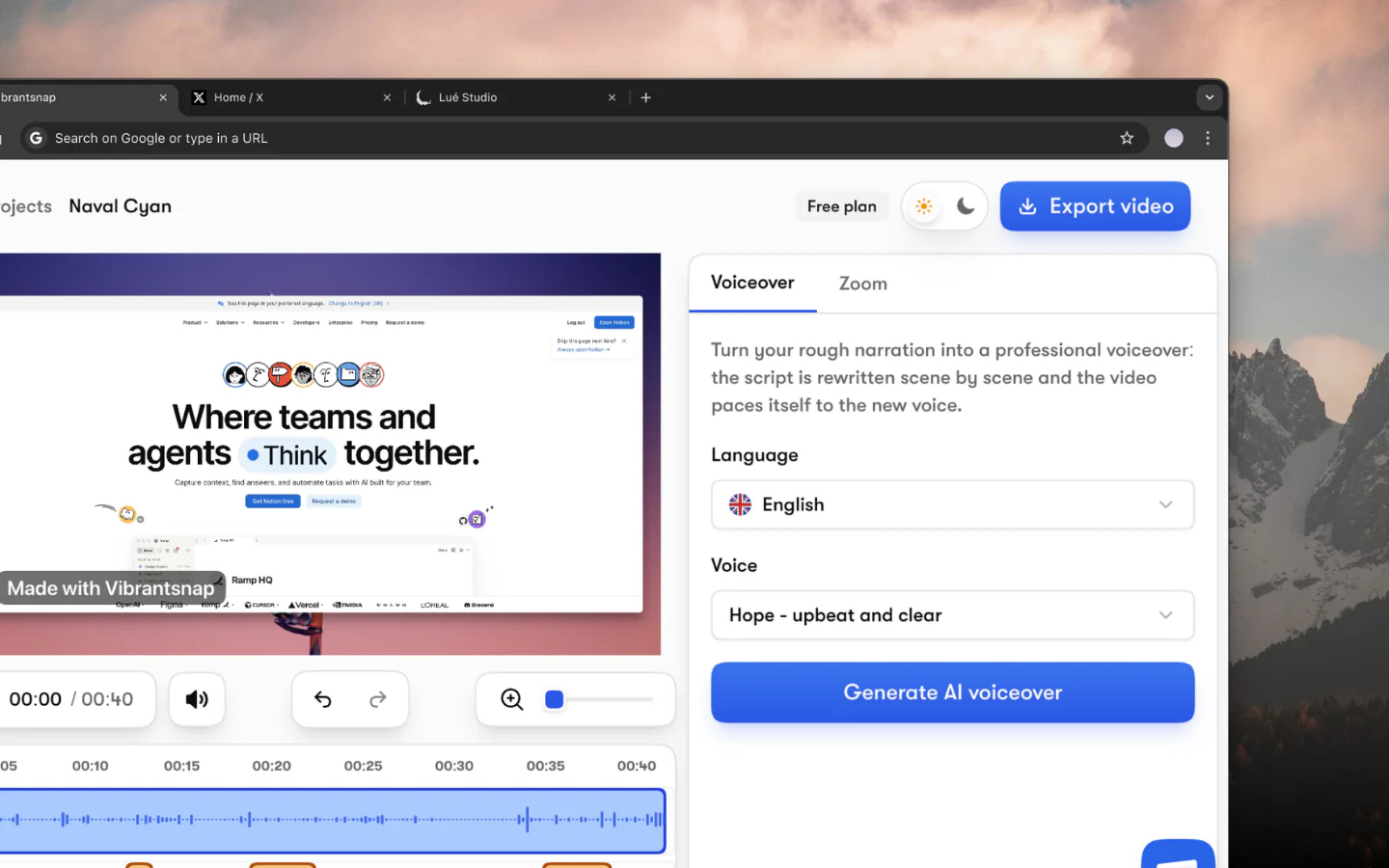
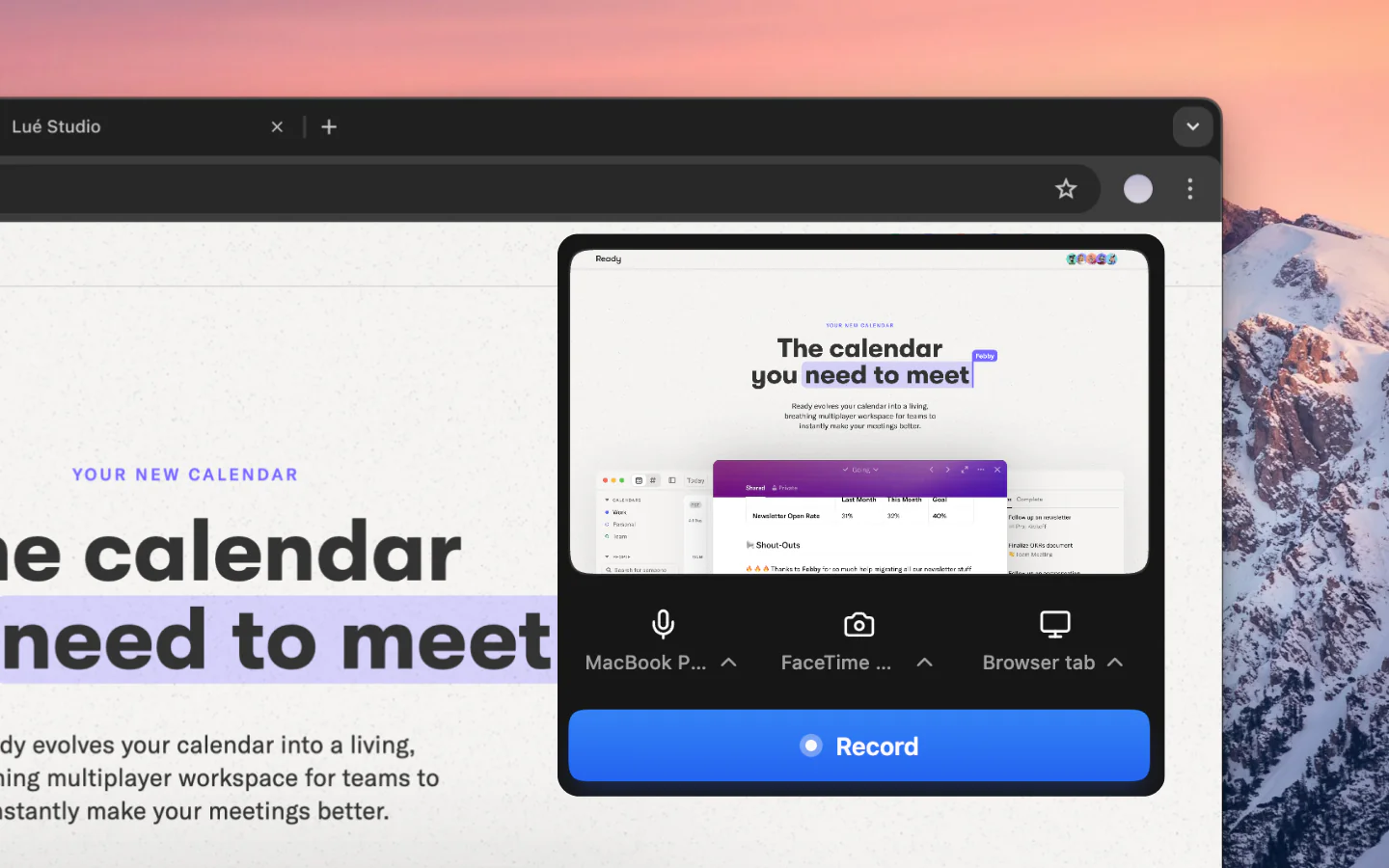
If you're recording product demos, tutorials, or marketing content, Vibrantsnap takes a different approach. Instead of giving you a complex interface with dozens of settings, it records in 4K at up to 120fps and then uses AI to handle the tedious parts: auto-editing, polishing, and even adding embedded CTAs to your videos. It's built for founders and marketers who need professional-looking recordings without the editing time. Free to record and edit — subscribe at export from $39/month.
Other Notable Options
- ShareX (Free): Open source, supports GIF recording, highly customizable workflows. No webcam overlay.
- Loom (Freemium): Browser-based recording with instant sharing links. Free plan limited to 5 minutes per video.
- Camtasia (Paid): Full video editor with screen recording. Expensive ($299.99 one-time) but powerful for long-form tutorials.
Windows 11 vs. Windows 10: Screen Recording Differences
What most people miss is how different the screen recording experience is between Windows 10 and Windows 11. Here's a direct comparison:
| Feature | Windows 10 | Windows 11 |
|---|---|---|
| Snipping Tool recording | Not available | Full support with audio |
| Xbox Game Bar | Available (up to 4 hours) | Available with HDR support |
| System audio recording | Game Bar only | Snipping Tool + Game Bar |
| Microphone recording | Game Bar only | Snipping Tool + Game Bar |
| GIF export | Not built-in | Snipping Tool (2025 update) |
| Window-mode capture | Not built-in | Snipping Tool (2025 update) |
| Maximum resolution | 1080p (Game Bar) | 1080p (Game Bar) |
| Keyboard shortcut | Win + Alt + R | Win + Alt + R / Win + Shift + R |
If you're still on Windows 10, Xbox Game Bar is your only native option. Windows 11 users get significantly more flexibility with the updated Snipping Tool, especially for quick recordings that don't need complex editing.
How to Record Your Screen with Audio on Windows
Audio is where things get tricky. Many users start a recording only to realize the final video is completely silent. Each tool handles audio differently.
Snipping Tool (Windows 11 24H2+): Click the microphone icon to capture your voice. Click the speaker icon to capture system audio (music, app sounds, video call audio). Both can be enabled simultaneously.
Xbox Game Bar:
System audio is captured automatically. For microphone audio, press Win + Alt + M before or during recording. You can adjust the audio balance in the Game Bar settings under Settings > Gaming > Captures > Audio.
Pro tip: If you need to record a video call with both your voice and the other person's audio, Game Bar is usually the safer choice. It reliably captures system audio on both Windows 10 and 11, while Snipping Tool's system audio support requires the 24H2 update.
For professional-grade audio, consider using a dedicated microphone and recording in a quiet environment. The built-in Windows tools don't offer noise suppression or audio enhancement. Tools like Vibrantsnap include AI-powered audio cleanup, which can save significant post-production time, especially for tutorial creators and marketers who record frequently.
Tips for Better Screen Recordings on Windows
A few practical adjustments can dramatically improve your recording quality:
- Close unnecessary apps. Screen recording is CPU-intensive. Background apps competing for resources will cause dropped frames.
- Set your display to the target resolution. If you plan to share at 1080p, record at 1080p. Downscaling a 4K recording to 1080p looks better than upscaling 720p.
- Disable notifications. Press
Win + Nto open the notification panel, then enable Focus Assist (Windows 10) or Do Not Disturb (Windows 11). Nobody wants a personal message popping up mid-recording. - Use a solid or simple wallpaper. This reduces visual noise if your recording accidentally captures the desktop.
- Plan your clicks. Move your cursor deliberately. Fast, erratic mouse movements are hard to follow in recordings, especially at lower frame rates.
- Record in short segments. It's easier to re-record a 2-minute segment than redo a 20-minute session. You can stitch clips together in any video editor.
Troubleshooting: When Screen Recording Doesn't Work on Windows
A handful of issues account for most "screen recording is broken" support tickets. Here's how to diagnose and fix them quickly.
Xbox Game Bar refuses to record an app. Game Bar cannot capture apps running with elevated (administrator) permissions. If you're trying to record a tool like Task Manager, Registry Editor, or any app you launched via "Run as administrator," restart it without admin rights. Game Bar should then be able to record it.
The "Capture" button is grayed out. Make sure (a) Game Bar is enabled in Settings → Gaming → Xbox Game Bar, (b) the app you're trying to record is in the foreground when you press Win + G, and (c) Game Bar's "Captures" page hasn't disabled background recording.
No audio in your recording. Two common causes: your microphone permission is off, or the wrong audio source is selected. In Windows 11, go to Settings → Privacy & security → Microphone and make sure desktop apps can access it. Inside Game Bar's settings, verify the right input device is selected. For system audio specifically (apps, video playback), Game Bar captures it by default — but only when "Record game audio" is enabled.
Recording starts but immediately stops. Most often a disk space issue. Game Bar requires several GB of free space on your save drive, and it stops abruptly when free space drops below the buffer threshold. Free up space or change the save location in Game Bar settings.
Recordings are choppy or drop frames. CPU or GPU contention. Close non-essential apps before recording, especially Chrome with many tabs and any video conferencing tools running in the background. If you're on integrated graphics, consider lowering the recording resolution from 4K to 1080p.
Can't find your saved recordings. Default save location is C:\Users\<your-name>\Videos\Captures. You can change this in Settings → Gaming → Captures → "Save captures to."
If Game Bar's limitations aren't acceptable for your use case, OBS Studio handles all of these scenarios more reliably — at the cost of a steeper learning curve.
Related: Need a Windows screen recorder with AI auto-editing? Vibrantsnap records in 4K and handles editing automatically. See how it compares to alternatives, or try our Chrome extension screen recorder for browser-based recording. You can also compress your recordings or grab a thumbnail frame from any video.