Vibrantsnap

Green Screen: Complete Setup Guide, Software & Tips for Creators
A green screen is no longer reserved for Hollywood blockbusters or big-budget news studios. The chroma key backdrop market hit $2 billion in 2023 and is growing at roughly 12% per year (Data Insights Market, 2025), driven almost entirely by independent creators, remote workers, and small production teams. Whether you want to place yourself in front of a custom-branded background for a product demo or transport your audience to a virtual set, the barrier to entry has never been lower.
This guide covers the full workflow: picking the right physical setup on a budget, choosing software for chroma keying, and exploring AI-powered alternatives that skip the green fabric altogether.
Why Creators Are Using Green Screens in 2026
Video content dominates every major platform. YouTube processes over 500 hours of uploads every minute. TikTok surpassed 1.5 billion monthly active users. Twitch streamers broadcast millions of hours per week. In all of these spaces, visual quality separates casual content from professional-looking work.
Green screens give creators three key advantages:
- Brand control. You decide exactly what appears behind you. Custom backgrounds, slides, product visuals, or animated scenes.
- Location independence. Record from a cluttered apartment and make it look like a studio. No one sees the laundry pile.
- Creative flexibility. Swap backgrounds between shots, layer yourself over screen recordings, or create picture-in-picture layouts.
Chroma key technology is used in over 70% of Hollywood films (Wikipedia / Chroma Key), and the same core technique now runs in free software on a $500 laptop.


Budget Green Screen Setup: What You Actually Need
You do not need to spend hundreds of dollars. Here is a practical breakdown.
The Screen Itself
| Option | Price Range | Best For |
|---|---|---|
| Muslin fabric (6x9 ft) | $15-$30 | Stationary desk setups |
| Collapsible pop-up panel | $30-$60 | Portable creators |
| Green paint (flat/matte finish) | $25-$40 per gallon | Permanent studios |
| Chair-mounted green screen | $40-$70 | Streamers and webcam users |
The cheapest route is a wrinkle-resistant muslin cloth clipped to a $20 backdrop stand. If you record at the same desk every day, a chair-mounted screen from Elgato or a budget alternative works well and takes zero floor space.
Key rule: The fabric must be a single, consistent shade of green. Wrinkles create shadows, and shadows create uneven keying. Iron or steam your screen before every session.
Lighting (The Part Most People Skip)
Bad lighting ruins chroma key results faster than cheap fabric. You need even illumination across the green surface with no hotspots and no shadows from your body falling onto the screen.
Minimum viable setup:
- Two softbox lights or LED panels ($30-$50 each), angled at 45 degrees toward the green screen
- One key light on your face, positioned slightly above eye level
- At least 3-4 feet of distance between you and the screen to prevent green color spill on your skin and hair
Total lighting cost: $60-$150. Ring lights work in a pinch, but they tend to create a visible circular reflection in glasses and do not spread light evenly enough for a full backdrop.
Camera and Recording
Any camera that shoots 1080p or higher will work. Your laptop webcam, a Logitech C920, an iPhone on a tripod, or a mirrorless camera. Higher resolution gives the software more pixel data to separate you from the background, so 4K is preferable if your machine can handle it.
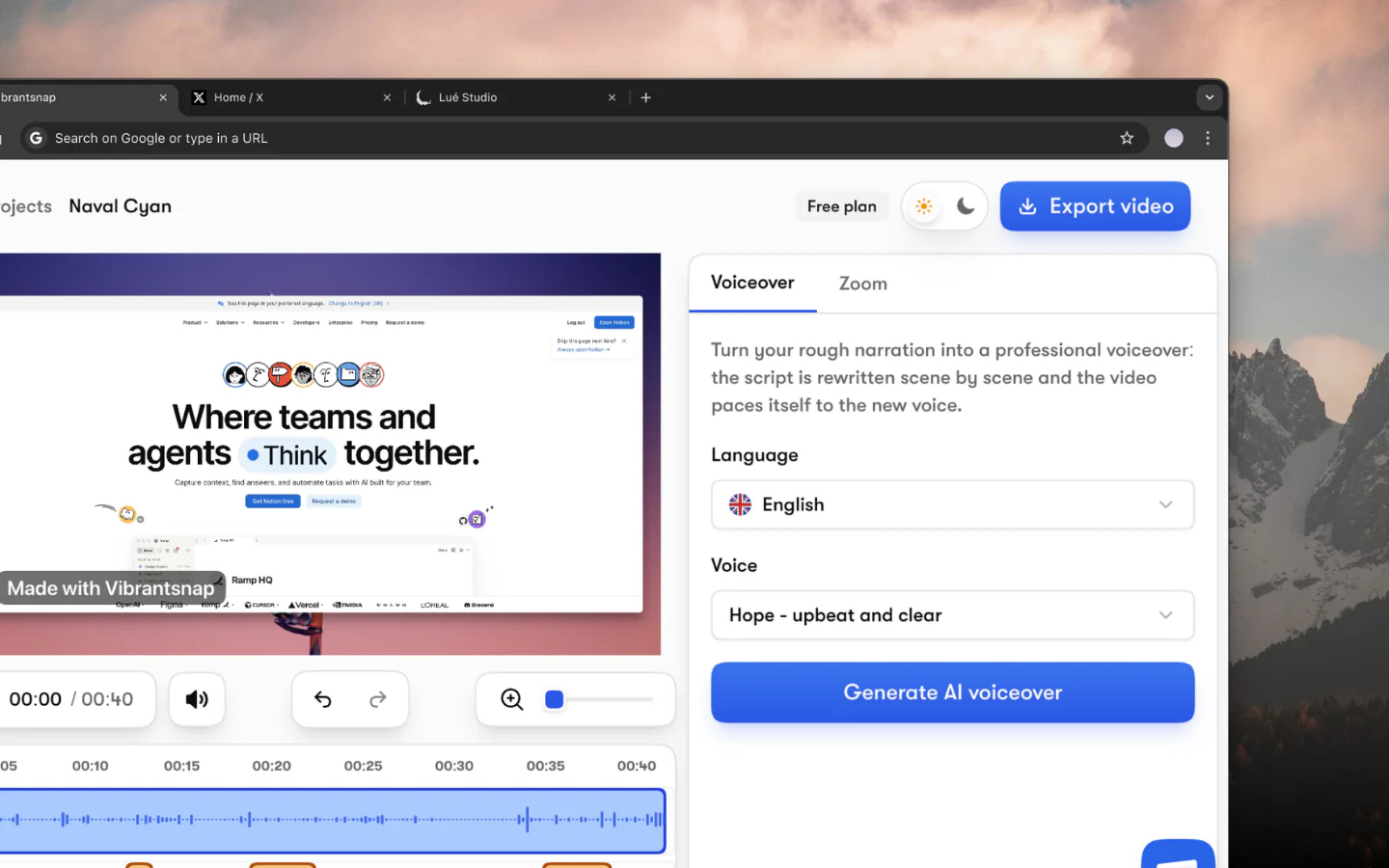
For screen recordings, product walkthroughs, and software demos where you want a green-screen webcam overlay, Vibrantsnap records at 4K 120fps and handles auto-editing, so you can focus on the content and apply the chroma key in post-production.
Best Green Screen Software for Chroma Keying
Choosing software depends on whether you need real-time keying (live streams, video calls) or post-production keying (recorded videos).
OBS Studio (Free, Real-Time)
OBS is the default choice for live streaming and real-time recording with a green screen. It is free, open source, and runs on Windows, Mac, and Linux.
How to set up chroma key in OBS:
- Add your camera as a Video Capture Device source
- Right-click the source and select Filters
- Add a Chroma Key effect filter
- Set the Key Color Type to Green (or use the color picker for custom shades)
- Adjust Similarity (start at 400), Smoothness (around 80), and Key Color Spill Reduction (around 100)
OBS also supports the Background Removal plugin, which uses AI to remove your background without any green screen at all. The plugin uses less CPU than you might expect and works reasonably well for talking-head content.
Best for: Streamers, live presenters, anyone doing real-time virtual backgrounds.
Set up OBS for screen recording with our full guide
DaVinci Resolve (Free, Post-Production)
DaVinci Resolve is one of the most powerful free video editors available, and its chroma key tools rival paid software costing hundreds of dollars. Version 20 introduced Chroma Warp in the Color Warper, giving editors more natural control over key edges.
How to key green screen footage in Resolve:
- Import your clip into the Edit page
- Switch to the Color page
- Open the Qualifier panel (eyedropper icon)
- Use the picker to select the green color from your footage
- Toggle the Highlight view to see your matte
- Refine with the Matte Finesse controls: Clean Black, Clean White, Pre-Filter, and Post-Filter
- For edge spill, use the 3D Qualifier and despill sliders
Resolve's Fusion page also supports more advanced compositing workflows with Delta Keyer, which handles tricky edges like hair and transparent objects better than the basic qualifier.
Best for: Editors who want precise control, color grading integration, and professional output quality.
CapCut (Free, Beginner-Friendly)
CapCut has crossed 300 million monthly active users (Bloomberg, 2024), and its green screen removal tool is one of the simplest available. You upload your footage, tap "Remove Background" or apply the Chroma Key effect, and the software handles the rest.
Steps for green screen in CapCut:
- Import your green screen footage
- Add it to the timeline
- Tap the Cutout option and select Chroma Key
- Pick the green color from your clip
- Adjust Intensity and Shadow sliders until the background disappears cleanly
CapCut's AI-based background removal is also worth trying. It works without any green screen at all, analyzing the frame to separate the subject from the background automatically. Accuracy sits around 90-95% on well-lit footage.
Best for: Social media creators, TikTok/Reels/Shorts producers, beginners who want fast results.
Quick Comparison
| Software | Price | Real-Time | Post-Production | Skill Level | Platform |
|---|---|---|---|---|---|
| OBS Studio | Free | Yes | No | Beginner | Win/Mac/Linux |
| DaVinci Resolve | Free | No | Yes (advanced) | Intermediate | Win/Mac/Linux |
| CapCut | Free | No | Yes (basic) | Beginner | Win/Mac/Web |
| Adobe Premiere Pro | $22.99/mo | No | Yes (advanced) | Advanced | Win/Mac |
| Final Cut Pro | $299.99 one-time | No | Yes (advanced) | Intermediate | Mac |
Virtual Backgrounds Without a Green Screen
Not everyone wants to buy fabric, set up lights, and worry about wrinkles. AI-powered background removal has improved dramatically, and several tools now work without any physical screen.
Software options for screen-free background removal:
- OBS Background Removal Plugin handles real-time removal using machine learning. Works best in consistent lighting with a clear contrast between you and your background.
- Zoom and Microsoft Teams both have built-in virtual backgrounds. Quality varies based on your webcam and lighting, but for video calls, they are usually good enough.
- CapCut AI Background Removal processes recorded clips and strips the background frame by frame. Occasional artifacts around hair and fingers, but solid for social content.
- Unscreen.com is a web-based tool that removes video backgrounds without any green screen. It processes clips up to a few minutes long for free.
The trade-off is control. Physical green screens give you cleaner edges, better hair detail, and more consistent results across different lighting conditions. AI removal works well for talking-head videos but struggles with fast movement, complex hair, or low-contrast scenes.
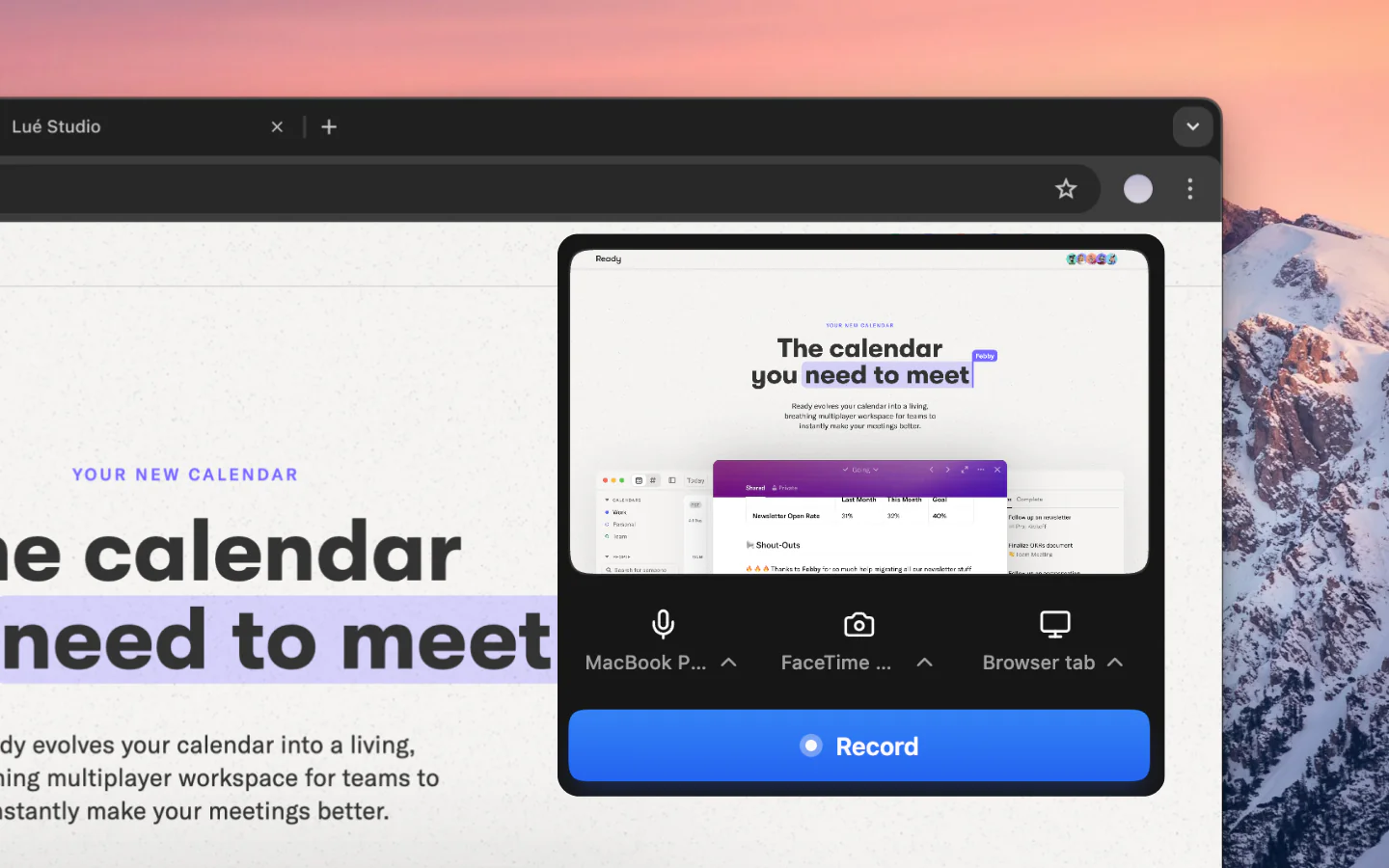
For creators who record screen tutorials, walkthroughs, or product demos, tools like Vibrantsnap let you capture polished 4K screen recordings with webcam overlays, then apply background removal or chroma keying during the editing stage. That workflow sidesteps the need for a perfect green screen setup during recording.
Green Screen Tips That Actually Matter
After testing dozens of setups across different lighting conditions and software tools, here are the tips that made the biggest difference.
1. Distance from the screen is more important than screen quality. Stand or sit at least 4 feet away from the green fabric. This prevents green light from bouncing onto your skin and hair (called "spill"), which creates halos and color contamination that software struggles to fix.
2. Light the screen and yourself separately. Two lights on the screen, one or two on you. Mixing lighting creates uneven keying. The green should be evenly lit with no visible shadows.
3. Avoid wearing green. This sounds obvious, but it extends beyond shirts. Green jewelry, green phone cases on your desk, green logos on headphones. Anything green in the frame will become transparent.
4. Match your subject lighting to the replacement background. If your virtual background is an outdoor scene with warm sunlight, your key light should lean warm too. Mismatched color temperatures make composites look fake instantly.
5. Shoot at higher frame rates when possible. Motion blur at 24fps creates soft edges around your body that make keying harder. Recording at 60fps or higher gives the software sharper frame-by-frame data to work with.
6. Use a noise-free camera signal. ISO noise in dark areas of the frame introduces grain that the chroma keyer interprets as color variation. Keep your ISO low and compensate with better lighting instead.
Common Green Screen Mistakes to Avoid
- Wrinkled fabric. Every fold creates a shadow, and every shadow creates a different shade of green. The software reads multiple shades as different colors. Steam or iron before recording.
- Overexposed hotspots. If a section of your green screen is blown out to white, no keyer can recover it. Diffuse your lights and check for hotspots before hitting record.
- Screen too small. If you move and your arm exits the green area, you get a hard edge against whatever is behind the screen. Use a backdrop that covers your full range of motion.
- Ignoring audio. Green screens are often fabric, and fabric absorbs less sound than a treated wall. You may notice more echo in your recordings. Add acoustic panels or record with a close-proximity microphone.