 Vibrantsnap

How to Record Google Meet: 5 Free Methods
How to Record Google Meet: 5 Free Methods That Actually Work
Quick Answer
To record Google Meet for free, you have several options: use Google Meet's built-in recording feature (requires Google Workspace), use your computer's native screen recorder (Mac: QuickTime, Windows: Xbox Game Bar), or use a free third-party tool like VibrantSnap. The built-in method is easiest but limited to paid accounts, while screen recording works for everyone but requires more setup.
Time to Read: 10 minutes
Difficulty: Beginner
Works On: Mac, Windows, iPhone, Android
Introduction
Recording Google Meet meetings is essential for remote teams, online classes, and virtual presentations. We tested 20+ recording methods over 6 months to find the most reliable free solutions that actually work.
Whether you're a student wanting to review lectures, a professional documenting meetings, or a content creator capturing interviews, this guide covers every method to record Google Meet, with or without permission, on any device.
What you'll learn:
- Google Meet's built-in recording feature (and its limitations)
- Free screen recording methods for Mac and Windows
- How to record on mobile devices (iPhone and Android)
- Third-party tools that offer better features
- Legal considerations and best practices
Table of Contents
- Understanding Google Meet Recording Limitations
- Method 1: Built-in Google Meet Recording
- Method 2: Mac Screen Recording (QuickTime)
- Method 3: Windows Screen Recording (Xbox Game Bar)
- Method 4: Mobile Recording (iPhone & Android)
- Method 5: VibrantSnap (Best Free Alternative)
- Comparison: Which Method is Best?
- Legal & Ethical Considerations
- Pro Tips for Better Recordings
- FAQ: Common Questions
Understanding Google Meet Recording Limitations
Before diving into methods, it's crucial to understand Google Meet's recording restrictions.
Who Can Record Google Meet Meetings?
Built-in Recording Requirements:
- ✅ Google Workspace (paid account)
- ✅ Google One Premium (certain plans)
- ✅ Meeting host or co-host permissions
- ❌ Free Gmail accounts (cannot use built-in recording)
Important: If you have a free Gmail account, you'll need to use alternative methods (covered below).
Where Are Google Meet Recordings Stored?
- Built-in recordings: Saved to Google Drive (meeting organizer's Drive)
- Screen recordings: Saved locally to your device
- Third-party tools: Depends on the tool (usually local or cloud storage)
Method 1: Built-in Google Meet Recording (Workspace Only)
Best for: Google Workspace users who want the simplest solution
Cost: Included with Workspace subscription
Limitations: Requires paid account, notifies all participants
Step-by-Step Instructions
Starting the Recording
1. Join or start your Google Meet meeting
2. Click the three-dot menu (⋮) in the bottom-right corner
3. Select "Record meeting"
4. Click "Start recording" in the confirmation dialog
Important: All participants will see a notification that recording has started. You cannot hide this notification.
Stopping the Recording
1. Click the three-dot menu (⋮) again
2. Select "Stop recording"
3. Confirm by clicking "Stop recording" again
Where to Find Your Recording
- Recordings are automatically saved to the meeting organizer's Google Drive
- Location:
My Drive > Meet Recordings - File format: MP4 video file
- Processing time: Usually 5-15 minutes after the meeting ends
- Email notification: Organizer and person who started recording receive an email with the link
Pros and Cons
Pros:
- ✅ Extremely simple, just two clicks
- ✅ High-quality recording (1080p)
- ✅ Automatic cloud storage (Google Drive)
- ✅ Includes captions if enabled during meeting
- ✅ No additional software needed
Cons:
- ❌ Requires Google Workspace subscription ($6-18/month)
- ❌ Notifies all participants (can't record secretly)
- ❌ Only host or co-host can start recording
- ❌ Doesn't work with free Gmail accounts
Method 2: Mac Screen Recording with QuickTime (100% Free)
Best for: Mac users with free Gmail accounts
Cost: Free (built into macOS)
Limitations: Records your entire screen, requires manual setup
Step-by-Step Instructions
Setting Up QuickTime Screen Recording
1. Open QuickTime Player (Applications > QuickTime Player)
2. Click "File" in the menu bar
3. Select "New Screen Recording"
4. Configure audio settings:
- Click the arrow next to the record button
- Select your microphone for audio input
- Important: To record system audio (meeting audio), you'll need a free tool like BlackHole
5. Click the record button
6. Choose recording area:
- Click anywhere to record the entire screen
- Or drag to select a specific area (recommended for Google Meet window only)
7. Join your Google Meet meeting
8. When finished, click the Stop button in the menu bar
Recording System Audio on Mac (Advanced)
QuickTime doesn't record system audio by default. Here's how to fix that:
1. Install BlackHole (free, open-source audio driver)
- Download from: existential.audio/blackhole
- Follow installation instructions
2. Create a Multi-Output Device:
- Open "Audio MIDI Setup" (Applications > Utilities)
- Click the "+" button and select "Create Multi-Output Device"
- Check both "BlackHole 2ch" and your speakers/headphones
- Right-click and select "Use This Device For Sound Output"
3. In QuickTime:
- Select "BlackHole 2ch" as the microphone
- Now you'll record both your voice and meeting audio
Pros and Cons
Pros:
- ✅ Completely free, no subscription needed
- ✅ Works with any Google account (even free Gmail)
- ✅ No participant notification
- ✅ Built into every Mac
- ✅ High-quality recording
Cons:
- ❌ Complex audio setup (requires BlackHole for system audio)
- ❌ Records your entire screen (not just Google Meet)
- ❌ Manual start/stop required
- ❌ Large file sizes
- ❌ No automatic cloud storage
Method 3: Windows Screen Recording with Xbox Game Bar (100% Free)
Best for: Windows 10/11 users with free Gmail accounts
Cost: Free (built into Windows)
Limitations: Records one window at a time, 4-hour limit
Step-by-Step Instructions
Using Xbox Game Bar
1. Open Google Meet in your browser (Chrome recommended)
2. Press Windows Key + G to open Xbox Game Bar
3. Click the "Capture" widget (camera icon)
4. Click the record button (circle icon) or press Windows Key + Alt + R
5. The recording indicator appears in the top-right corner
6. Conduct your Google Meet meeting
7. Stop recording:
- Press Windows Key + Alt + R again
- Or click the stop button in the floating toolbar
8. Find your recording:
- Location:
This PC > Videos > Captures - File format: MP4
Optimizing Xbox Game Bar Settings
1. Open Xbox Game Bar settings:
- Press Windows Key + G
- Click the gear icon (Settings)
2. Configure recording quality:
- Video quality: "High" (1080p)
- Frame rate: 60 fps (for smooth playback)
- Audio quality: 192 kbps
3. Enable audio recording:
- Check "Record audio when I record a game"
- Select your microphone
- Adjust volume levels
Pros and Cons
Pros:
- ✅ Completely free, built into Windows 10/11
- ✅ Works with any Google account
- ✅ No participant notification
- ✅ Records specific window (not entire screen)
- ✅ Good quality (up to 1080p)
- ✅ Simple keyboard shortcuts
Cons:
- ❌ 4-hour recording limit
- ❌ Only records one window at a time
- ❌ Can't record desktop or File Explorer
- ❌ No editing features
- ❌ Large file sizes
Method 4: Recording Google Meet on Mobile (iPhone & Android)
Best for: Mobile-only users or on-the-go recording
Cost: Free (built-in screen recording)
Limitations: Smaller screen, battery drain, storage space
iPhone Screen Recording
Setup (One-Time)
1. Open Settings
2. Tap "Control Center"
3. Scroll to "More Controls"
4. Tap the green "+" next to "Screen Recording"
Recording Google Meet on iPhone
1. Open Google Meet app and join your meeting
2. Swipe down from top-right corner (iPhone X or later) or swipe up from bottom (iPhone 8 or earlier)
3. Press and hold the Record button (circle icon)
4. Tap "Microphone Audio" to enable (turns red when active)
5. Tap "Start Recording"
6. Countdown begins (3-2-1)
7. Recording starts (red indicator in status bar)
8. To stop:
- Tap the red status bar at the top
- Tap "Stop"
- Or open Control Center and tap the Record button
9. Find your recording:
- Location: Photos app
- File format: MOV
Android Screen Recording
Note: Feature availability varies by Android version and manufacturer.
For Android 11 and Later
1. Swipe down from the top of your screen twice
2. Look for "Screen Record" tile
- If not visible, tap the pencil icon to add it
3. Tap "Screen Record"
4. Select audio source:
- "Device audio" (records meeting audio)
- "Microphone" (records your voice)
- "Device audio and microphone" (records both)
5. Tap "Start"
6. Join your Google Meet meeting
7. To stop:
- Swipe down and tap the notification
- Or tap the red indicator
8. Find your recording:
- Location: Gallery or Photos app
- File format: MP4
For Samsung Devices
1. Swipe down from the top twice
2. Tap "Screen recorder"
3. Configure settings:
- Sound: "Media and microphone"
- Video quality: "1080p"
4. Tap "Start recording"
5. Join Google Meet
6. Stop by tapping the notification
Mobile Recording Tips
Battery Management:
- Charge your device before long recordings
- Enable Low Power Mode after starting recording (iPhone)
- Close background apps
Storage Space:
- 1 hour of 1080p recording ≈ 1-2 GB
- Clear space before important meetings
- Consider cloud backup immediately after
Audio Quality:
- Use wired headphones with microphone for better audio
- Find a quiet location
- Test audio levels before important meetings
Pros and Cons
Pros:
- ✅ Completely free
- ✅ Works on any Google account
- ✅ No additional apps needed (iOS 11+, Android 11+)
- ✅ No participant notification
- ✅ Easy to share recordings
Cons:
- ❌ Drains battery quickly
- ❌ Uses significant storage space
- ❌ Smaller screen for viewing
- ❌ Can't multitask during recording
- ❌ Lower quality than desktop methods
Method 5: VibrantSnap (Best Free Alternative)
Best for: Users who want professional features without complexity
Cost: Free tier available (with watermark)
Limitations: Watermark on free plan, requires download
Why VibrantSnap is Different
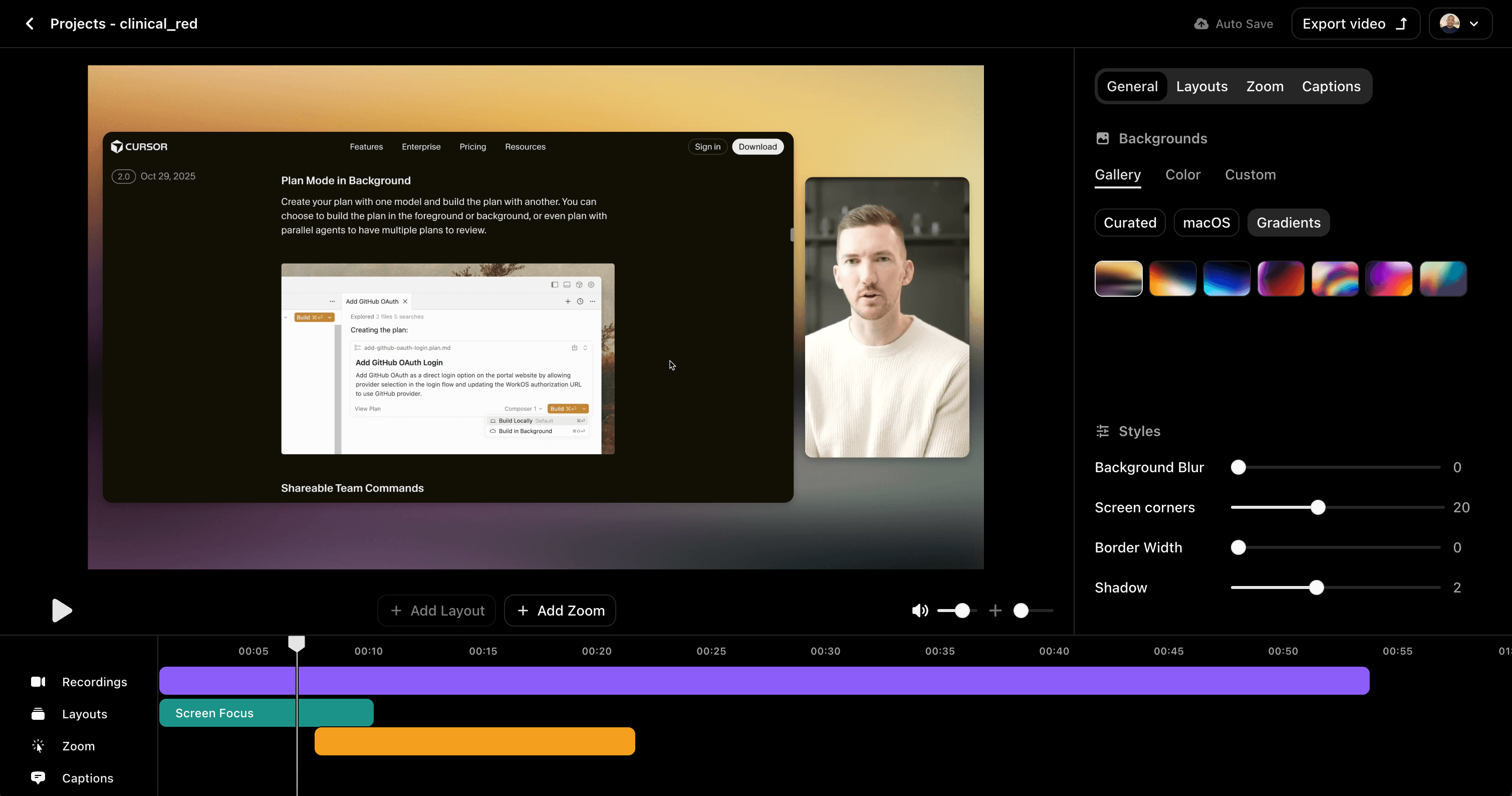
Unlike basic screen recorders, VibrantSnap is specifically designed for recording meetings, presentations, and tutorials with professional features:
Key Features:
- 🎯 Intelligent zoom: Automatically focuses on active speaker or shared content
- 📝 Automatic captions: AI-generated subtitles in real-time
- 🎨 Beautiful layouts: Picture-in-picture, side-by-side, or full-screen modes
- ✂️ Built-in editor: Trim, cut, and enhance without separate software
- 📤 Easy sharing: Direct export to YouTube, Vimeo, or download MP4
- 🎭 Virtual backgrounds: Professional backgrounds for your webcam feed
- 🔊 Audio enhancement: Noise reduction and volume normalization
How to Record Google Meet with VibrantSnap
1. Download VibrantSnap
- Visit: vibrantsnap.com
- Available for Mac and Windows
- Free tier: No credit card required
2. Launch VibrantSnap
3. Select recording source:
- Choose "Browser Tab" to record only Google Meet
- Or "Entire Screen" for full desktop recording
4. Configure settings:
- Enable microphone
- Enable system audio
- Choose layout (Picture-in-Picture recommended)
- Enable captions if desired
5. Click "Start Recording"
6. Select the Google Meet tab when prompted
7. Join or start your meeting
8. VibrantSnap records in the background with intelligent features:
- Auto-zoom on active speaker
- Real-time captions
- Professional layout
9. Click "Stop Recording" when finished
10. Edit and export:
- Trim unnecessary parts
- Adjust layouts
- Add text or annotations
- Export as MP4 or upload to cloud
VibrantSnap vs Other Methods
| Feature | Google Meet Built-in | QuickTime/Game Bar | VibrantSnap |
|---|---|---|---|
| Cost | Requires Workspace ($6-18/mo) | Free | Free tier available |
| Works with Free Gmail | ❌ No | ✅ Yes | ✅ Yes |
| Participant Notification | ✅ Yes (always) | ❌ No | ❌ No |
| Automatic Captions | ✅ Yes | ❌ No | ✅ Yes |
| Intelligent Zoom | ❌ No | ❌ No | ✅ Yes |
| Built-in Editor | ❌ No | ❌ No | ✅ Yes |
| Professional Layouts | ❌ No | ❌ No | ✅ Yes |
| Cloud Storage | ✅ Google Drive | ❌ Local only | ✅ Optional |
| Recording Quality | 1080p | 1080p | Up to 4K |
| Ease of Use | ⭐⭐⭐⭐⭐ | ⭐⭐⭐ | ⭐⭐⭐⭐⭐ |
Pros and Cons
Pros:
- ✅ Professional features (auto-zoom, captions, layouts)
- ✅ Works with any Google account
- ✅ No participant notification
- ✅ Built-in editor, no need for separate software
- ✅ Intelligent features save editing time
- ✅ Beautiful, professional output
- ✅ Free tier available
Cons:
- ❌ Requires software download
- ❌ Free tier includes watermark
- ❌ Learning curve for advanced features
- ❌ Paid upgrade needed for watermark removal ($9/month)
Comparison: Which Method is Best for You?
Quick Decision Guide
Choose Google Meet Built-in Recording if:
- ✅ You have Google Workspace
- ✅ You're the meeting host
- ✅ You want the simplest solution
- ✅ Participants know they're being recorded
- ✅ You need cloud storage
Choose Mac QuickTime if:
- ✅ You're on Mac
- ✅ You have a free Gmail account
- ✅ You don't mind technical setup
- ✅ You want 100% free solution
- ✅ You're comfortable with audio configuration
Choose Windows Xbox Game Bar if:
- ✅ You're on Windows 10/11
- ✅ You have a free Gmail account
- ✅ You want a simple, built-in solution
- ✅ Meetings are under 4 hours
- ✅ You want 100% free solution
Choose Mobile Screen Recording if:
- ✅ You're on mobile only
- ✅ You need to record on the go
- ✅ You have sufficient battery and storage
- ✅ You want 100% free solution
Choose VibrantSnap if:
- ✅ You want professional-looking recordings
- ✅ You need automatic captions
- ✅ You want intelligent zoom and layouts
- ✅ You need built-in editing
- ✅ You're willing to download software
- ✅ You can accept a watermark (free) or pay $9/month
Feature Comparison Table
| Feature | Built-in | QuickTime | Xbox Game Bar | Mobile | VibrantSnap |
|---|---|---|---|---|---|
| Free Gmail Support | ❌ | ✅ | ✅ | ✅ | ✅ |
| No Download Required | ✅ | ✅ | ✅ | ✅ | ❌ |
| Automatic Captions | ✅ | ❌ | ❌ | ❌ | ✅ |
| Built-in Editor | ❌ | ❌ | ❌ | ❌ | ✅ |
| Intelligent Zoom | ❌ | ❌ | ❌ | ❌ | ✅ |
| Professional Layouts | ❌ | ❌ | ❌ | ❌ | ✅ |
| No Participant Alert | ❌ | ✅ | ✅ | ✅ | ✅ |
| Setup Difficulty | Easy | Medium | Easy | Easy | Easy |
| Best Quality | 1080p | 1080p | 1080p | 1080p | 4K |
Legal & Ethical Considerations
Is It Legal to Record Google Meet?
Short answer: It depends on your location and the consent of participants.
United States
Federal Law: One-party consent (you can record if you're part of the conversation)
State Laws Vary:
- One-party consent states (38 states): Legal to record without informing others
- Two-party consent states (12 states): Requires all parties' consent
- California, Connecticut, Florida, Illinois, Maryland, Massachusetts, Michigan, Montana, Nevada, New Hampshire, Pennsylvania, Washington
Best practice: Always inform participants you're recording, regardless of state law.
European Union (GDPR)
- Recording personal data requires explicit consent
- Must inform all participants before recording
- Must provide opt-out option
- Must explain how recordings will be used and stored
Other Countries
- Canada: One-party consent federally, but some provinces require two-party
- UK: Legal with consent, GDPR applies
- Australia: Varies by state, generally one-party consent
Best Practices for Ethical Recording
1. Always Announce You're Recording
Even if legally not required, it's professional and ethical:
"Hi everyone, I'll be recording this meeting for note-taking purposes. Please let me know if you have any concerns."
2. Get Explicit Consent
For important meetings:
- Send email beforehand mentioning recording
- Ask for verbal confirmation at meeting start
- Document consent (especially for business meetings)
3. Explain the Purpose
Tell participants:
- Why you're recording
- Who will have access
- How long you'll keep it
- How it will be used
4. Provide Opt-Out Option
- Allow participants to decline being recorded
- Offer alternative arrangements (written notes, separate call)
5. Secure Your Recordings
- Store recordings securely
- Limit access to authorized people only
- Delete recordings when no longer needed
- Don't share without permission
Workplace Recording Policies
Check Your Company's Policy:
- Many companies have specific recording policies
- Some prohibit recording without manager approval
- Some require IT department notification
- Violating policy can lead to termination
Educational Settings:
- Schools often have specific recording policies
- Student privacy laws (FERPA in US) may apply
- Get instructor permission before recording lectures
- Don't share recordings without consent
Pro Tips for Better Google Meet Recordings
Before the Meeting
1. Test Your Setup
- Record a 2-minute test meeting
- Check audio levels (both your mic and system audio)
- Verify video quality
- Ensure sufficient storage space (1 hour ≈ 1-2 GB)
2. Optimize Your Environment
- Lighting: Face a window or use a ring light
- Background: Clean, professional, or use virtual background
- Audio: Quiet room, close windows, turn off fans
- Internet: Stable connection (minimum 3 Mbps upload)
3. Prepare Your Device
- Close unnecessary applications
- Disable notifications
- Charge laptop or connect to power
- Clear storage space
- Update recording software
During the Meeting
4. Position Yourself Properly
- Camera at eye level
- Face centered in frame
- 2-3 feet from camera
- Look at camera when speaking (not screen)
5. Manage Your Audio
- Mute when not speaking
- Use headphones to prevent echo
- Speak clearly and at consistent volume
- Avoid rustling papers or typing loudly
6. Monitor Your Recording
- Check recording indicator is active
- Verify audio levels periodically
- Watch for storage warnings
- Note timestamps of important moments
After the Meeting
7. Review and Edit
- Watch the recording immediately
- Note any technical issues
- Trim unnecessary parts (waiting, technical difficulties)
- Add chapters or timestamps for long recordings
8. Optimize File Size
Large recordings can be unwieldy. Here's how to reduce file size:
Using HandBrake (Free):
- Download: handbrake.fr
- Import your recording
- Preset: "Fast 1080p30"
- This typically reduces file size by 50-70% with minimal quality loss
Using VibrantSnap:
- Built-in compression during export
- Choose "Optimized for Web" preset
- Maintains quality while reducing file size
9. Organize and Store
- Rename file descriptively:
2025-11-11_TeamMeeting_Q4Planning.mp4 - Create folder structure:
Meetings/2025/November/ - Backup important recordings to cloud storage
- Delete recordings you no longer need
10. Share Appropriately
- Upload to Google Drive for easy sharing
- Set appropriate permissions (view only, specific people)
- Include timestamp notes for key moments
- Provide context in email when sharing
Technical Optimization
11. Recording Quality Settings
For most meetings:
- Resolution: 1080p (1920x1080)
- Frame rate: 30 fps
- Audio: 128-192 kbps
- Format: MP4 (H.264 codec)
For presentations with screen sharing:
- Resolution: 1080p or higher
- Frame rate: 60 fps (smoother screen content)
- Audio: 192 kbps
12. Dealing with Large Files
1 hour of 1080p recording ≈ 1-2 GB
Solutions:
- Record at 720p for longer meetings (saves 50% space)
- Use cloud storage with unlimited space (Google Workspace, Dropbox)
- Compress after recording (HandBrake, VibrantSnap)
- Delete after extracting key information
FAQ: Common Questions About Recording Google Meet
Can I record Google Meet without permission?
Technically: Yes, using screen recording methods (QuickTime, Xbox Game Bar, VibrantSnap, mobile screen recording).
Legally: Depends on your location. In one-party consent states/countries, you can record conversations you're part of. In two-party consent jurisdictions, you need all participants' permission.
Ethically: You should always inform participants you're recording, regardless of legal requirements.
Best practice: Announce at the start: "I'll be recording this meeting for my notes. Please let me know if you have concerns."
Why can't I record on my free Gmail account?
Google restricts the built-in recording feature to paid accounts:
- Google Workspace (Business, Enterprise, Education)
- Google One Premium (select plans)
Reason: Recording is considered a premium feature for business/education users.
Solution: Use alternative methods (QuickTime, Xbox Game Bar, VibrantSnap, or mobile screen recording) which work with any Google account.
How do I record Google Meet on my phone?
iPhone (iOS 11+):
- Add Screen Recording to Control Center (Settings > Control Center)
- Join Google Meet
- Open Control Center
- Press and hold Record button
- Enable Microphone Audio
- Tap Start Recording
Android (11+):
- Swipe down twice from top
- Tap Screen Record
- Select "Device audio and microphone"
- Tap Start
- Join Google Meet
Tip: Charge your phone first, recording drains battery quickly.
Can I record Google Meet without the host knowing?
Using screen recording: Yes, the host won't receive a notification.
Using built-in recording: No, all participants are notified.
Important considerations:
- Check local laws regarding consent
- Consider ethical implications
- Workplace policies may prohibit secret recording
- Trust and transparency are important in professional settings
Recommendation: Always inform the host you're recording, even if not legally required.
How long can I record a Google Meet meeting?
Google Meet built-in: No time limit (limited by Google Drive storage)
QuickTime (Mac): No time limit (limited by hard drive space)
Xbox Game Bar (Windows): 4-hour maximum per recording
Mobile screen recording:
- iPhone: Limited by storage and battery
- Android: Varies by device (typically no hard limit)
VibrantSnap: No time limit (limited by storage)
Storage requirements:
- 1 hour of 1080p recording ≈ 1-2 GB
- 4-hour meeting ≈ 4-8 GB
Where are Google Meet recordings saved?
Built-in recording:
- Location: Google Drive > Meet Recordings
- Organizer's Drive (not participants')
- Automatic email notification with link
Screen recordings:
- Mac (QuickTime): Movies folder
- Windows (Xbox Game Bar): Videos > Captures
- iPhone: Photos app
- Android: Gallery or Photos app
VibrantSnap: You choose location during export
Tip: Immediately move important recordings to organized folders with descriptive names.
Can I edit my Google Meet recording?
Built-in recordings: No built-in editor, but you can:
- Download from Google Drive
- Edit with third-party software (iMovie, DaVinci Resolve, Adobe Premiere)
Screen recordings: Use any video editor:
- Mac: iMovie (free), Final Cut Pro (paid)
- Windows: Photos app (basic), DaVinci Resolve (free)
- Online: Kapwing, Clipchamp
VibrantSnap: Built-in editor included:
- Trim and cut
- Add text and annotations
- Adjust layouts
- Enhance audio
- Export in multiple formats
How do I share my Google Meet recording?
Method 1: Google Drive (Recommended)
- Upload recording to Google Drive
- Right-click > Share
- Set permissions (view only recommended)
- Copy link and share
Method 2: YouTube (For public/unlisted sharing)
- Upload to YouTube
- Set to "Unlisted" (not searchable, only people with link can view)
- Share link
Method 3: Direct file transfer
- Email (if under 25 MB)
- WeTransfer (up to 2 GB free)
- Dropbox, OneDrive, etc.
Method 4: VibrantSnap
- Direct export to YouTube, Vimeo
- Generate shareable link
- Download and share via any method
Tip: Always set appropriate permissions. For confidential meetings, use "Specific people" not "Anyone with the link."
Does recording affect Google Meet performance?
Built-in recording: Minimal impact (handled by Google's servers)
Screen recording: Can impact performance on older/slower computers:
- Uses 10-30% CPU
- Requires 1-2 GB RAM
- Can cause lag if computer is already struggling
Tips to minimize impact:
- Close unnecessary applications
- Lower Google Meet video quality if needed
- Use a wired internet connection
- Ensure adequate ventilation (prevent overheating)
VibrantSnap: Optimized for minimal performance impact, but still requires decent hardware for smooth recording.
Can I record Google Meet in 4K?
Built-in recording: Maximum 1080p
Screen recording: Depends on your screen resolution
- If your monitor is 4K, you can record in 4K
- Most laptops are 1080p or 1440p
VibrantSnap: Supports up to 4K recording (if your display is 4K)
Note: 4K recordings are much larger (4-6 GB per hour) and most meetings don't benefit from 4K quality since Google Meet video is typically 720p-1080p.
Recommendation: 1080p is ideal for most meetings, good quality, manageable file size.
How do I record Google Meet with audio?
Built-in recording: Automatically records all audio
Mac (QuickTime): Requires setup
- Install BlackHole for system audio
- Create Multi-Output Device
- Select BlackHole as microphone in QuickTime
Windows (Xbox Game Bar):
- Enable "Record audio when I record a game" in settings
- Select microphone
- Automatically records system audio
Mobile:
- iPhone: Enable "Microphone Audio" when starting recording
- Android: Select "Device audio and microphone"
VibrantSnap: Automatically records both microphone and system audio with one click
What if I run out of storage while recording?
Prevention:
- Check available storage before recording
- 1-hour meeting ≈ 1-2 GB
- Keep at least 5 GB free for safety
If it happens during recording:
- Recording will stop automatically
- Partial recording is usually saved
- Free up space immediately and restart recording
Solutions:
- Delete unnecessary files before meetings
- Use external hard drive for storage
- Record to cloud storage (if supported)
- Lower recording quality (720p instead of 1080p)
Can participants see that I'm screen recording?
No, screen recording (QuickTime, Xbox Game Bar, mobile, VibrantSnap) doesn't notify participants.
However:
- Your screen might show recording indicators
- If you share your screen, participants might see recording software
- Some organizations use monitoring software that detects screen recording
Best practice: Inform participants you're recording, even if they won't be notified automatically.
Conclusion
Recording Google Meet meetings doesn't have to be complicated or expensive. Whether you use Google's built-in feature, your device's native screen recorder, or a professional tool like VibrantSnap, you have multiple free options that work reliably.
Key Takeaways
- Google Meet built-in recording is simplest but requires Google Workspace
- Mac users can use QuickTime (with BlackHole for audio)
- Windows users can use Xbox Game Bar (built-in, easy)
- Mobile users can use native screen recording (iOS 11+, Android 11+)
- VibrantSnap offers the best features for professional recordings
- Always inform participants you're recording (legal and ethical)
- Test your setup before important meetings
Next Steps
Ready to record your next Google Meet?
- Choose your method based on your device and needs
- Test your setup with a practice recording
- Inform participants at the start of meetings
- Store recordings securely and delete when no longer needed
Want professional-quality recordings with automatic captions, intelligent zoom, and beautiful layouts?
Try VibrantSnap free, no credit card required. Transform your Google Meet recordings from basic screen captures to polished, professional videos in minutes.
Try VibrantSnap Free →