Enregistrement d'écran sur Windows
Enregistrez un onglet, une fenêtre ou tout votre écran sur Windows 10 et 11, avec votre webcam et votre micro si vous le souhaitez.
Enregistreur d'écran Windows
Enregistrez un onglet, une fenêtre ou tout votre écran sur Windows. L'IA transforme l'enregistrement en démo produit soignée avec voix off studio, sous-titres, zooms automatiques et lien de partage, sans compétences en montage.
Fonctionnalités
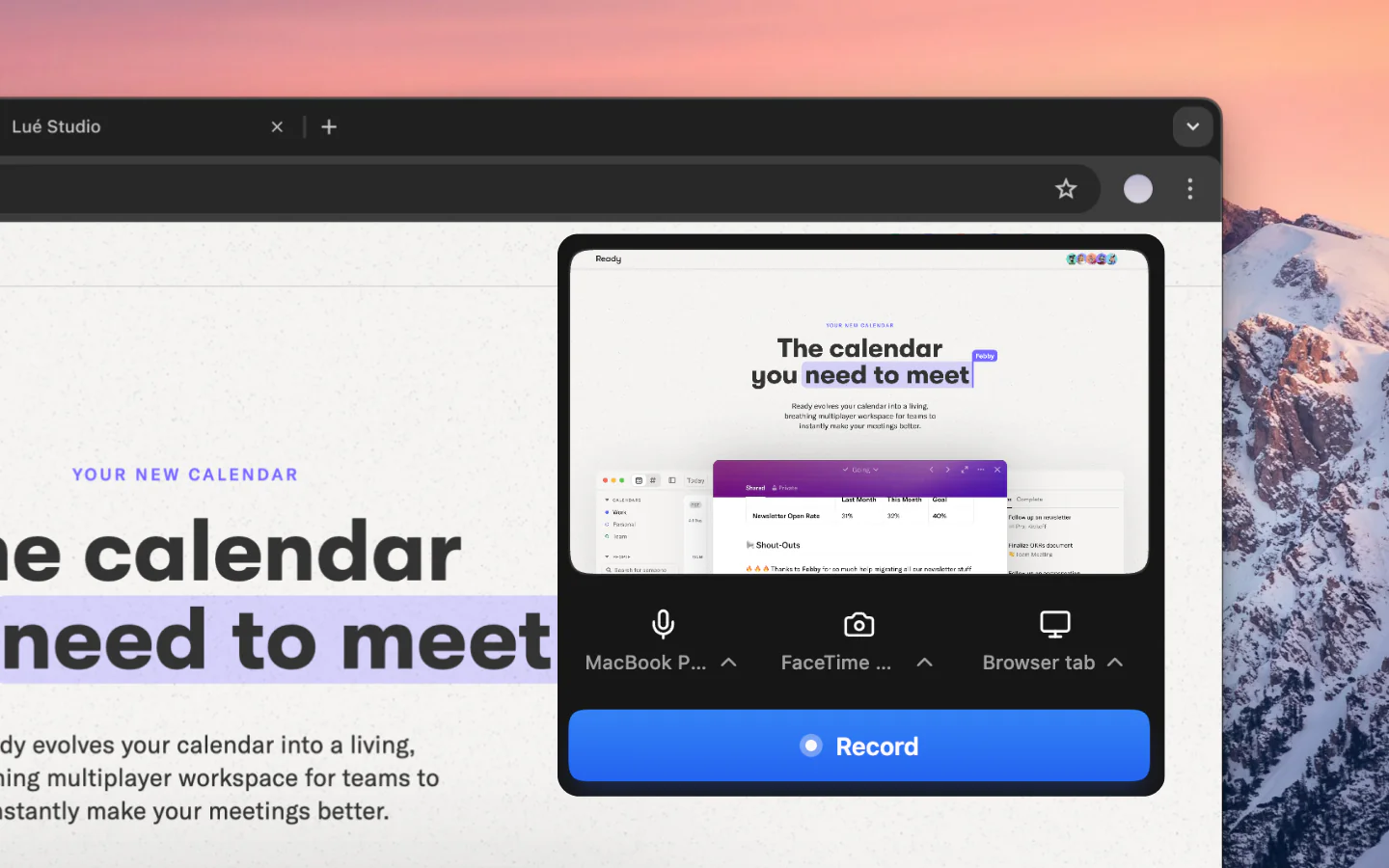
Enregistrez un onglet, une fenêtre ou tout votre écran sur Windows 10 et 11, avec votre webcam et votre micro si vous le souhaitez.
Vos enregistrements Windows sont nettoyés automatiquement : l'IA réécrit votre narration en un script propre, hésitations et digressions ne survivent pas, et des zooms fluides suivent chaque clic.
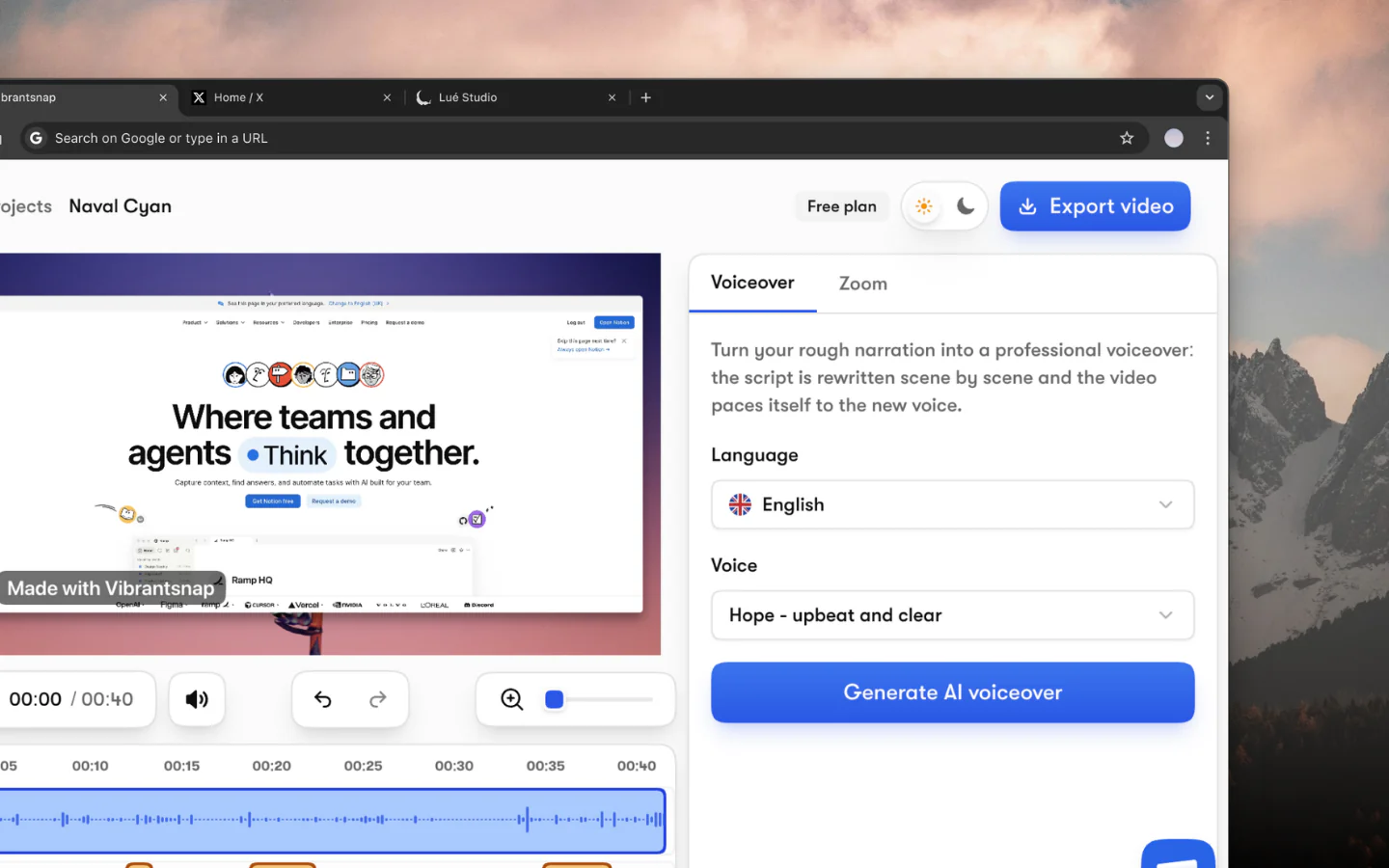
Enregistrez votre narration sur Windows, puis relisez-la avec une voix studio. Choisissez parmi 30 voix en 10 langues, et revenez en arrière quand vous voulez.
Les sous-titres sont générés automatiquement à partir de votre narration et restent entièrement modifiables et personnalisables, mot par mot.
Posez votre enregistrement sur un fond d'écran ou une couleur unie, et passez du 16:9 au 4:5, 1:1 ou 9:16 sans réenregistrer.
Suivez les vues de chaque lien que vous partagez ou intégrez. Les statistiques de lien sont incluses à partir de Pro.
Comment ça marche
Ajoutez l'extension Vibrantsnap à Chrome sur Windows et lancez l'enregistrement. Capturez un onglet, une fenêtre ou tout votre écran, avec votre webcam si vous le souhaitez.
L'IA de Vibrantsnap réécrit votre narration en un script propre et place des zooms fluides autour de vos clics, automatiquement. Aucun montage manuel nécessaire.
Relisez votre narration avec l'une des 30 voix studio, en 10 langues. Les sous-titres sont générés automatiquement et restent modifiables mot par mot.
Partagez votre enregistrement soigné via un lien ou intégrez-le sur votre site. Suivez les vues avec les statistiques de lien intégrées.
Comparaison
Windows est livré avec deux options d'enregistrement intégrées : l'Outil Capture d'écran (Windows 11) et Xbox Game Bar. Les deux capturent des séquences brutes, mais aucun ne les monte pour vous. OBS Studio est une alternative gratuite avec plus de contrôle, mais la courbe d'apprentissage est importante.
Vibrantsnap réunit l'enregistrement et le montage IA dans un seul outil. Enregistrez un onglet, une fenêtre ou tout votre écran sur Windows, puis laissez l'IA réécrire votre narration en un script propre, la lire avec une voix studio et placer des zooms fluides autour de vos clics. Aucun montage sur timeline, aucun réglage d'export à configurer.
Game Bar se limite à l'enregistrement de fenêtres d'applications, plafonne à 1080p et n'offre aucune fonction de montage. Vibrantsnap prend une autre approche : il enregistre votre écran, puis ajoute une voix off studio, des sous-titres et des CTA par-dessus, et exporte en 1080p ou 4K.
La plupart des enregistreurs d'écran Windows sont conçus pour les joueurs. Vibrantsnap est fait pour les équipes SaaS, les fondateurs et les commerciaux qui doivent créer des vidéos de démonstration, des guides d'onboarding et de la documentation produit qui génèrent des conversions, pas simplement enregistrer du gameplay.
Learn more: Compare alternatives | Free screen recorder
Les questions que l'on nous pose le plus avant de se lancer.
Vibrantsnap est libre pour enregistrer et monter, sans carte bancaire. Vous vous abonnez pour exporter le fichier et pour le publier sans filigrane : Pro à 49 $/mois pour 90 min d'export 4K avec les statistiques de lien, ou Scale à 149 $/mois pour 400 min, un kit de marque et le rendu prioritaire. Business est sur devis. La voix off IA, les zooms automatiques et les sous-titres sont sur tous les plans, gratuit compris.
Vibrantsnap fonctionne dans votre navigateur et prend en charge Windows 10 et Windows 11. Vous enregistrez avec l'extension Chrome : aucune application de bureau à installer, aucune configuration de pilote.
Oui. Vibrantsnap exporte en MP4 1080p et 4K. Vos démos produit et tutoriels auront un rendu net sur tous les appareils.
Windows Game Bar ne capture que des rushes bruts. Vibrantsnap enregistre votre écran et le monte automatiquement avec l'IA : il réécrit votre narration en un script propre, le lit avec une voix studio, ajoute zooms et sous-titres, et vous donne un lien de partage avec statistiques. Vous obtenez une démo soignée, pas des rushes.
Oui. Vibrantsnap capture l'audio diffusé dans l'onglet que vous enregistrez, ainsi que votre microphone. Vous pouvez choisir d'inclure l'un ou les deux.
Non. Vous choisissez quoi enregistrer au lancement : un onglet, une fenêtre ou tout votre écran. Votre enregistrement correspond toujours à ce que vous avez choisi, quelle que soit la disposition de vos moniteurs.
Rejoignez des milliers de fondateurs et créateurs qui produisent des vidéos démo générant de vrais résultats.
Sans carte bancaire - Annulez à tout moment
“Moins de montage, plus d'impact. Des vidéos de qualité qui transforment l'attention en clients naturellement.”

Healsha
Fondateur de Vibrantsnap