
How to Transform Your Voice into Professional AI Voice Over for Screen Recordings
December 29, 2025

Philippe Tedajo
Founder & Content Creator at VibrantSnap
You just recorded a perfect screen demo. The workflow was smooth, your timing was great, and you explained everything clearly.
But then you listen back... and your audio sounds terrible.
Background noise, room echo, inconsistent volume, or maybe you just don't love how your voice sounds on recordings. This is the reality for most creators.
Here's the solution: record your voice naturally, then let AI transform it into professional-quality narration.
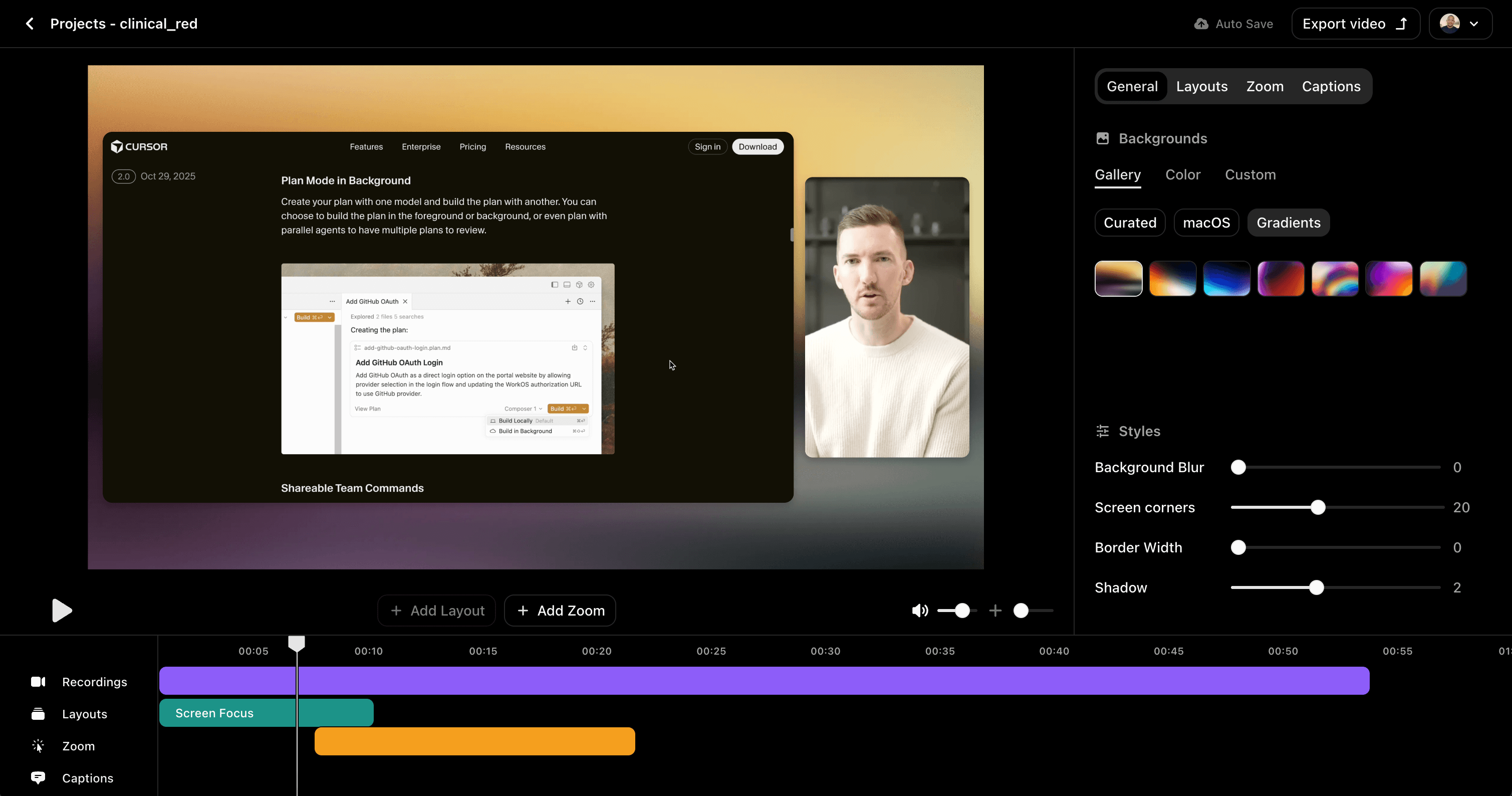
At VibrantSnap, I've worked with hundreds of SaaS founders who struggled with audio quality in their product demos. The breakthrough wasn't eliminating voice recording—it was transforming it. You keep full control over your pacing and timing while AI handles the polish.
This guide shows you exactly how it works.
The Problem with Traditional Voice Recording
Let's be honest about why voice recording frustrates so many creators:
Audio Quality Issues
- Room acoustics create echo and reverb
- Background noise (HVAC, traffic, neighbors) bleeds in
- Microphone technique affects consistency
- Post-processing skills are required
Performance Anxiety
- Speaking naturally on recordings feels unnatural
- Multiple takes to get it "right"
- Self-consciousness about accent or voice tone
- Pressure leads to stiff delivery
Equipment Barriers
- Quality microphones cost $100-300+
- Pop filters, boom arms, and acoustic treatment add up
- Learning curve for audio editing software
The result: Creators either spend hours perfecting audio, or they ship demos with subpar narration that hurts their credibility.
The AI Voice Transformation Solution
VibrantSnap takes a different approach. Instead of eliminating your voice, we transform it.
Here's how it works:
- Record naturally — Use your microphone and speak at your own pace
- Choose an AI voice — Select from professional voice options
- Automatic transformation — Your voice content is converted to the AI voice
- Perfect timing preserved — Your pauses, pacing, and emphasis transfer over
This speech-to-speech technology means you control what you say and when you say it. The AI handles how it sounds.
Why This Beats Text-to-Speech
Traditional text-to-speech tools require:
- Writing a script word-for-word
- Timing your script to match video
- Multiple iterations to sync properly
- Robotic delivery for complex timing
Voice transformation preserves your natural delivery:
- Speak at your own pace—the AI follows
- Natural pauses transfer to the output
- No script timing gymnastics
- Emphasis and rhythm feel authentic
Step-by-Step: Creating AI Voice Over with VibrantSnap
Here's the exact workflow for transforming your voice recordings into professional narration.
Step 1: Start a New AI Voice Over Recording
In VibrantSnap, click "Create New Recording" and select AI Voice Over mode. This tells the system you want voice transformation on your recording.
Step 2: Set Up Your Recording
You'll configure three things:
Screen Share (Required) Select which screen or window to record. This captures your product demo, tutorial, or walkthrough.
Microphone (Required) Choose your microphone from the dropdown. Any microphone works—built-in laptop mic, USB mic, or professional setup.
AI Voice (Required) Browse and preview available professional voices. Listen to samples and select one that matches your content and brand personality.
| Voice Type | Best For | Characteristics |
|---|---|---|
| Professional Male | Enterprise demos, technical content | Clear, authoritative, confident |
| Professional Female | Product walkthroughs, tutorials | Warm, approachable, articulate |
| Energetic | Marketing videos, announcements | Dynamic, engaging, enthusiastic |
| Calm/Measured | Training content, explanations | Steady, reassuring, patient |
Step 3: Record Your Demo
Click "Start Recording" and a countdown begins. Then:
- Speak naturally — Don't perform. Talk like you're explaining to a colleague.
- Control your pacing — Pause where you want emphasis or where visuals need time.
- Don't worry about audio quality — The AI transformation handles polish.
- Focus on content — Say what matters, not how it sounds.
The screen shows your microphone level so you know you're being captured clearly.
Step 4: Stop and Transform
Click "Stop Recording" when finished. VibrantSnap automatically:
- Processes your screen recording
- Sends your voice to the AI transformation system
- Converts your voice to the selected professional voice
- Merges everything into a polished video
You'll see a "Transforming your voice with AI..." indicator during processing.
Step 5: Review and Publish
Your video opens in the editor with the AI-transformed narration. The timing matches exactly what you recorded—your pauses, your pacing, but with studio-quality voice delivery.
From here, add captions, trim if needed, and publish.
Real Benefits of Voice Transformation
After working with hundreds of creators using this feature, here's what makes the difference:
Natural Timing, Professional Sound
You know your product. You know where to pause for effect, when to speed up, when to let a feature breathe. Voice transformation preserves all of that while upgrading the audio quality.
Faster Production
No re-recording because of audio issues. No hours in editing software cleaning up noise. Record once, transform, done.
Consistent Quality Every Time
The same professional voice for every video. No variation from day to day, no impact from your energy level or health.
Confidence in Delivery
Speak naturally without worrying about how you sound. The AI handles the polish—you focus on the content.
International Accessibility
Non-native English speakers get native-level pronunciation without losing their own timing and emphasis patterns.
When to Use Voice Transformation vs. Traditional Recording
Voice transformation isn't for every situation. Here's the framework:
| Use Voice Transformation When | Use Traditional Recording When |
|---|---|
| Creating product demos at scale | Building strong personal brand identity |
| Audio quality is inconsistent in your space | You have professional studio setup |
| You want professional sound without equipment | Your voice IS your brand |
| Non-native speaker wanting native pronunciation | Recording interviews or testimonials |
| Quick turnaround is critical | Maximum authenticity matters |
| Creating tutorials and walkthroughs | Podcast or conversational content |
My recommendation for most creators: Use voice transformation for product demos, feature announcements, and tutorial content. Reserve your natural voice for personal updates, customer stories, and relationship-building content.
Tips for Better Voice Transformation Results
The AI does the heavy lifting, but your input matters. Here's how to get the best results:
Speak Clearly
You don't need to speak perfectly, but clear articulation helps the AI understand your content. Mumbling or very fast speech may affect quality.
Use Natural Pacing
Don't rush. The AI preserves your timing, so natural pauses translate into natural output. Give important points space.
Test Your Microphone Level
Check the volume meter before recording. Too quiet and the AI has less to work with. Too loud and clipping may occur.
Preview Different Voices
Don't just pick the first voice. Listen to samples with your type of content in mind. A voice that sounds great for marketing may not fit technical tutorials.
Keep Background Noise Low
The AI can handle some noise, but starting with cleaner audio produces better results. Close windows, turn off fans if possible.
Common Questions About AI Voice Transformation
Q: Will it sound like me?
No—it will sound like the professional AI voice you select. Your content, timing, and pacing transfer, but the voice is different. This is intentional for consistent, professional output.
Q: How long does transformation take?
Typically 30-60 seconds for a 2-3 minute video. You'll see progress during processing.
Q: What if I make a mistake during recording?
Just keep going or restart. You can trim in the editor after transformation, or re-record entirely. Voice transformation doesn't require perfect takes.
Q: Does it work with any microphone?
Yes. Built-in laptop mics, USB mics, professional setups—all work. Better input audio can produce marginally better output, but even basic mics work well.
Q: What languages are supported?
Currently optimized for English. The AI voices speak English with native pronunciation, regardless of your accent.
Q: Is this legal to use commercially?
Yes. VibrantSnap includes commercial licensing for all AI voices. Use them in marketing, sales, product demos, and customer-facing content.
The VibrantSnap Workflow
Here's the complete workflow from idea to published video:
Planning (10-15 minutes)
- Outline what you'll demonstrate
- Identify key points to emphasize
- Plan your screen flow
Recording (5-15 minutes)
- Set up screen share, mic, and AI voice
- Record your walkthrough, speaking naturally
- Don't worry about audio perfection
Transformation (1-2 minutes)
- Click stop—automatic processing begins
- Voice transformed to professional AI
- Video ready in editor
Polish (5-10 minutes)
- Add captions
- Trim if needed
- Export and publish
Total time: 30-45 minutes for a polished, professional demo. Compare that to traditional workflows requiring multiple recording attempts, audio editing, and post-processing.
Why This Approach Works
The fundamental insight: you know your content better than any script.
Text-to-speech forces you to write a script, then time it to your video, then adjust for natural flow. Voice transformation lets you do what you'd naturally do—talk through your product—while AI handles the audio quality.
This preserves:
- Your natural emphasis patterns
- Your instinctive pauses
- Your timing with visual elements
- Your expertise and personality
While upgrading:
- Audio clarity and quality
- Voice consistency
- Professional polish
- Background noise removal
Getting Started
Ready to try voice transformation for your next demo?
- Sign in to VibrantSnap
- Click "Create New Recording"
- Select "AI Voice Over" mode
- Choose your screen, mic, and AI voice
- Record naturally—let AI handle the rest
The first time you hear your walkthrough with professional AI voice, you'll understand why this changes everything.
Your expertise. Professional delivery. No audio headaches.
👉 Try VibrantSnap Free — Transform your voice recordings into professional AI narration. Record naturally, sound professional.
About the Author
Philippe Tedajo is the founder of VibrantSnap, where he helps creators produce professional product demos without traditional production barriers. After struggling with audio quality in his own videos, he developed VibrantSnap's voice transformation technology to solve the problem for good. His insights come from hands-on experience and working directly with hundreds of founders on their video content.
You might also like

Create Your Own Videos with VibrantSnap
Explore screen recording solutions tailored for your profession
For Online Courses
Create professional online courses with 4K screen recording, AI captions, and automatic zoom. Perfect for educators building engaging video content.
For Content Creators
Screen recorder for YouTube, TikTok, and Instagram creators. Create viral tutorials with 4K quality, vertical video, and AI captions.
For Software Teams
Professional screen recording tools for software teams. Create code reviews, feature demos, and technical documentation with cinematic quality.
For Product Marketing
Create product demo videos and SaaS demos that convert. 4K screen recording with AI editing and intelligent zoom for marketing teams.
For Teachers
Create engaging classroom videos and tutorials. Professional screen recording tools designed specifically for teachers and educational content.
For Agencies
Streamline agency video production with professional screen recording tools. Create client presentations, campaign content, and product demo videos efficiently.